Pixel Art Procreate Brushes
Updated October 2026
Pixel art Procreate brushes for iPad: 8-bit, 16-bit, retro game art. Includes setup tutorial. Free & premium downloads.
Brusher app for iPad & iPhone
200+ sets in the Brusher app, pixel included — plus free brushes and free tools.
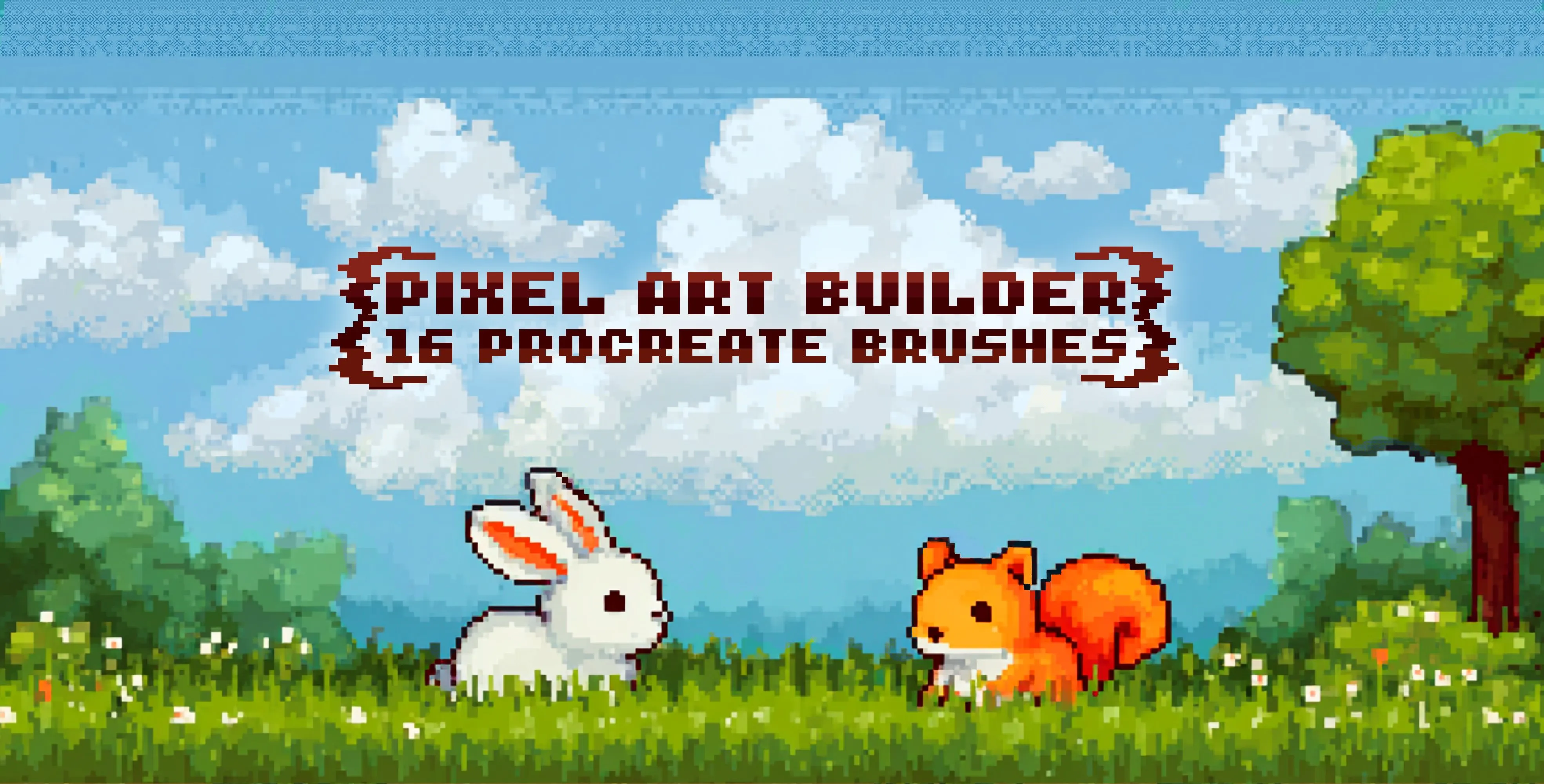
Brusher has 1 pixel Procreate brush pack — 8-bit, 16-bit, retro game — each a native .brushset that installs into Procreate in one tap on iPad.
Pixel art Procreate brushes let you draw crisp, aliased pixels on the iPad without fighting Procreate's smooth defaults. A proper pixel brush lays down hard-edged square dots that snap to a grid, so a single tap paints exactly one clean pixel — the difference between real pixel art and a photo of pixel art. Our pack pairs a square hard-edge brush with a couple of dither and fill helpers so you can outline, shade and export a sprite entirely inside Procreate.
Pixel Art Procreate Brushes
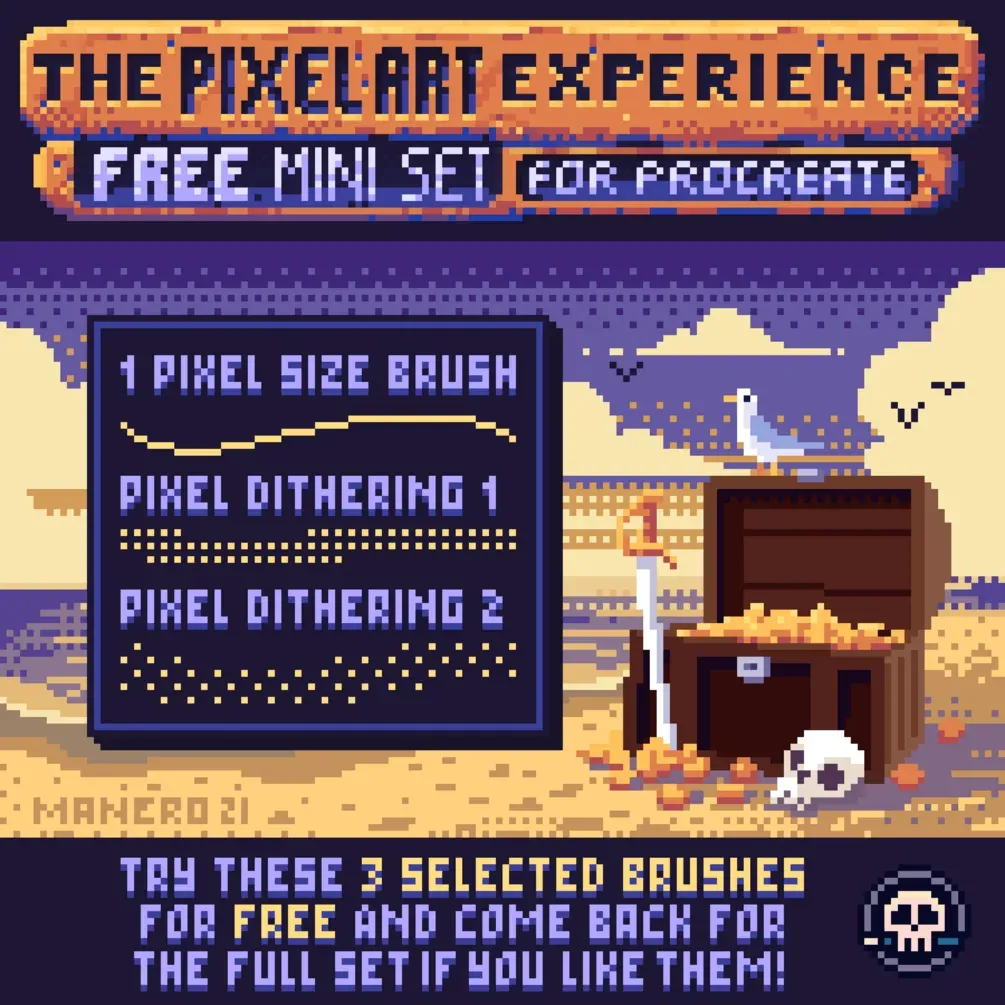
Free from independent artists
Free pixel sets by other artists — downloaded from the artist's own page.
 Scan → get the app
More brush packs in the app
The site is still filling up — the Brusher app already has the complete 200+ set library, with more pixel packs, plus free brushes and free tools.
Popular pixel styles
How to draw pixel art in Procreate
Set Procreate up correctly once and pixel art becomes fast and clean. This walkthrough covers canvas, brush and export for a crisp sprite.
- 1
Make a small canvas
Create a canvas at your true sprite size — 64×64 or 128×128 px. Small resolution is what forces the chunky pixel look; you'll zoom in to work.
- 2
Turn off interpolation
In Canvas → Settings, ensure the sprite isn't being smoothed on resize. Working at native resolution keeps every pixel a hard square.
- 3
Pick a square pixel brush
Select a hard-edge square brush and set StreamLine to zero so strokes stay blocky and aliased instead of being smoothed into curves.
- 4
Block the outline
Zoom in and draw the sprite's silhouette one pixel at a time. Keep the line a single pixel wide for a clean, readable outline.
- 5
Flat-colour and dither
Fill your shapes with flat colours, then use a dither brush to blend between two shades for gradients that stay pixel-perfect.
- 6
Export at native size
Resize the canvas up using nearest-neighbour (no interpolation) so pixels stay sharp, then export a PNG for game engines or social.
Pixel Art brushes — FAQ
What's the best canvas size for pixel art?+
Work at your true sprite resolution — commonly 32×32, 64×64 or 128×128 pixels — and zoom in, rather than drawing large and shrinking down. Small canvases force the chunky, aliased pixel look; large ones fight it.
How do I disable anti-aliasing for crisp pixels?+
Use a hard-edge square brush and set its StreamLine to zero so strokes aren't smoothed into curves. Combined with a small native-resolution canvas, that gives you clean aliased pixels instead of soft, blurred edges.
Can I export at native pixel size?+
Yes. Resize the canvas up using nearest-neighbour interpolation (Procreate keeps edges hard when you scale without smoothing) and export as PNG. Each pixel becomes a clean block, ready for a game engine or crisp display.