How to Import Brushes into Procreate
By the Brusher team — we make the brushes, so we know how they install · Updated July 2026
Importing brushes into Procreate is usually a one-tap job, but there are three ways to do it depending on where your file lives — and Procreate can even import Photoshop .abr brushes. Whether you're adding a full .brushset or a single .brush, here's every method plus how to find brushes that seem to vanish after importing.
Going the other way? Use our free tool to convert Procreate brushes to Photoshop — it runs right in your browser.
If a Photoshop brush imports but comes out broken, our free .abr to Procreate converter pulls the raw brush tip out as a clean stamp — also in the browser, nothing uploaded.
You'll need
- ✓Procreate on your iPad
- ✓A .brushset, .brush or .abr file saved to Files
Method 1: Tap to import
The quickest way. Open the Files app, find your .brushset or .brush, and tap it once — iPadOS hands it to Procreate, which imports it instantly and drops it at the top of your brush library. Nothing else needed.
Method 2: Drag and drop
Open Procreate and Files side by side in Split Screen. In Procreate, open the brush library so the panel is visible, then drag the file from Files and drop it onto the panel.
A .brushset drops in as a new named set; a single .brush drops into whichever set you release it over. Drag-and-drop is the fastest way to import several files in a row.
Method 3: Import from within Procreate
You can pull a set straight into your library without leaving Procreate — handy when the file is already saved in your Files app.
- 1
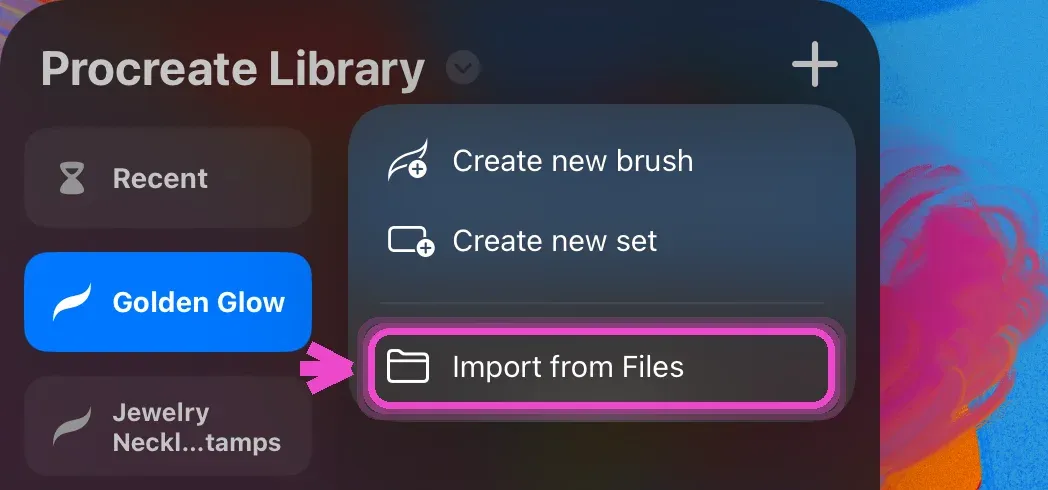
Tap + and choose Import from Files
Open the brush library, tap the + at the top-right, and pick Import from Files from the menu.
- 2
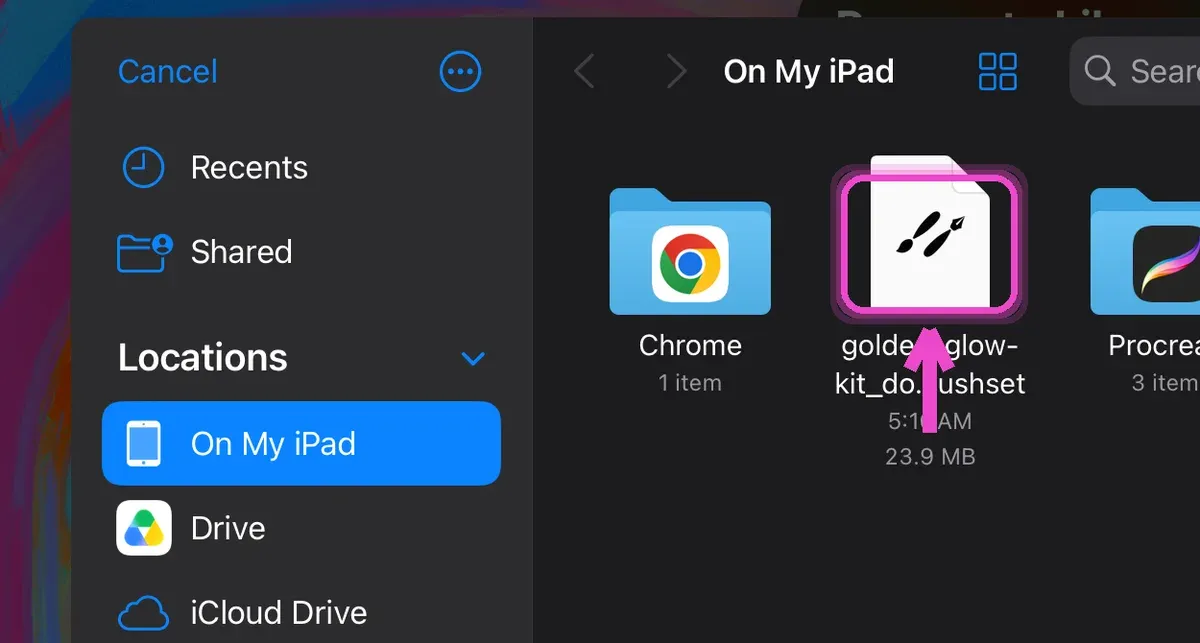
Select your brush file
In the Files browser, tap your .brushset (or .brush). Procreate imports it and drops the new set at the top of your library.
Importing .abr (Photoshop) brushes
Procreate can import Adobe Photoshop .abr brush files directly — handy if you're moving over from desktop or bought a pack made for Photoshop. Save the .abr to your Files app and tap it, or drag it into the brush library exactly like a .brushset.
Procreate converts the .abr into its own brushes on import. Simple stamp and texture brushes come across well; very complex Photoshop brushes that rely on Photoshop-only engines may not translate perfectly, so check them on a canvas after importing.
If one does come across badly — faint, flattened, or barely marking the canvas — the shape itself is usually still fine; it's the translated settings that broke. Our free .abr to Procreate converter skips that translation and hands you the raw brush tip as a clean stamp instead, which you can then set up yourself in Brush Studio.
Can't find your imported brushes?
If a brush imported but you can't see it, it's usually in one of two places. A single .brush gets added to the set that was open when you imported it — scroll that set to the bottom to find it. A whole .brushset appears as a new set at the top of the library, so scroll all the way up. Procreate's official guide to importing brushes lists the file types it accepts, which rules out a bad file fast.
Still missing? Confirm the file wasn't a .zip (extract it in Files first), and that Procreate is current. Once found, press and hold to drag the set to a more convenient spot in your library.