How to Download Procreate Brushes
By the Brusher team — we make the brushes, so we know how they install · Updated July 2026
Downloading Procreate brushes takes less than a minute once you know where the file goes. Brushes come as a .brushset (a whole named collection) or a single .brush file, and when you download one on an iPad it lands in the Files app under Downloads. From there a single tap sends it into Procreate.
This guide covers downloading straight to your iPad, downloading on a Mac or PC and moving the file across, and what to do when a brush arrives as a .zip — plus tips and answers to the questions people ask most.
You'll need
- ✓An iPad running Procreate
- ✓The .brushset or .brush file (or its download link)
- ✓A stable internet connection
Download Procreate brushes on iPad
The fastest route is to download directly on the iPad you paint with. Everything happens in Safari and the Files app — no computer needed.
- 1
Tap the download button
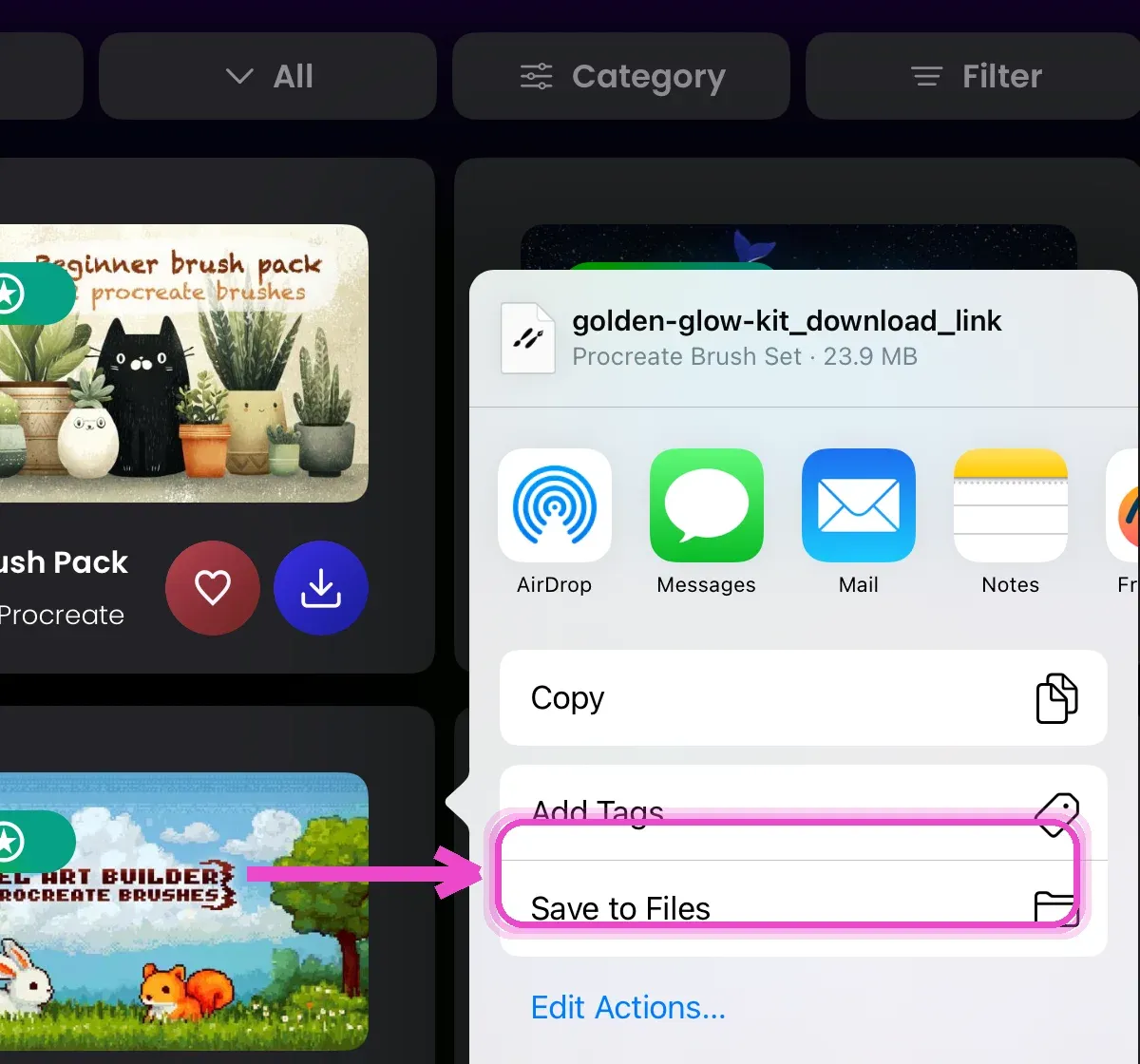
Open the pack in the Brusher app or your browser and tap the download / share button, then choose Save to Files so the .brushset lands in your Files app.
- 2
Find it in the Files app
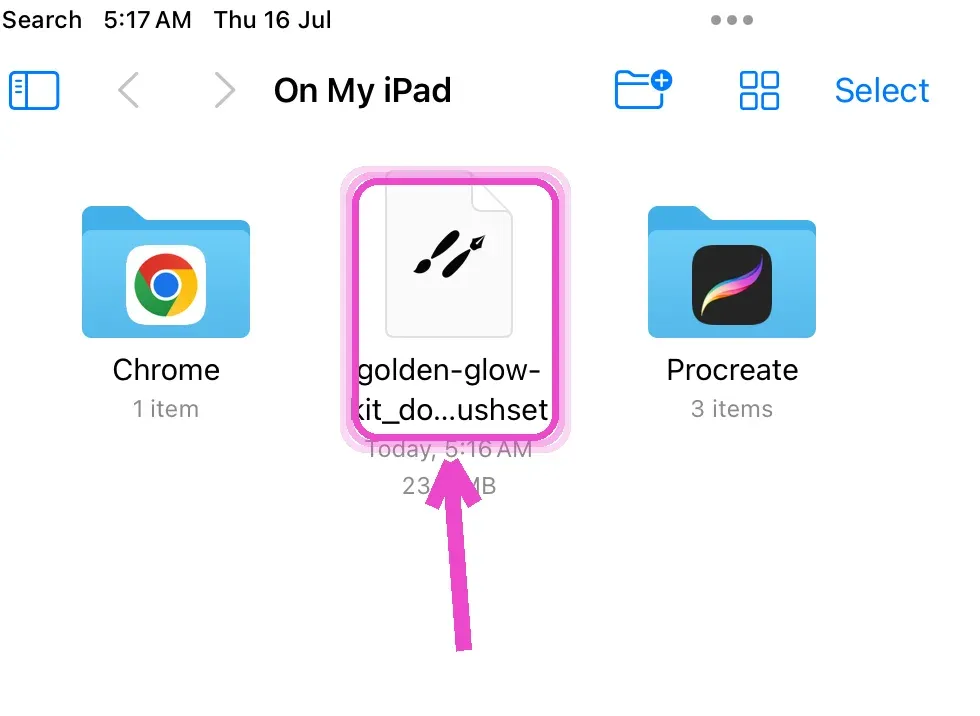
Open the Files app and go to where you saved it — your .brushset is sitting there, showing its size and ready to install.
- 3
Tap the .brushset file
Tapping the file hands it straight to Procreate, which imports the whole set automatically. You don't need to open Procreate first.
- 4
Open your brush library
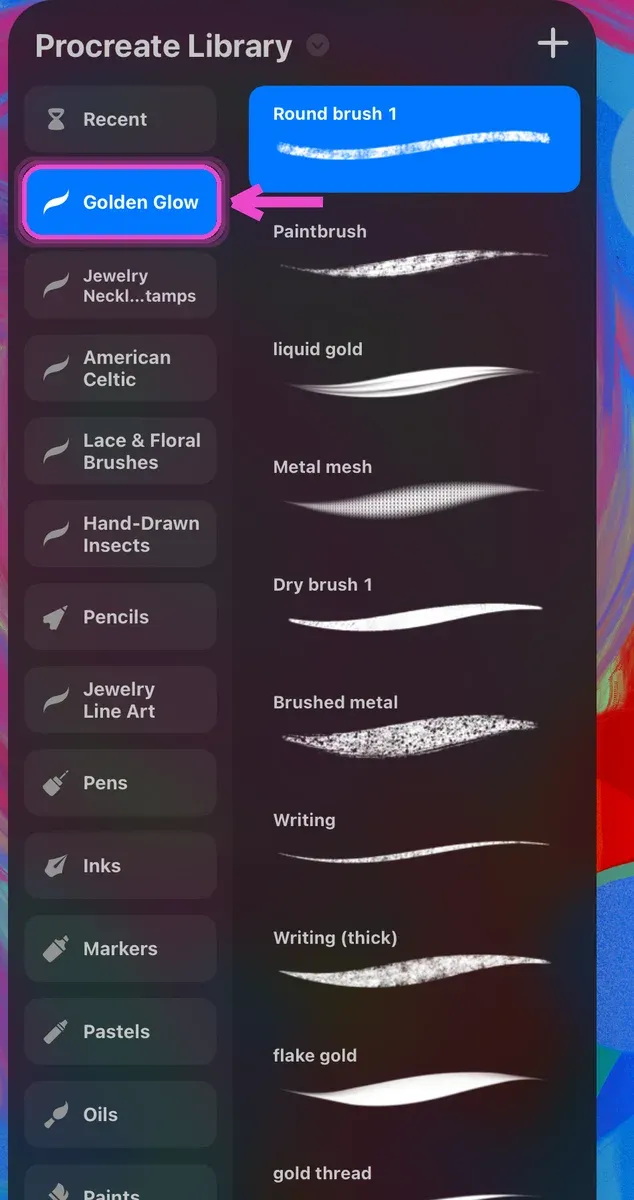
Launch Procreate, tap the brush icon at the top-right, and your new set appears at the top of the brush menu — ready to paint.
Download from a Mac or PC and move it to your iPad
Plenty of brush stores are easiest to browse on a desktop, and many packs are bought on a computer. If your file is on a Mac or PC, you just need to get it onto the iPad — the import step is identical once it's there.
AirDrop (Mac): right-click the .brushset, choose Share → AirDrop, and send it to your iPad. Accept it on the iPad and choose to save it to Files, then tap it to import.
iCloud Drive or Google Drive: upload the file to your cloud from the computer, open the same Drive or the Files app on the iPad, and tap the file to open it in Procreate. This is the most reliable route on a Windows PC.
Email or a messaging app: send the file to yourself, open the attachment on the iPad, and save it to Files. Any method that gets the .brushset into the iPad's Files app works — the last step is always the same tap.
What to do if it downloads as a .zip
This is the number-one snag: you tap a file, but instead of installing it arrives as a .zip and nothing opens in Procreate. That's normal — many sellers bundle several brush sets (and bonus files) into one zip to keep the download small. You just need to unzip it first. Procreate's own documentation on importing brushes covers the supported file types if you want to check a download before opening it.
- 1
Find the .zip in Files
Open the Files app and go to your Downloads folder. The file will show a zipper or folder icon and end in .zip.
- 2
Tap once to extract
Tap the .zip file a single time. iPadOS unpacks it in place, creating a new folder with the same name right beside it.
- 3
Open the new folder
Tap the extracted folder to see what's inside — you're looking for the .brushset (or .brush) files.
- 4
Tap the .brushset to import
Tap each .brushset inside and it opens in Procreate, exactly as a direct download would. Repeat for every set in the folder.
Tips for downloading brushes smoothly
- 💡Keep Procreate updated — an out-of-date app can refuse to open newer .brushset files. Check the App Store before troubleshooting anything else.
- 💡Make sure you have free storage. A large pack with hundreds of brushes needs room in both Files and Procreate to import cleanly.
- 💡Only download from sources you trust. A real brush file is always a .brushset, .brush or a .zip containing them — never an .exe or an app.
- 💡Download over Wi-Fi, not cellular, for big packs, and let the file finish before tapping it, so you don't try to open a partial download.
- 💡Organize as you go: rename and reorder your imported sets in Procreate so a growing library stays easy to navigate.