Fix Procreate's Smudge Brush in Three Settings
By the Brusher team — brush-makers & digital artists · Updated September 2026
If your soft shading comes out streaky — ridges where strokes overlap, a muddy smear where you wanted a gradient — the brush is usually not the problem. The smudge tool is. Procreate's default smudge drags far too much colour with every pass, so instead of easing two tones together it pushes one into the other. Three settings on a duplicated Soft Brush turn it into something you can actually control.
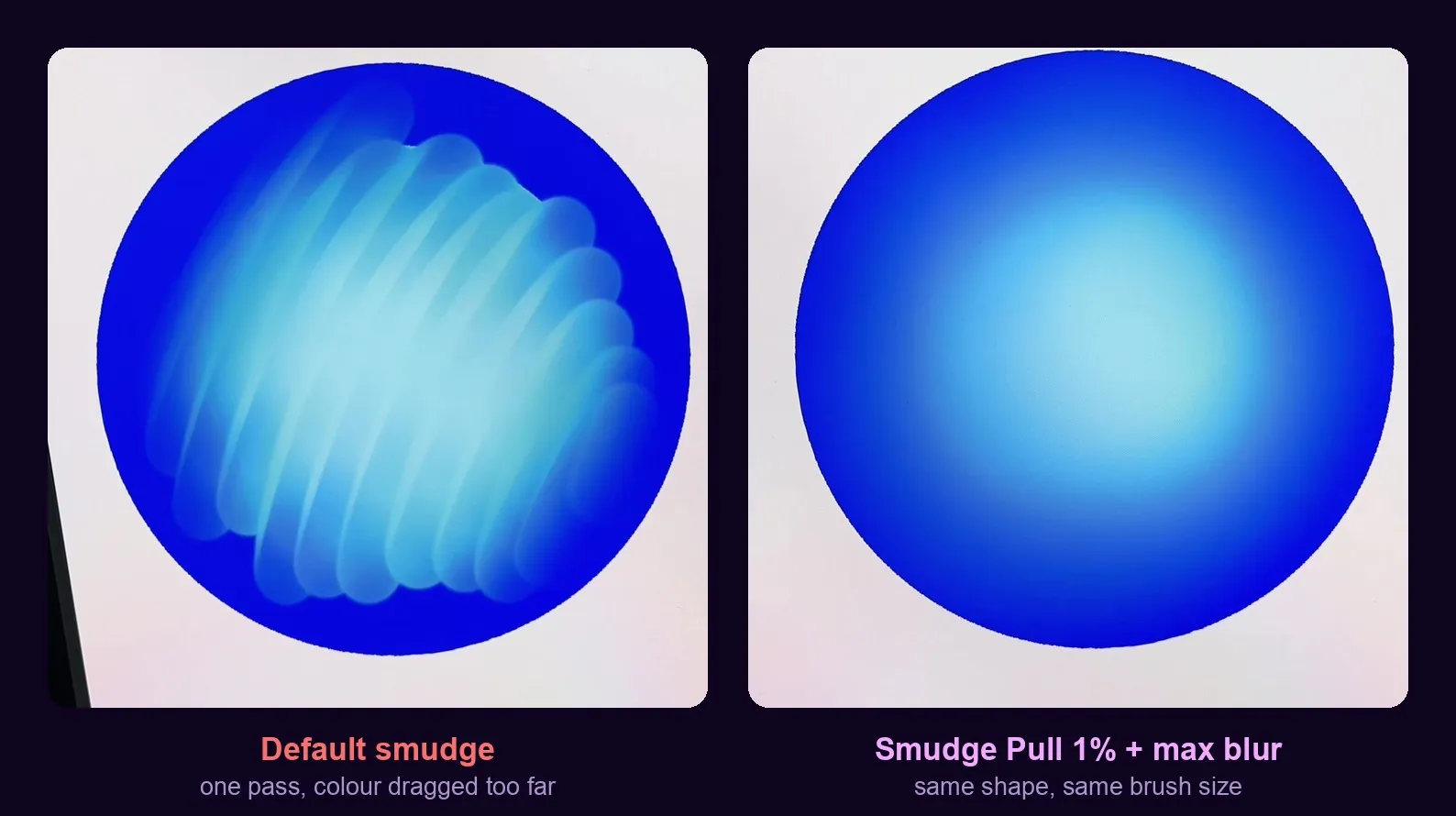
Why the default smudge fights you
Procreate's smudge tool doesn't have settings of its own. It borrows whatever brush you have selected and smears with it, which means the smudge behaves exactly as that brush's blending settings tell it to. Pick up the default and you inherit a setup built for pushing paint around, not for softening an edge.
The symptom is recognisable: you make one pass to soften a shadow and the colour travels much further than you wanted. You correct it with another pass, that one overshoots too, and after a few strokes the gradient has turned into a set of banded ridges. Each stroke is doing too much, so every correction needs another correction.
That is a settings problem, not a skill problem. You can drag the same tool across the same shadow all day and it will keep overshooting, because the amount of colour it moves per stroke was decided before you touched the canvas.
The three settings that fix it
Open your brush library and go to the Airbrushing set. Find Soft Brush and duplicate it — swipe left on the brush and choose Duplicate. Work on the copy, never the original: Procreate's stock brushes are worth keeping intact, and you will want to compare against the default later.
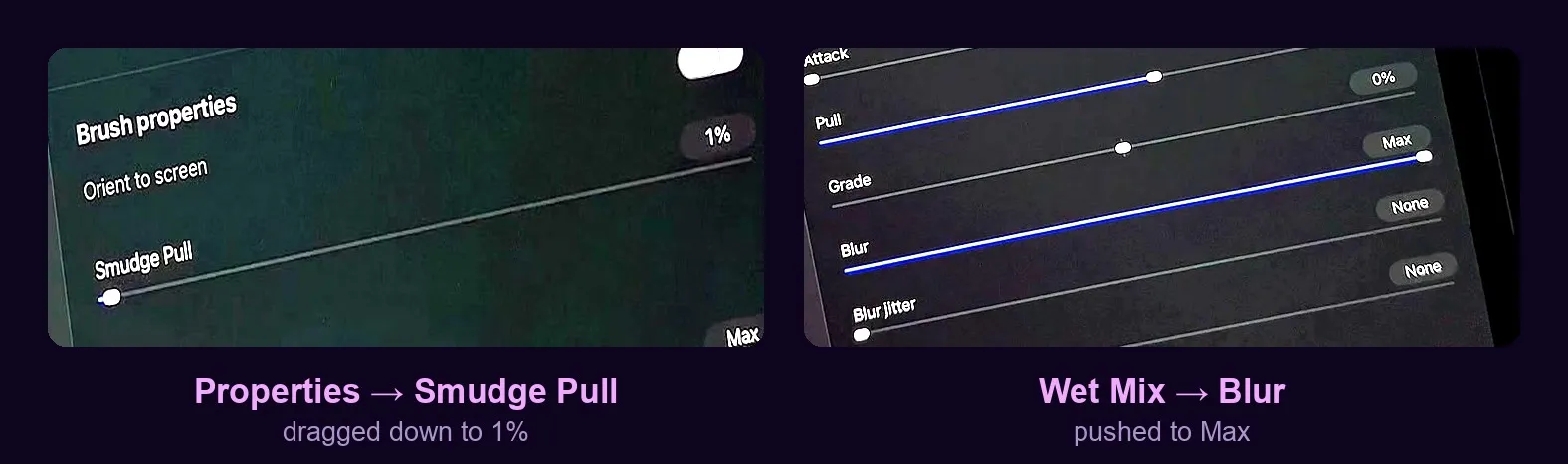
Tap the duplicate to open Brush Studio, go to Properties, and drag Smudge Pull down to roughly 1 per cent. This is the setting that does most of the work, and the number is deliberately extreme — you are asking each stroke to move almost nothing.
Then open Wet Mix and push Blur all the way to the maximum. Where Smudge Pull decides how far colour travels, Blur decides how softly it lands. Together they turn a shove into a nudge.
That's the whole recipe. Treat the numbers as a starting point rather than gospel — one per cent suits soft portrait shading, and you may want a little more pull for larger areas or rougher textures. Change one at a time so you can tell which one moved the result.
Why those numbers work
It helps to know what you're trading. Smudge Pull governs how much colour each stamp picks up and carries along the stroke. At a high value, one pass relocates paint across a wide distance — useful for genuinely moving a shape, disastrous for easing two tones together. Near zero, the same stroke barely transports anything; it mostly averages the colours it passes over.
That's exactly what blending is. A gradient isn't paint being moved from one place to another, it's neighbouring values being averaged until the seam between them disappears. Low pull lets you do that in many light passes instead of one heavy one, and many light passes is what gives you control.
Blur is the softener on top. Pushed to the maximum, each stamp diffuses rather than deposits, so the averaging happens without leaving the hard leading edge that makes smudged work look smeared. Low pull decides how far, max blur decides how gently.
The practical consequence is a change in working habit: you stop trying to land the blend in one confident stroke and start building it up. Short strokes, light pressure, repeated over the seam. It feels slower for about a minute and then it feels like control.
Where this matters most
Anywhere two tones have to meet without a visible join. Skin is the obvious one — the transition from lit cheek to shadow is the single place where streaky blending ruins an otherwise finished portrait. Hair benefits for the same reason, especially where a highlight has to melt into the base colour rather than sit on top of it.
It also matters for anything soft and volumetric: clouds, fabric folds, the falloff around a light source. Any time you catch yourself thinking «this should look round and it looks banded», the smudge setup is the first thing to check.
What it won't fix is a blend that's fighting the wrong colours. If your shadow is the same hue as your midtone only darker, no amount of careful smudging will make it look like light — that's a colour choice, and it needs solving on the palette, not with the smudge tool.
Compare it against the default
Before you trust the new brush, spend thirty seconds proving it to yourself. Fill a circle with a flat colour, drop one soft highlight on it, then blend the edge twice: once with the default smudge, once with your duplicate. Put them side by side.
The difference is not subtle, and seeing it once is what makes the habit stick — you'll stop reaching for the default without having to remember why. Keep the tuned copy in your own set so it travels with you between drawings rather than living in the Airbrushing folder where you'll forget it exists.