Skip to content
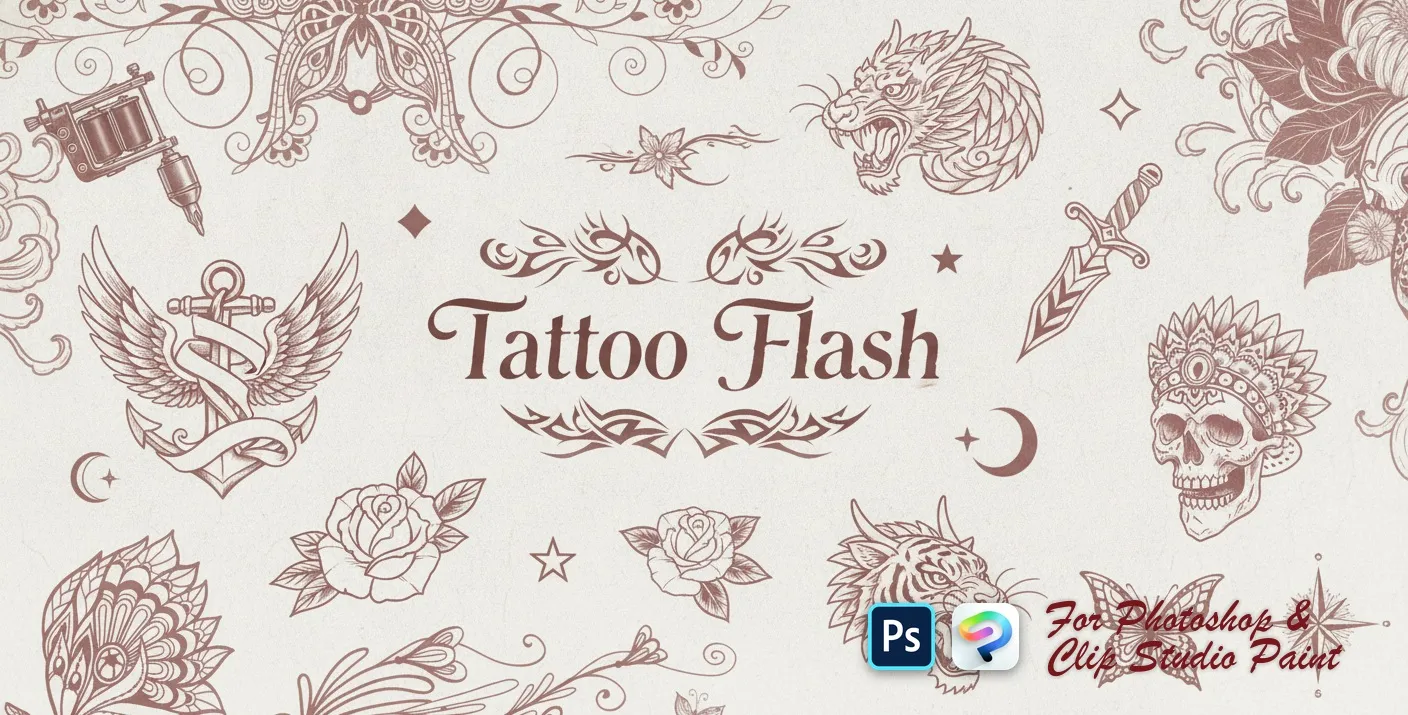
Tattoo Flash Photoshop & Clip Studio Paint brush set cover
.abr · PC & Mac Tattoo

Tattoo Flash Photoshop & Clip Studio Paint Brushes

B by the Brusher team

A collection of tattoo flash elements for designing bold ink-style art and body designs. Compatible with Adobe Photoshop CC 2020+.

Brushes
74
Works with
Photoshop & Clip Studio Paint
Download free — 74 brushes

Free download · one .abr file · works in Photoshop & Clip Studio Paint · email required

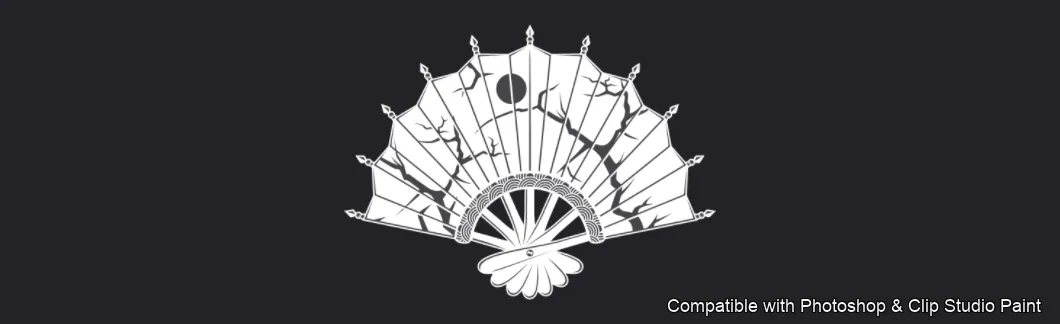
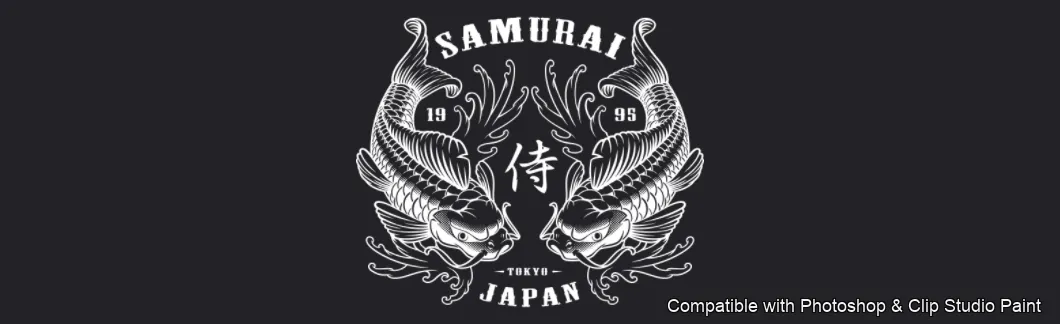
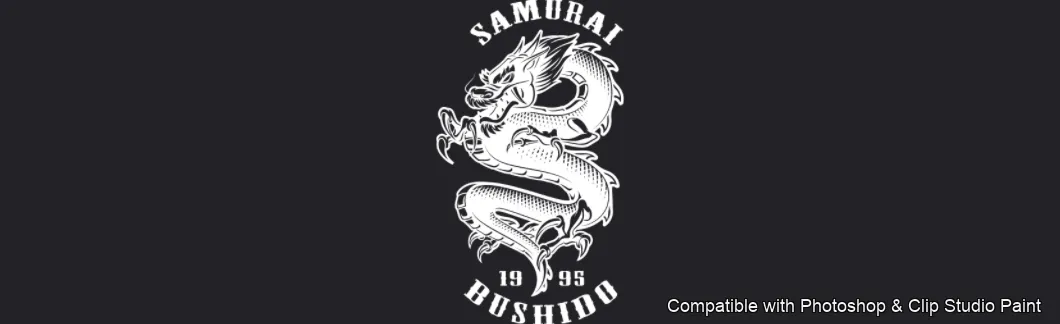
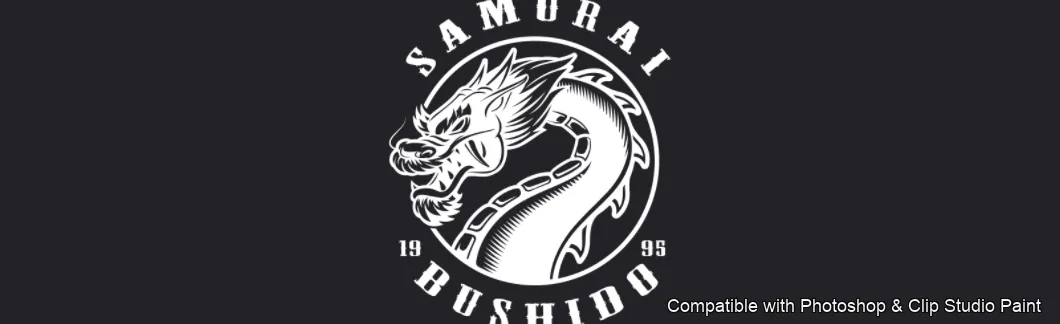
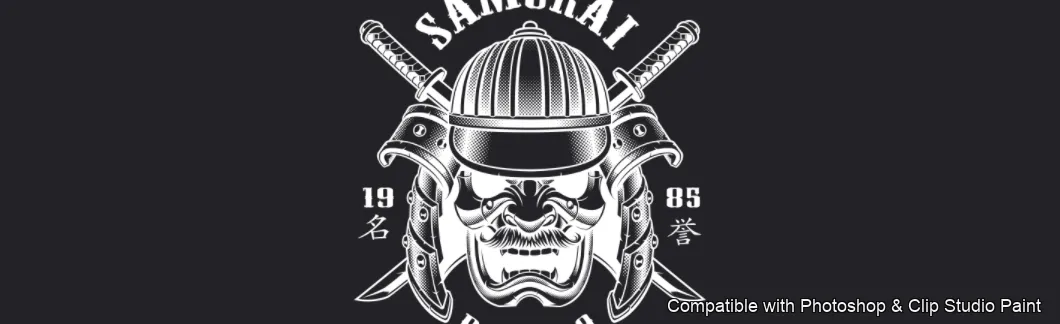
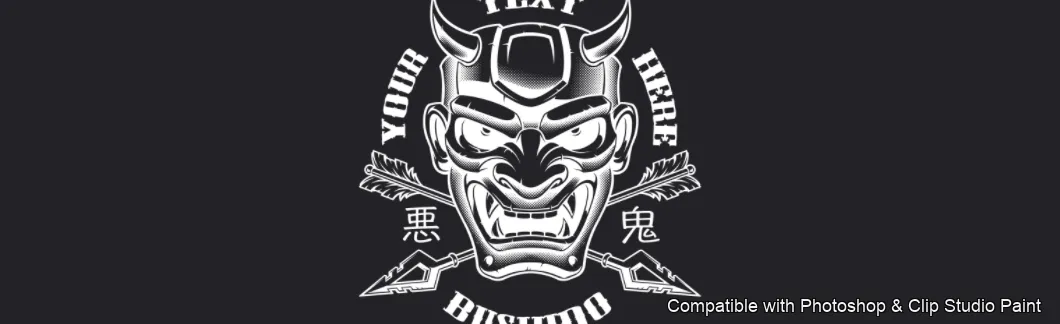
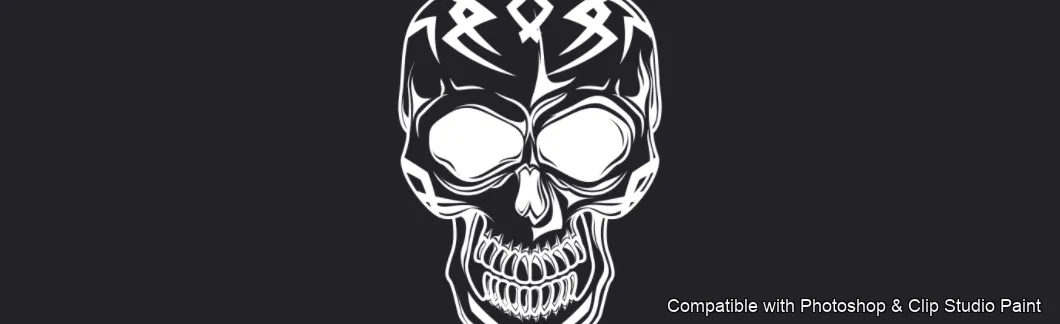
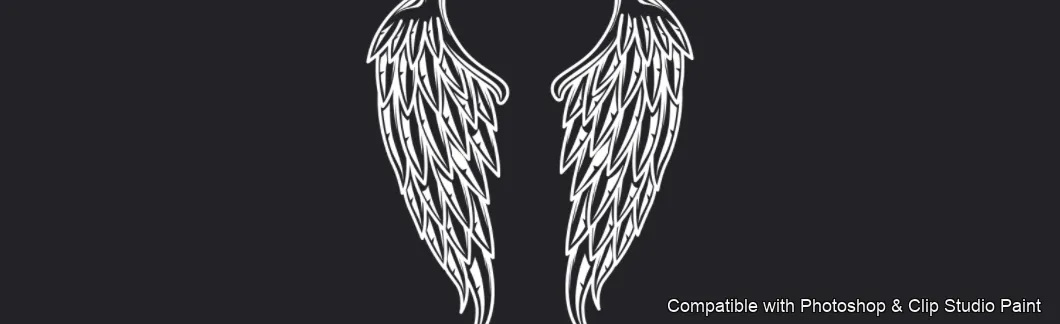
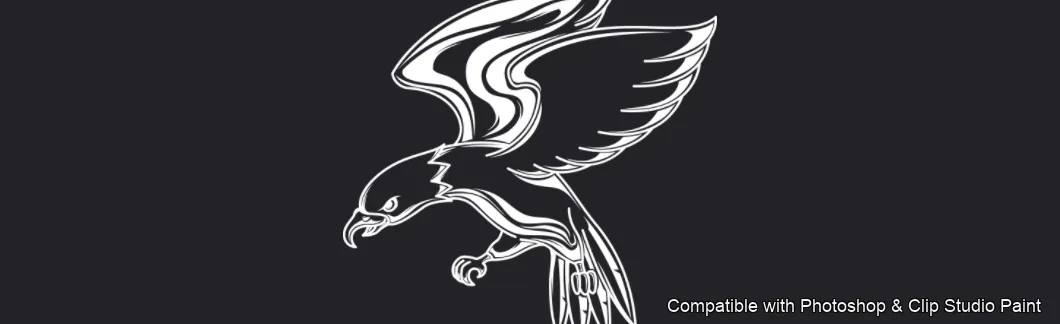
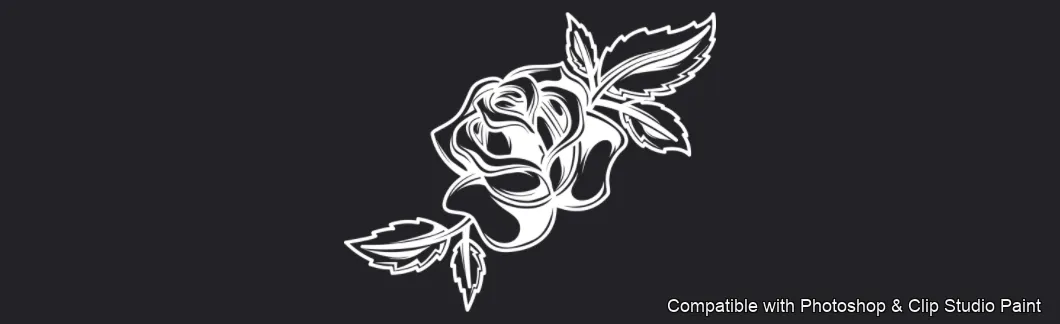
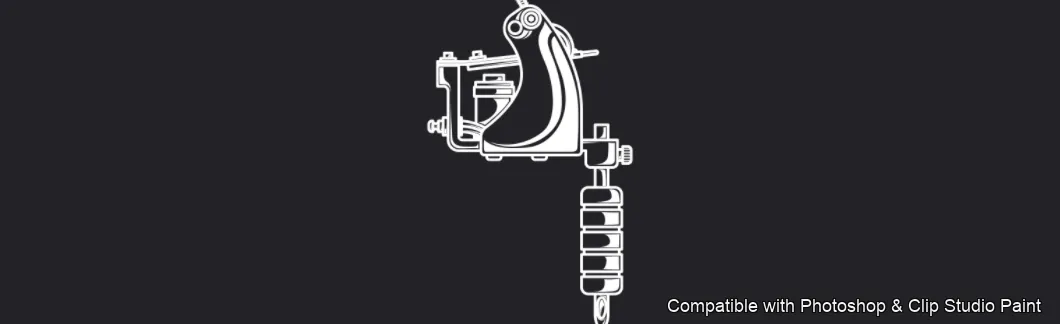
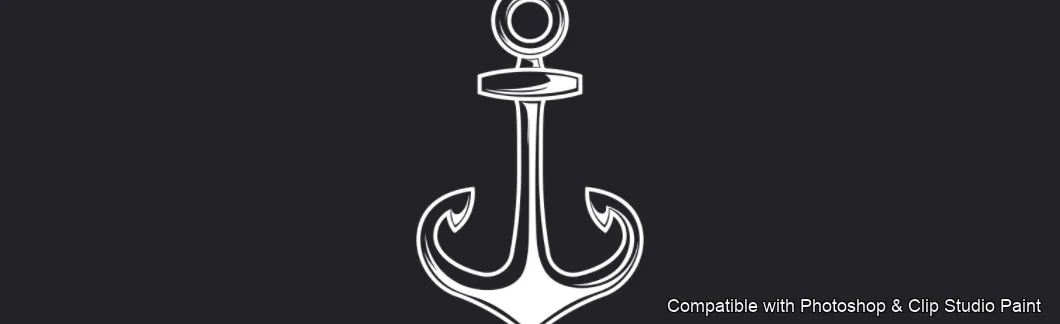
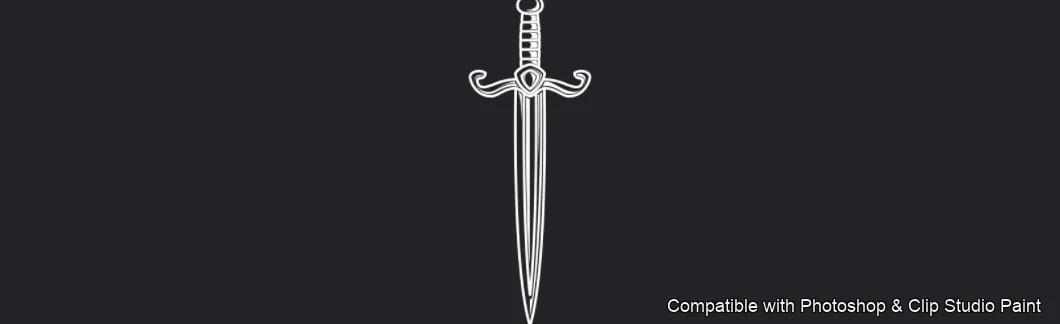
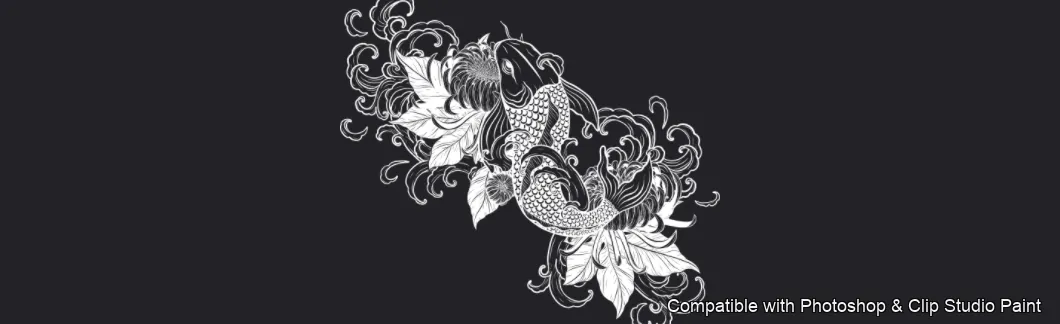
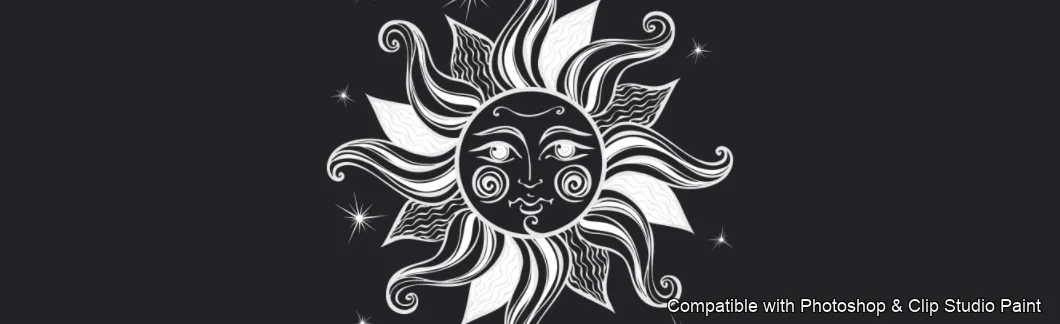
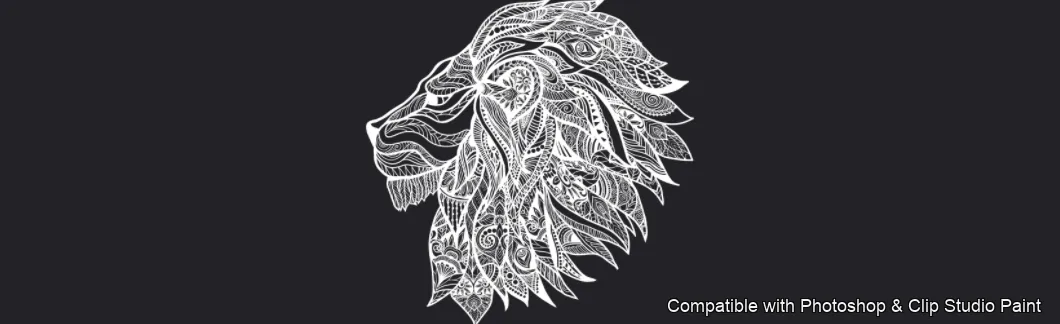
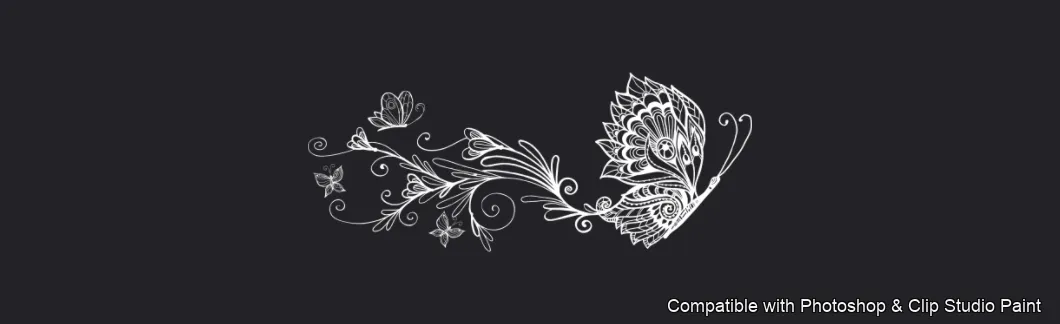
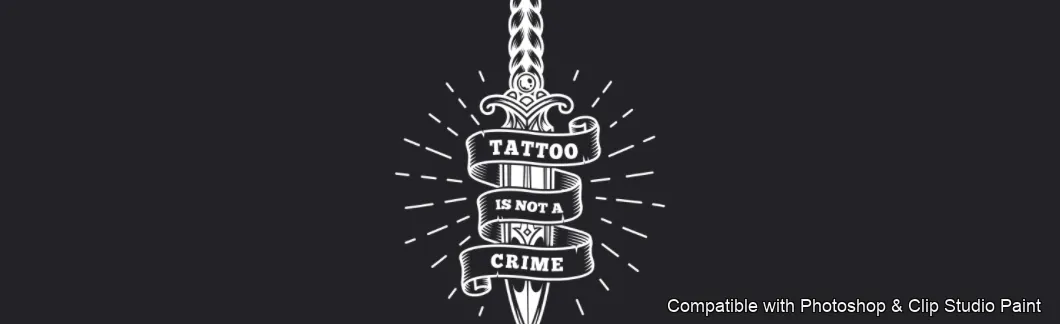
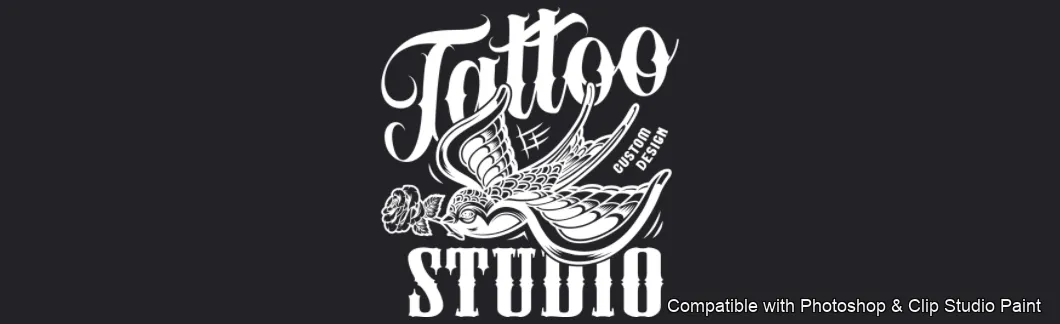
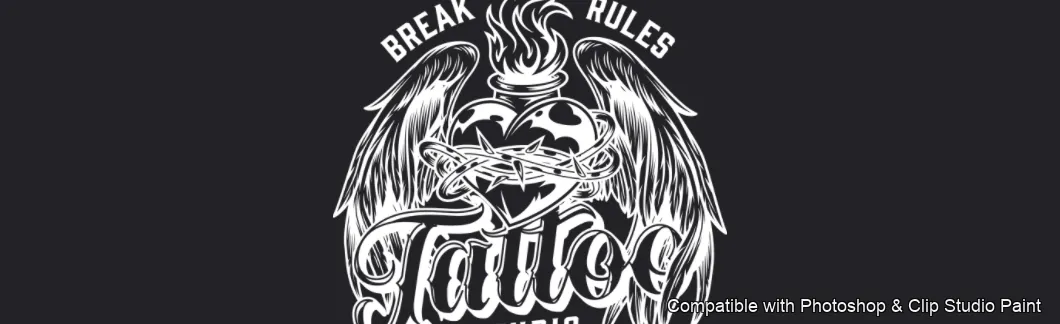
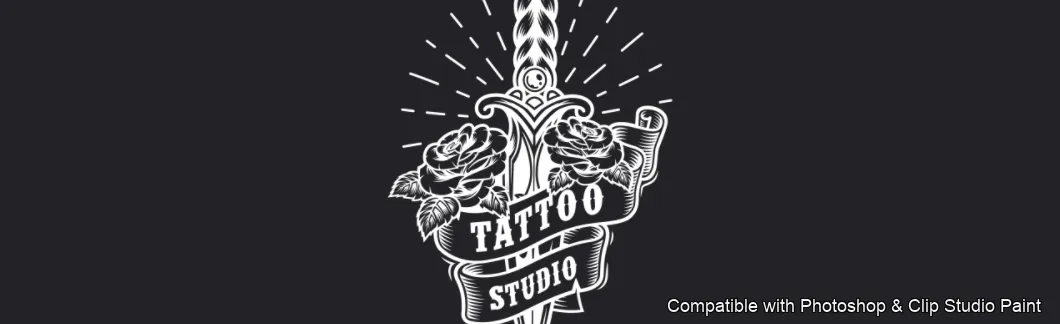
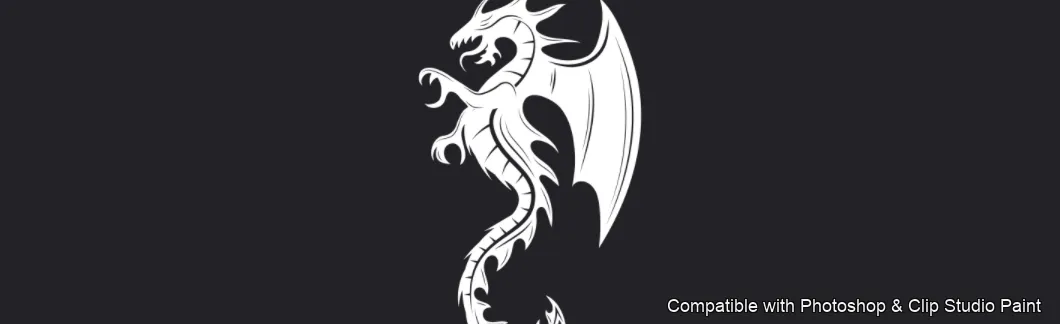
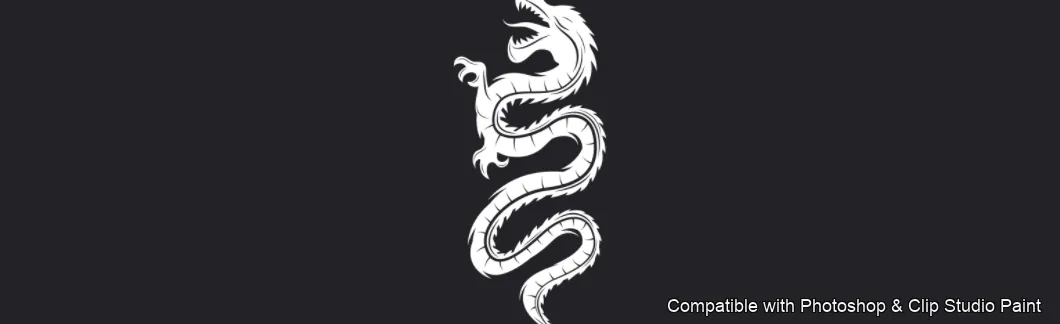
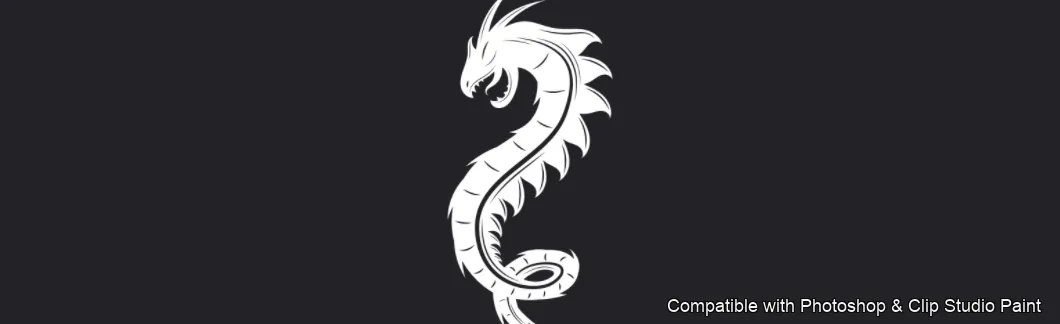
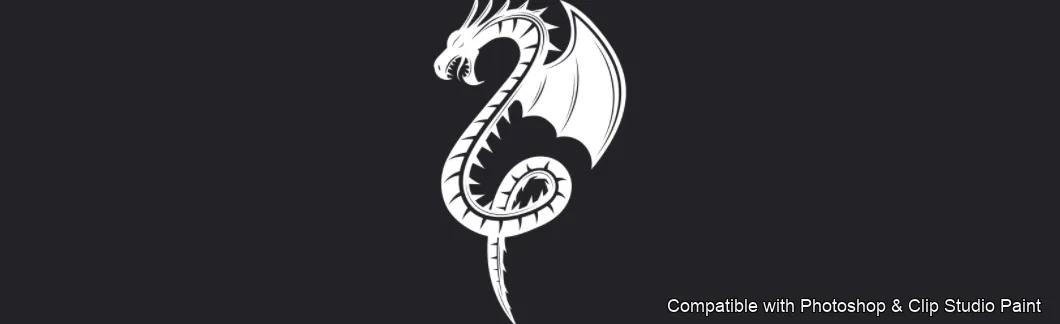
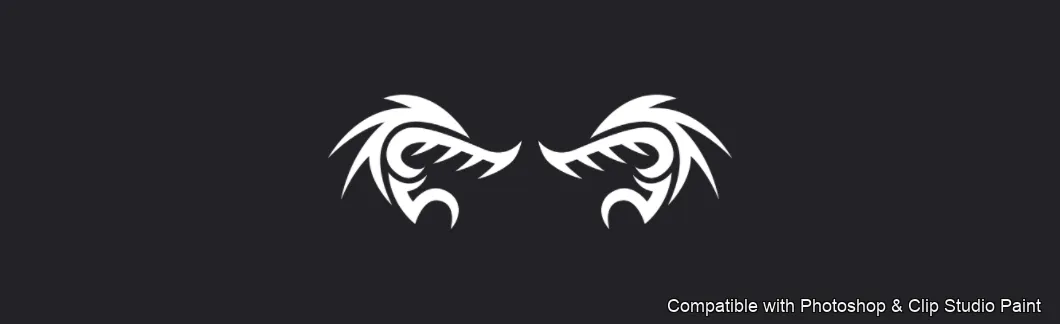
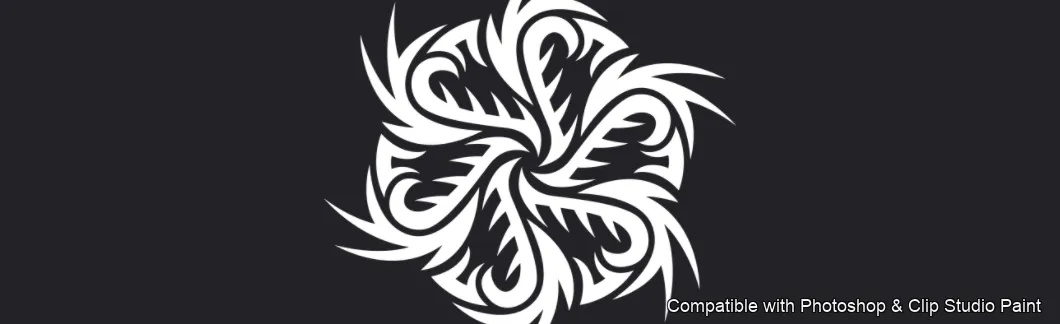
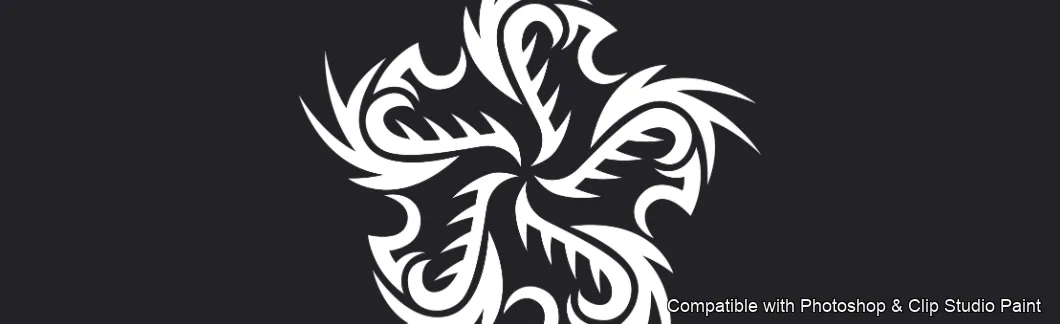
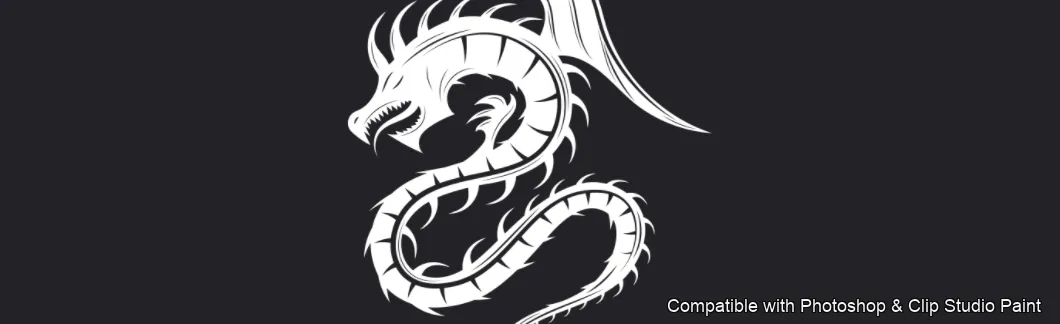
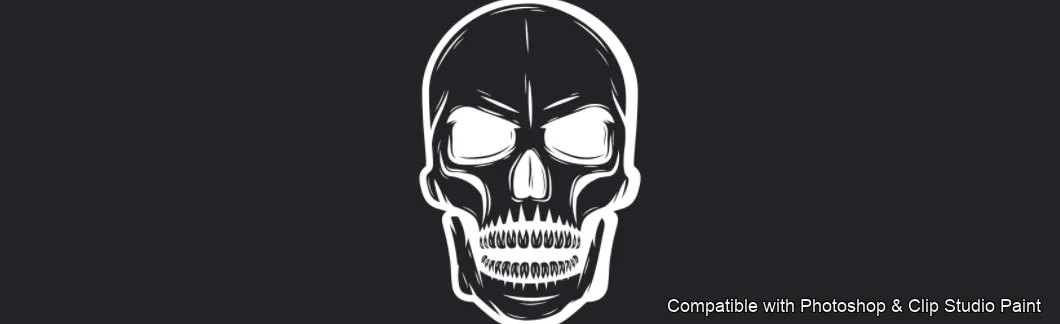
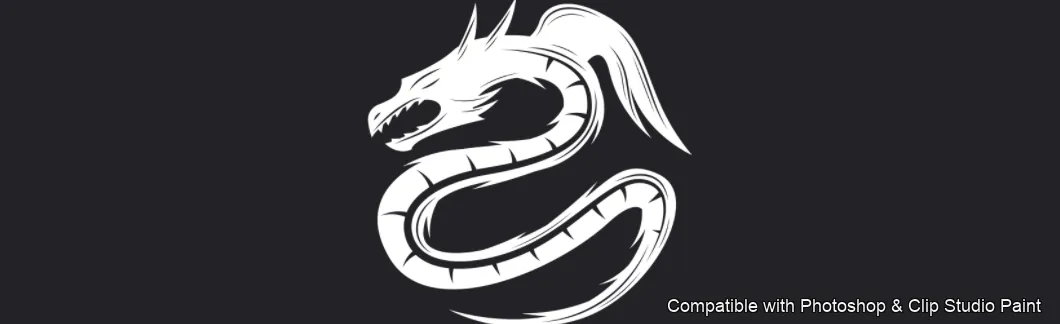
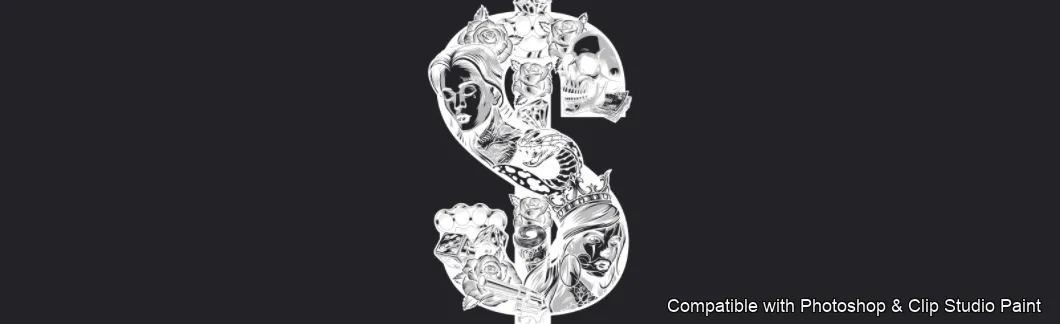
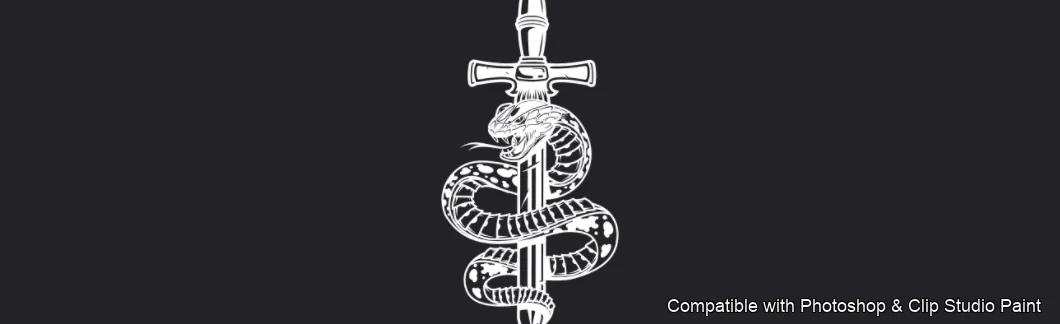
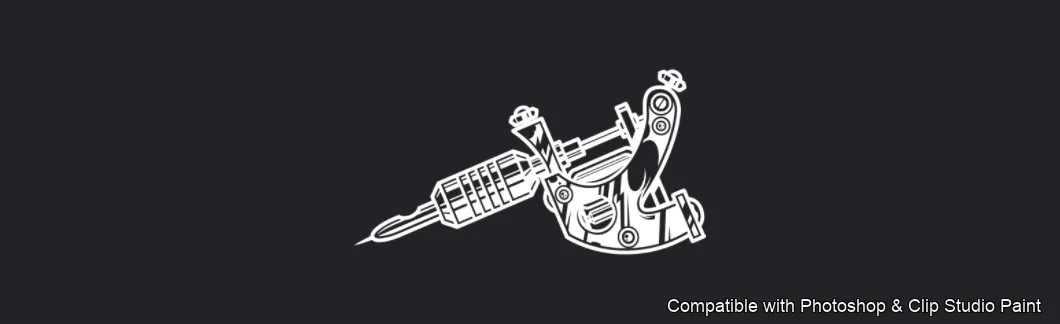
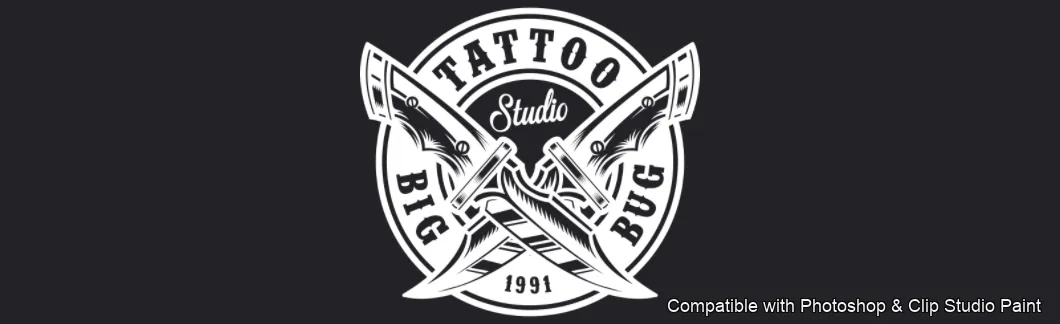
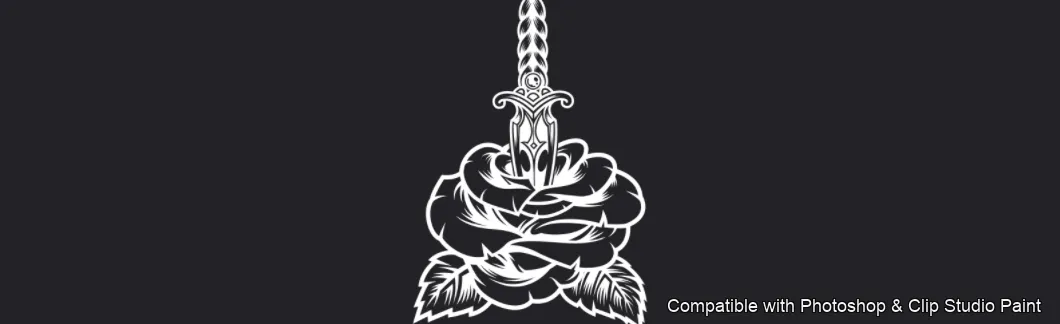
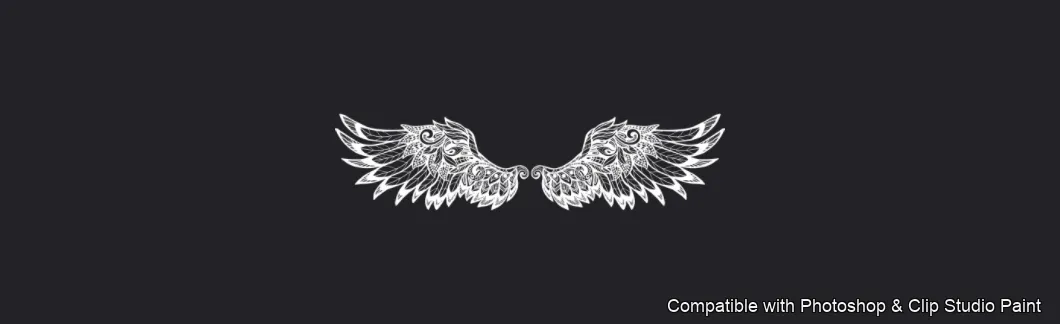
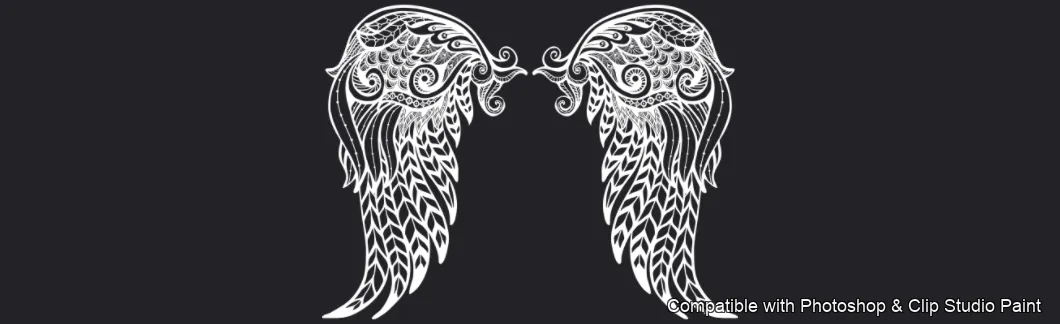
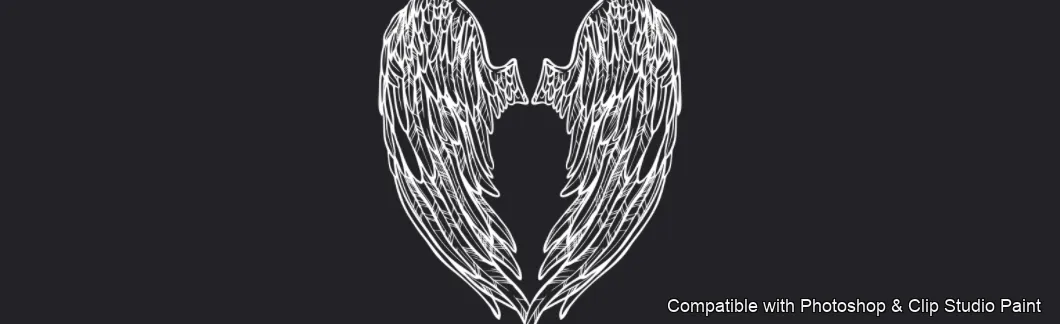
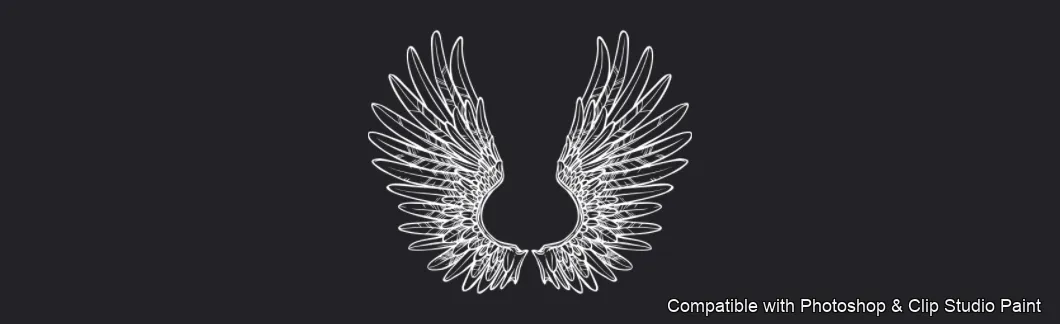
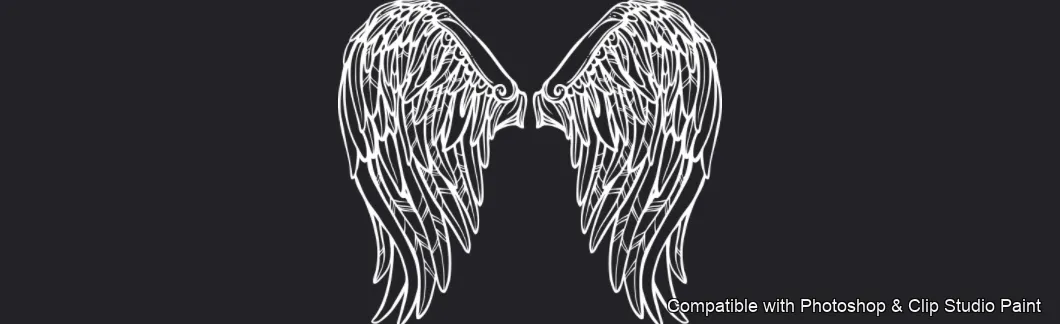
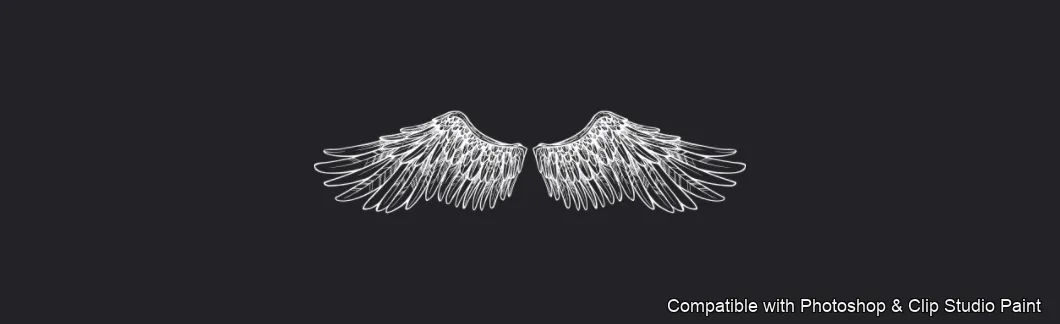
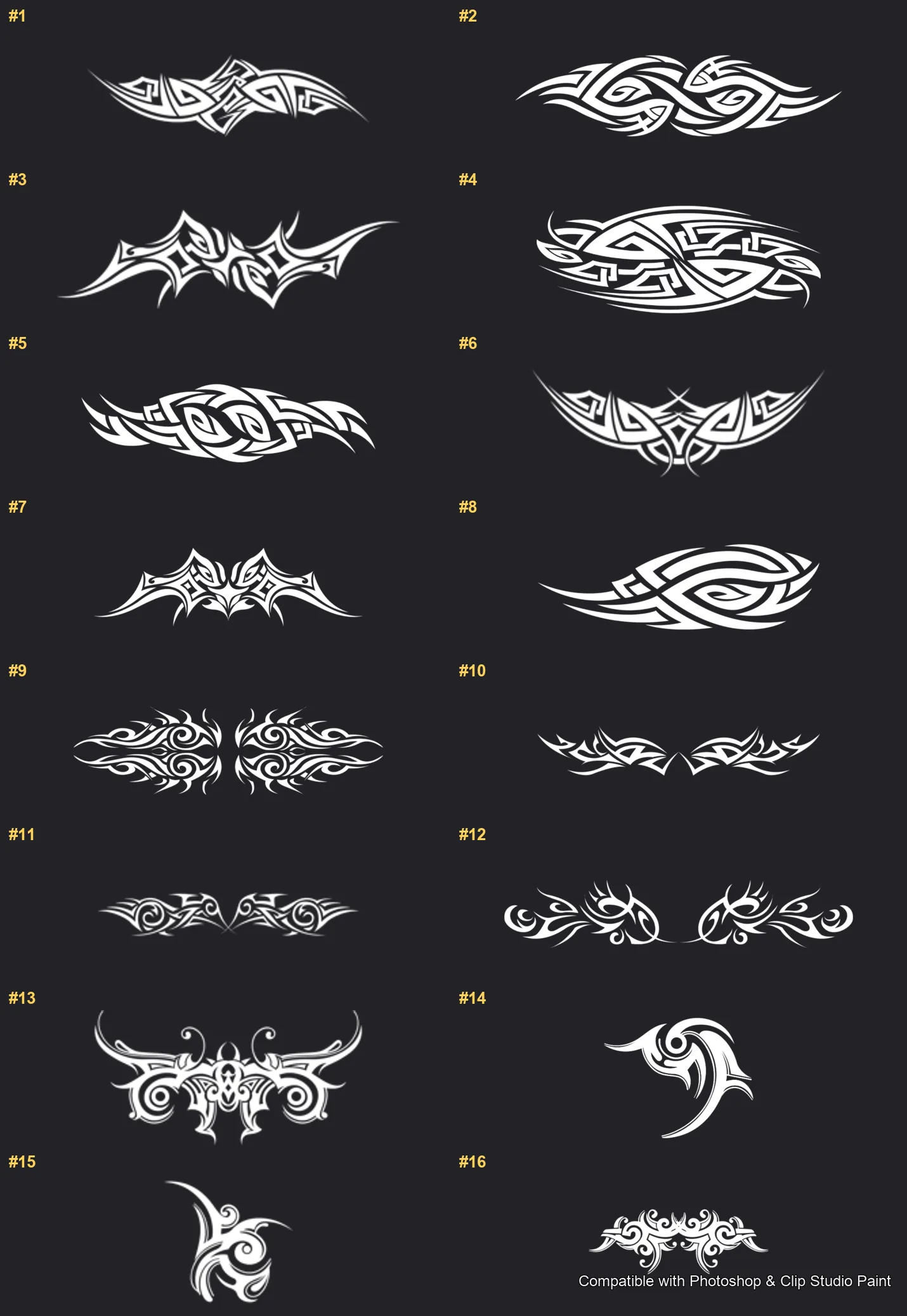
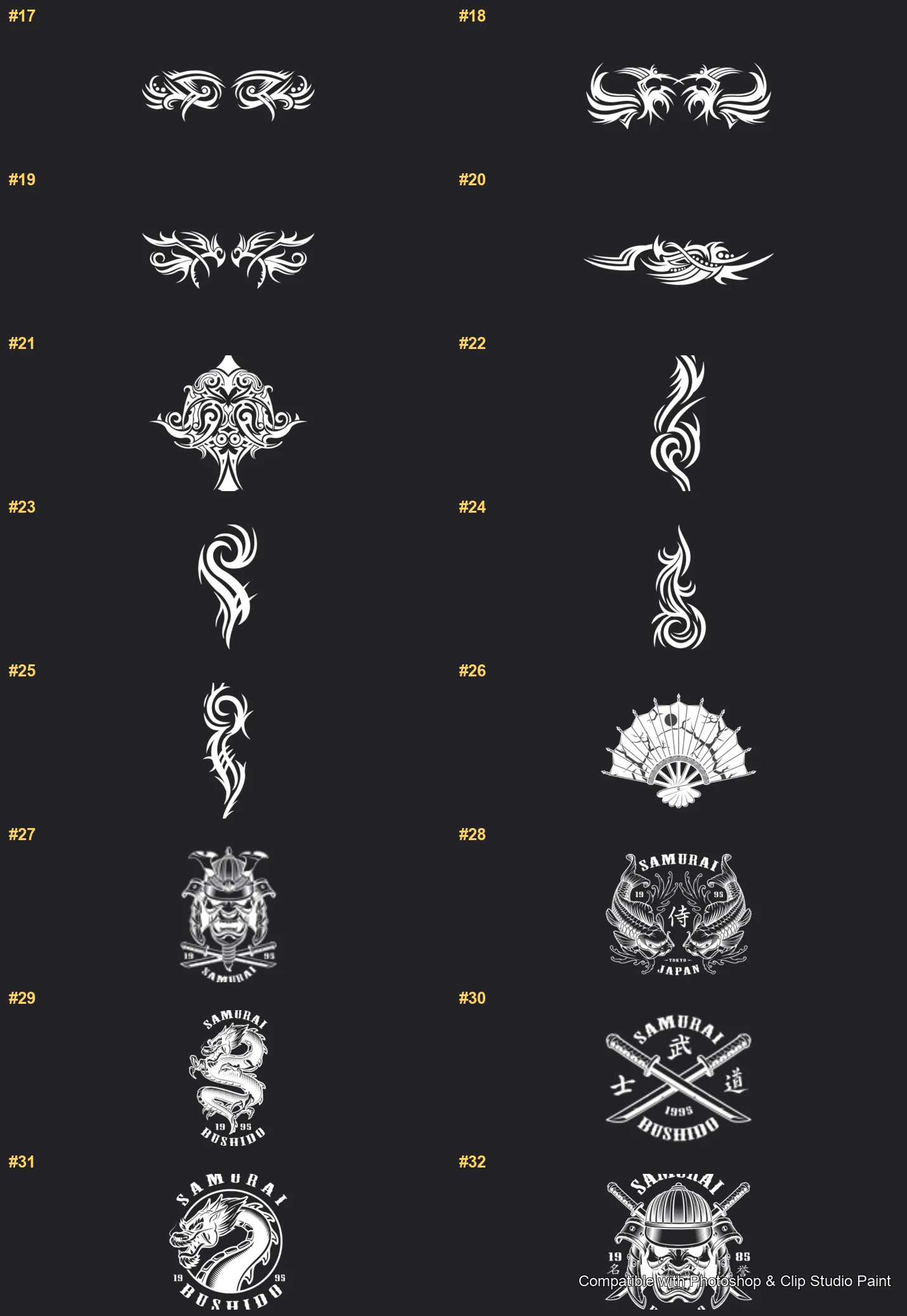
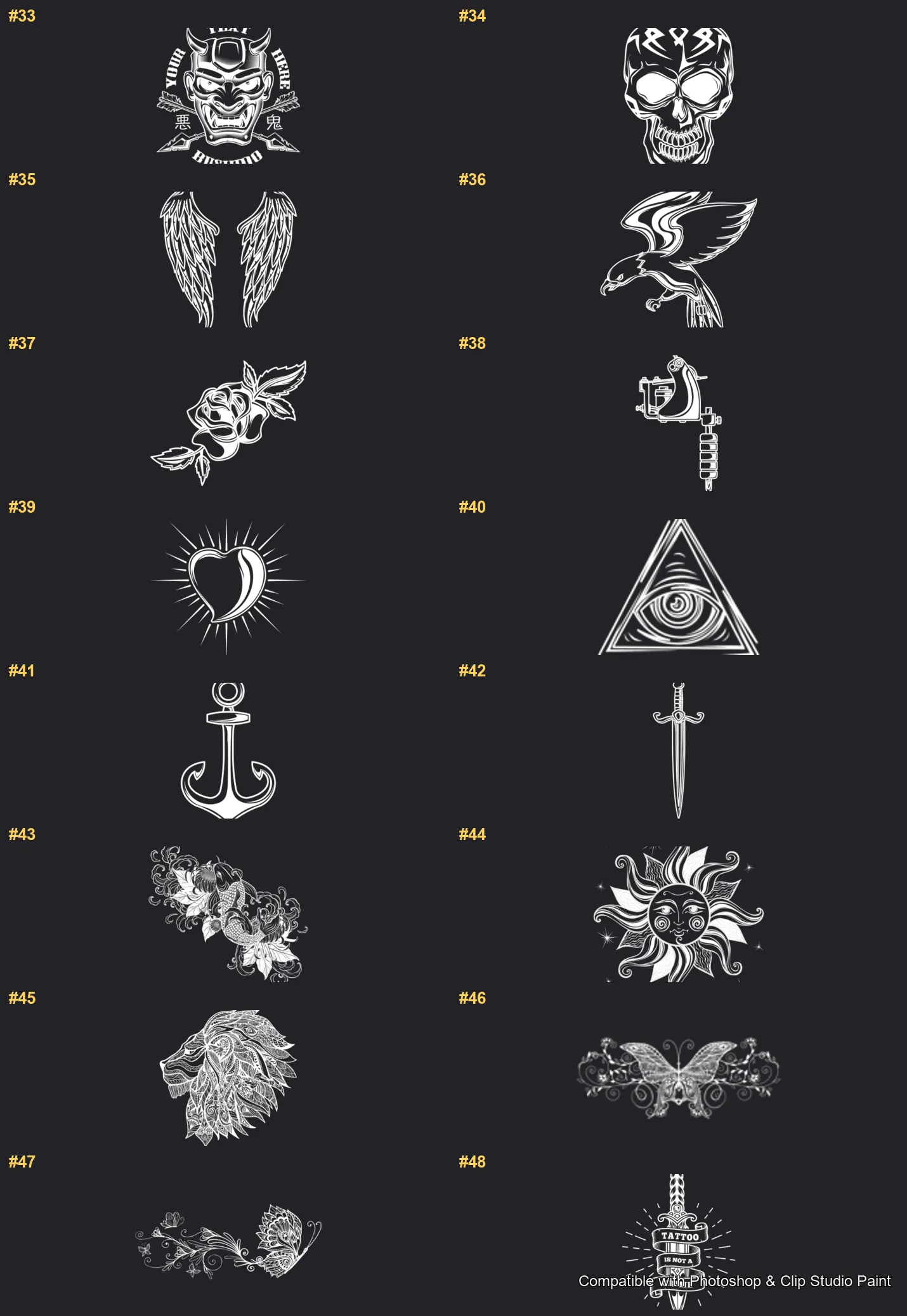
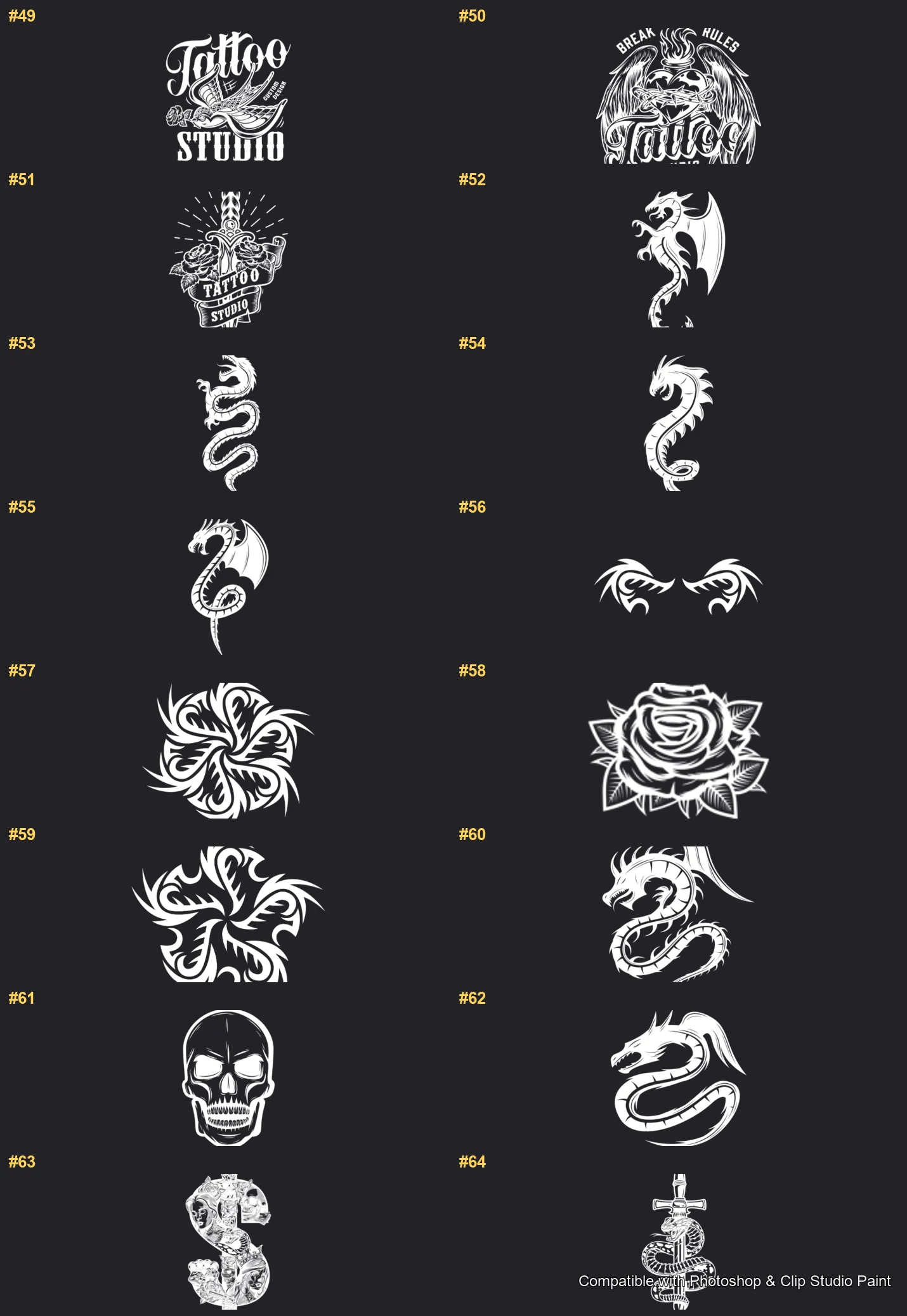
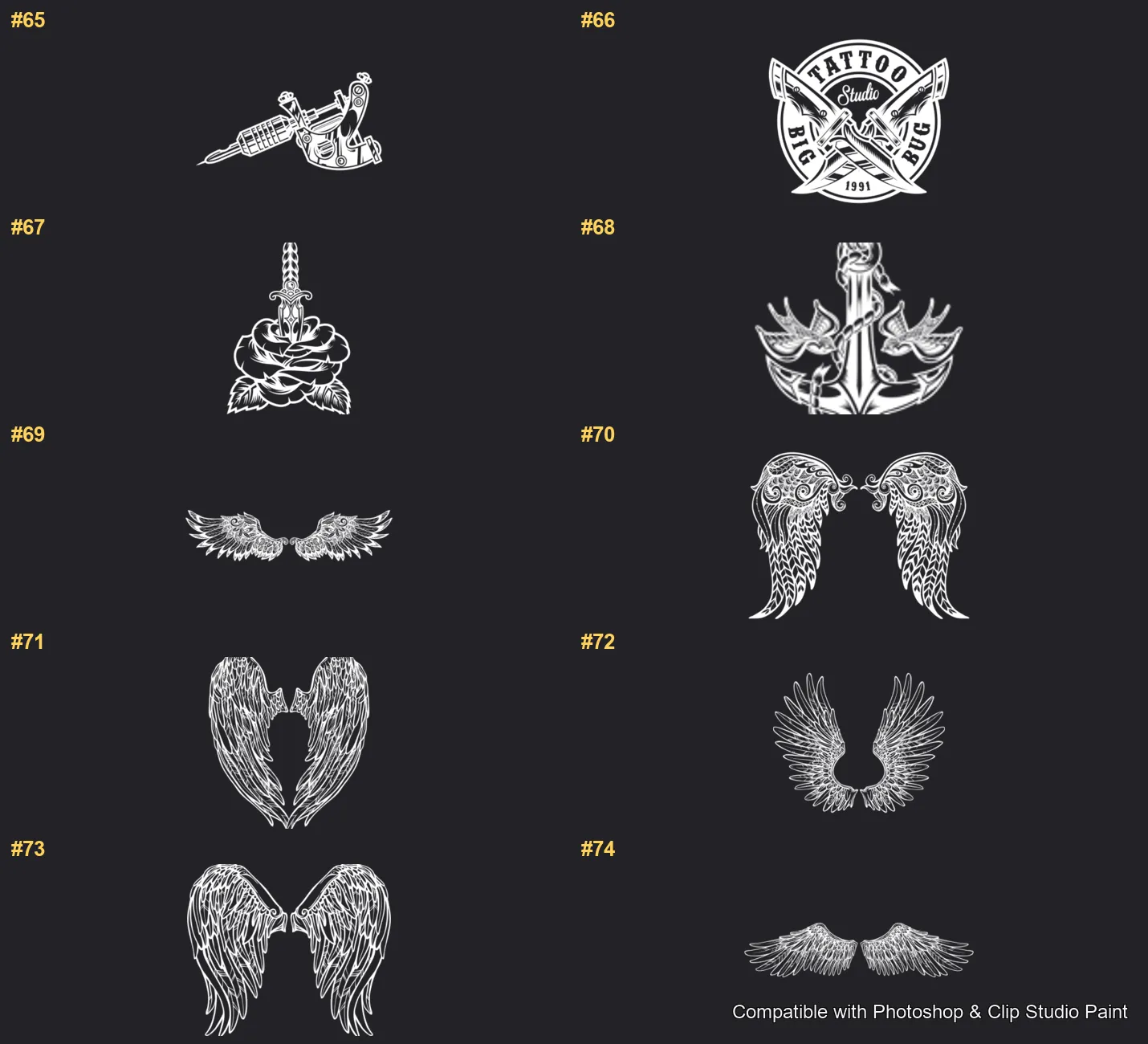
Create bold tattoo flash in Photoshop and Clip Studio Paint with the all-in-one Tattoo Flash stamp set! Perfect for tattoo artists, flash-sheet designers, and illustrators who love tribal, Japanese and classic tattoo motifs. 🎨 What’s inside: 📁 74 stamp brushes in Photoshop format (.abr) — also import directly into Clip Studio Paint 💡 Why you’ll love it: • – 74 Flash Designs: A huge collection — tribal armbands, swirls and flames, samurai masks and crests, skulls, dragons and snakes, eagles, lions and owls, roses and florals, daggers, anchors, sacred hearts, the all-seeing eye, tattoo-studio logos and machines, plus a big range of angel and feathered wings. • – Compose Fast: Stamp finished flash instead of drawing each motif by hand. • – Easy to Use: Quick to install and paint with, even for beginners. • – Bold Results: Striking, classic tattoo art for sheets and designs. • – Download Now: Be creating within minutes! 🖌️ Brushes compatible: ✅ Adobe Photoshop (CC and newer) — .abr brush file ✅ Clip Studio Paint (ver. 1.10.5 or later) — imports the same .abr ✅ Works on both desktop and iPad 🛠️ How to install: • Photoshop — double-click the .abr file (or Brushes panel → menu → Import Brushes). • Clip Studio Paint — drag the .abr onto the Sub Tool palette. 📥 Instant digital download — start designing today!

Every brush in Tattoo Flash

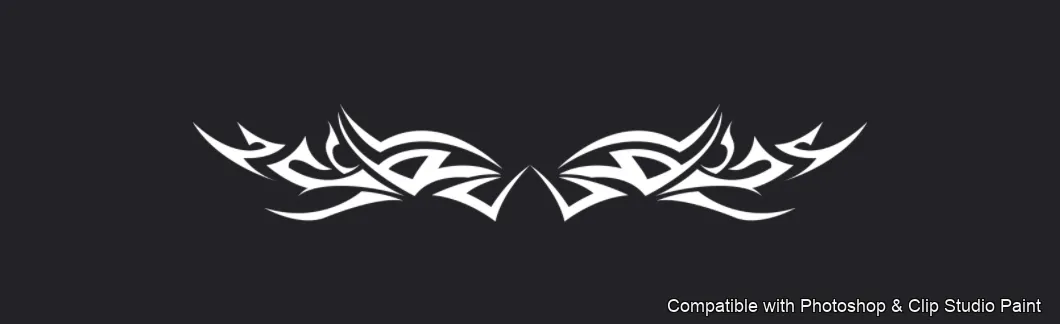
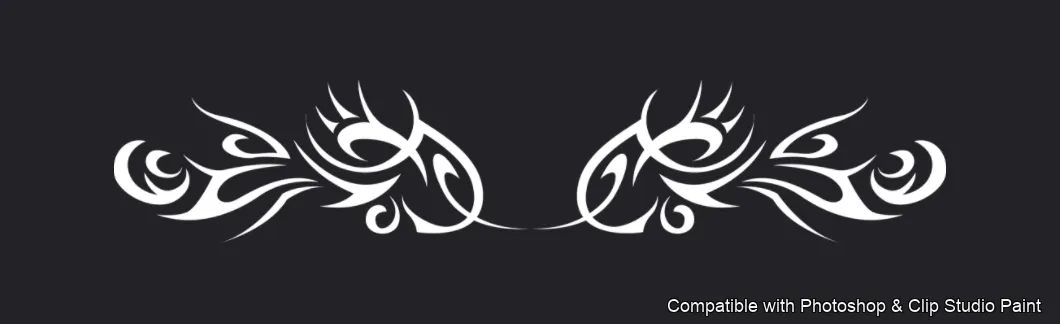
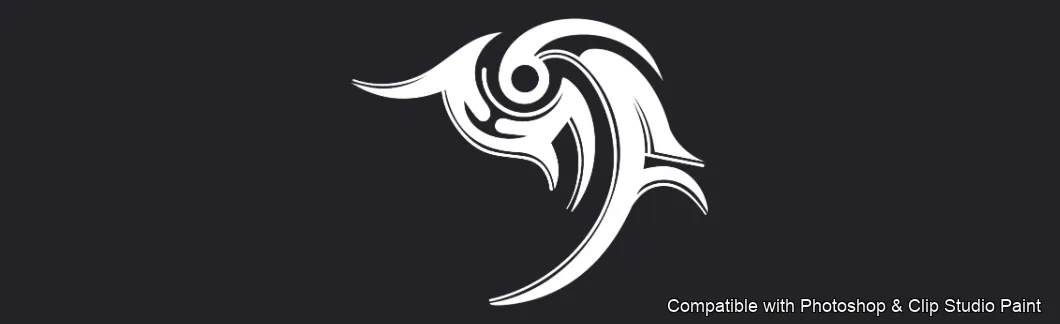
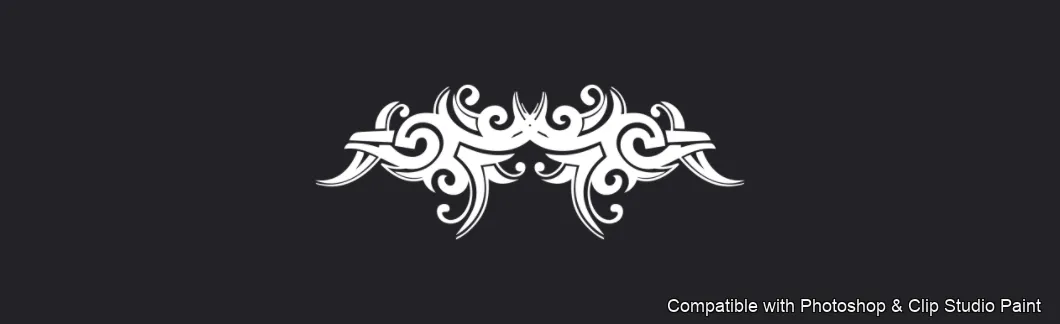
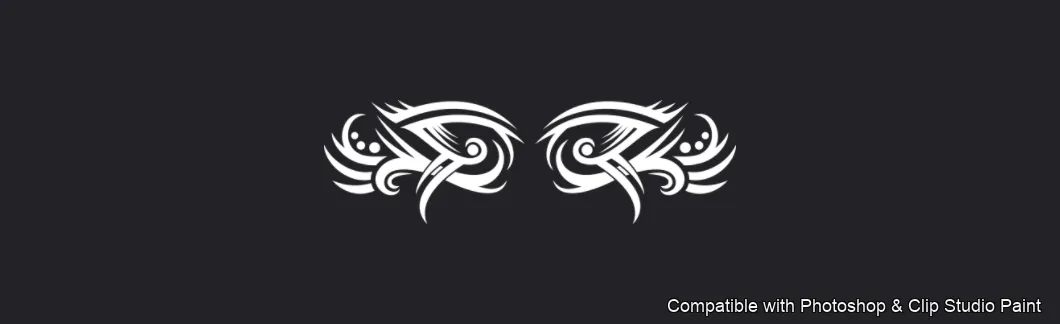
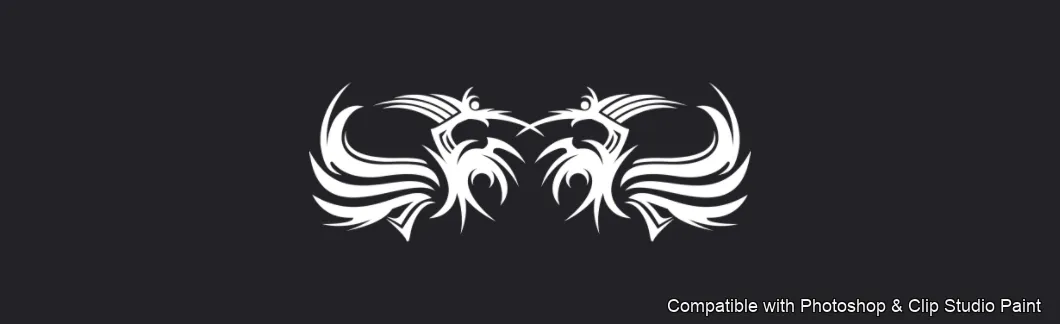
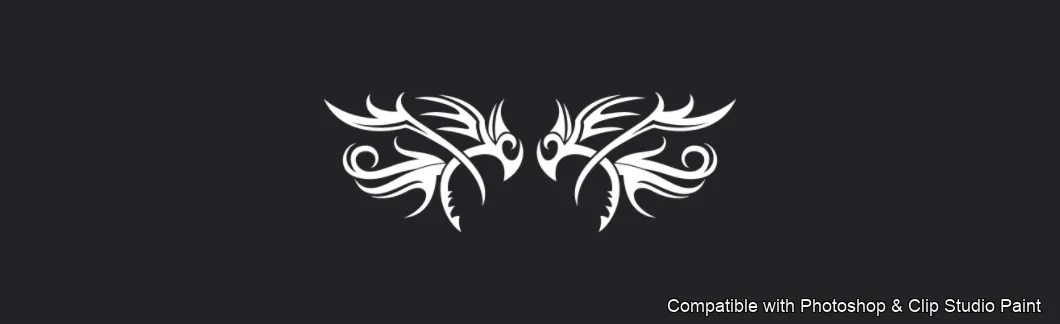
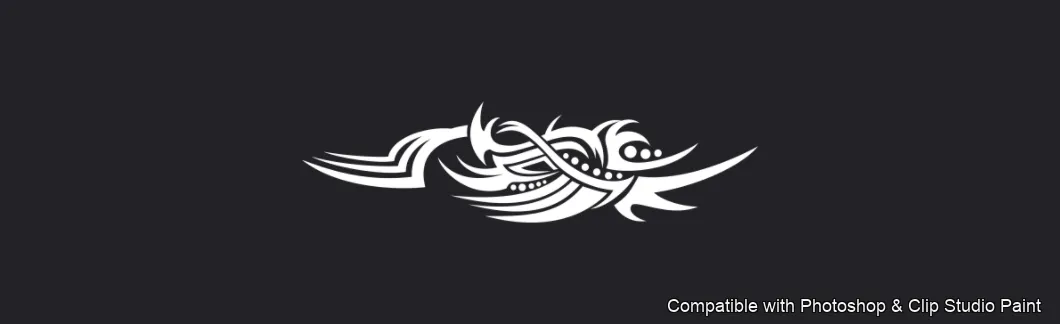
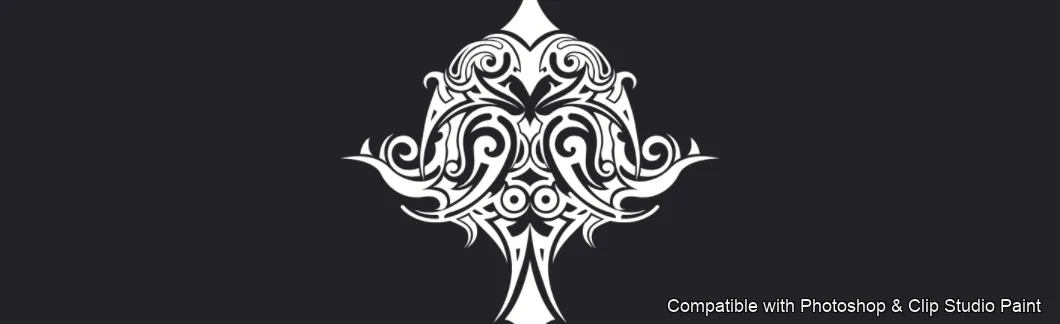
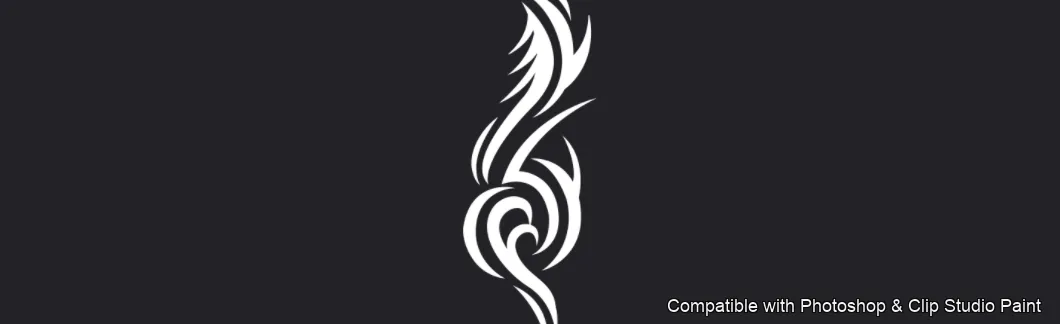
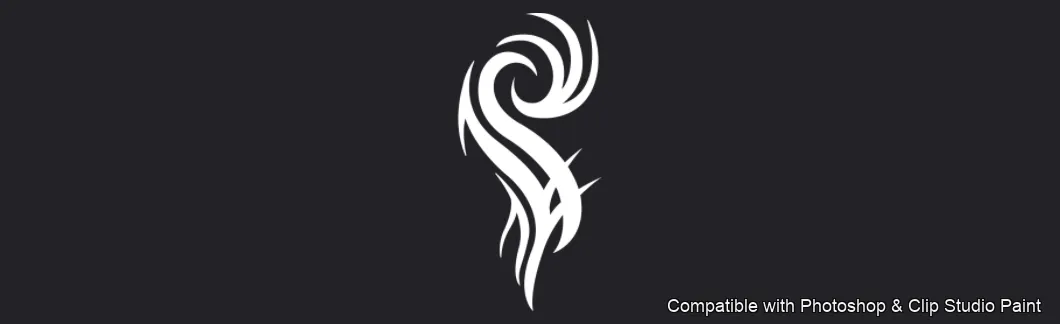
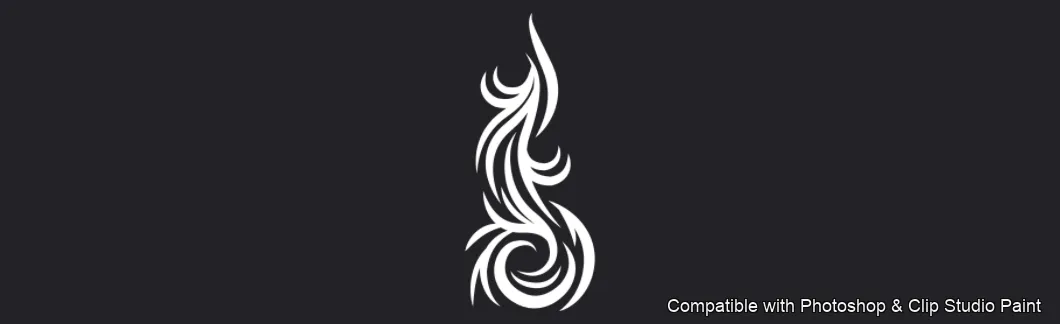
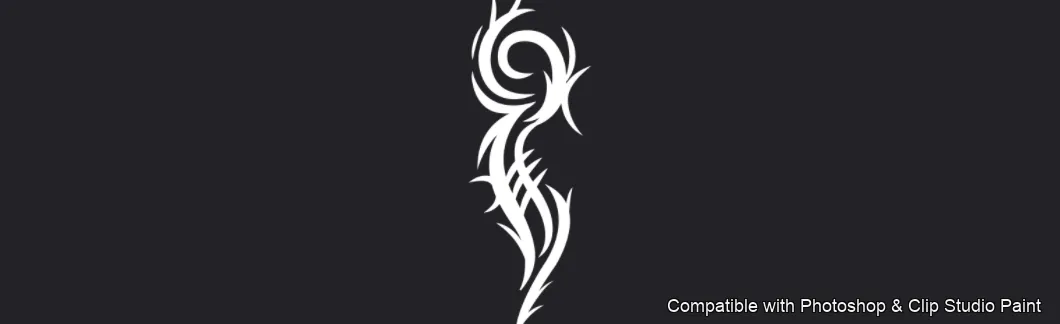
74 individual brush previews — see the exact stroke before you download.
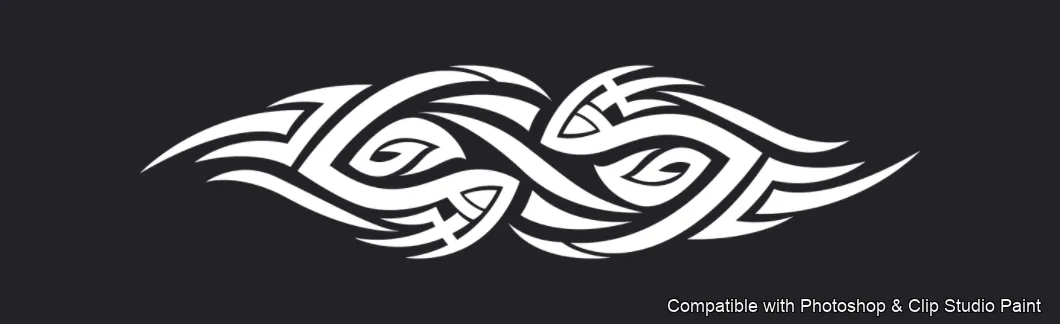
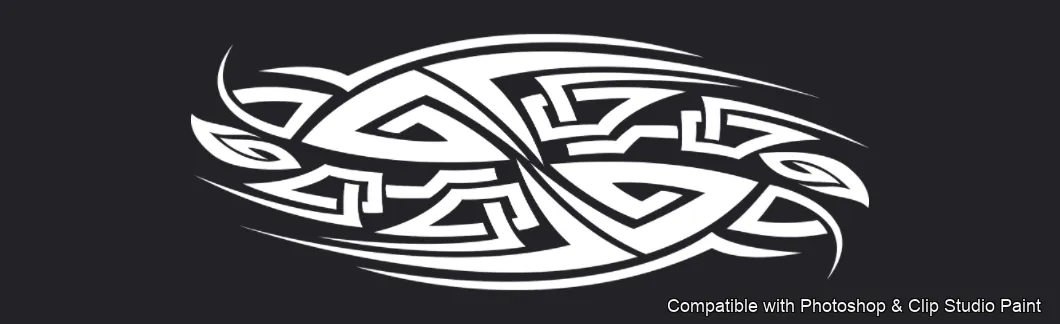
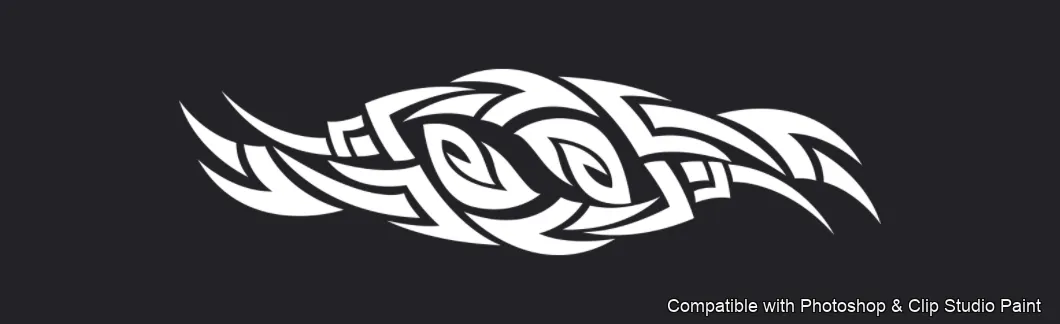
Tattoo Flash brush 1 of 74 — Photoshop & Clip Studio Paint .abr preview
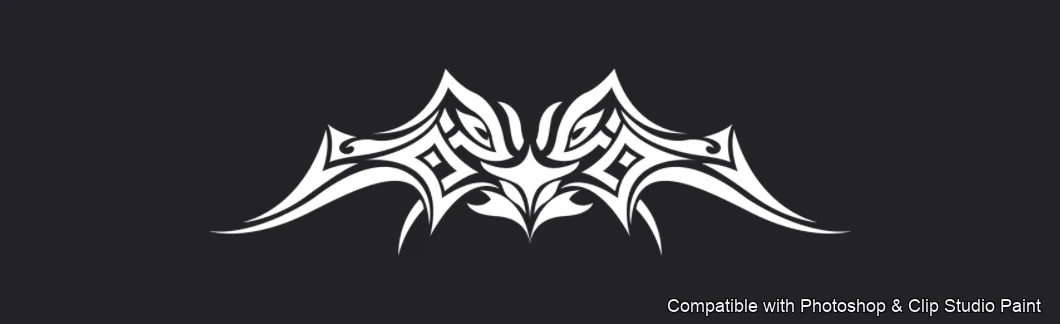
Tattoo Flash brush 2 of 74 — Photoshop & Clip Studio Paint .abr preview
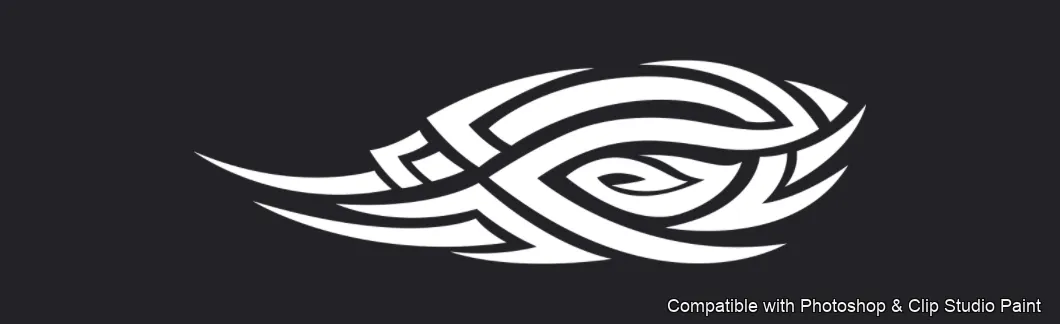
Tattoo Flash brush 3 of 74 — Photoshop & Clip Studio Paint .abr preview
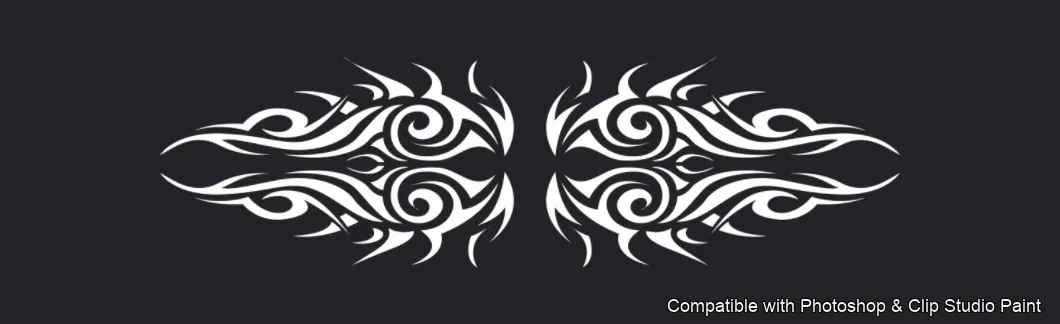
Tattoo Flash brush 4 of 74 — Photoshop & Clip Studio Paint .abr preview
Tattoo Flash brush 5 of 74 — Photoshop & Clip Studio Paint .abr preview
Tattoo Flash brush 6 of 74 — Photoshop & Clip Studio Paint .abr preview
Tattoo Flash brush 7 of 74 — Photoshop & Clip Studio Paint .abr preview
Tattoo Flash brush 8 of 74 — Photoshop & Clip Studio Paint .abr preview
Tattoo Flash brush 9 of 74 — Photoshop & Clip Studio Paint .abr preview
Tattoo Flash brush 10 of 74 — Photoshop & Clip Studio Paint .abr preview
Tattoo Flash brush 11 of 74 — Photoshop & Clip Studio Paint .abr preview
Tattoo Flash brush 12 of 74 — Photoshop & Clip Studio Paint .abr preview
Tattoo Flash brush 13 of 74 — Photoshop & Clip Studio Paint .abr preview
Tattoo Flash brush 14 of 74 — Photoshop & Clip Studio Paint .abr preview
Tattoo Flash brush 15 of 74 — Photoshop & Clip Studio Paint .abr preview
Tattoo Flash brush 16 of 74 — Photoshop & Clip Studio Paint .abr preview
Tattoo Flash brush 17 of 74 — Photoshop & Clip Studio Paint .abr preview
Tattoo Flash brush 18 of 74 — Photoshop & Clip Studio Paint .abr preview
Tattoo Flash brush 19 of 74 — Photoshop & Clip Studio Paint .abr preview
Tattoo Flash brush 20 of 74 — Photoshop & Clip Studio Paint .abr preview
Tattoo Flash brush 21 of 74 — Photoshop & Clip Studio Paint .abr preview
Tattoo Flash brush 22 of 74 — Photoshop & Clip Studio Paint .abr preview
Tattoo Flash brush 23 of 74 — Photoshop & Clip Studio Paint .abr preview
Tattoo Flash brush 24 of 74 — Photoshop & Clip Studio Paint .abr preview
Tattoo Flash brush 25 of 74 — Photoshop & Clip Studio Paint .abr preview
Tattoo Flash brush 26 of 74 — Photoshop & Clip Studio Paint .abr preview
Tattoo Flash brush 27 of 74 — Photoshop & Clip Studio Paint .abr preview
Tattoo Flash brush 28 of 74 — Photoshop & Clip Studio Paint .abr preview
Tattoo Flash brush 29 of 74 — Photoshop & Clip Studio Paint .abr preview
Tattoo Flash brush 30 of 74 — Photoshop & Clip Studio Paint .abr preview
Tattoo Flash brush 31 of 74 — Photoshop & Clip Studio Paint .abr preview
Tattoo Flash brush 32 of 74 — Photoshop & Clip Studio Paint .abr preview
Tattoo Flash brush 33 of 74 — Photoshop & Clip Studio Paint .abr preview
Tattoo Flash brush 34 of 74 — Photoshop & Clip Studio Paint .abr preview
Tattoo Flash brush 35 of 74 — Photoshop & Clip Studio Paint .abr preview
Tattoo Flash brush 36 of 74 — Photoshop & Clip Studio Paint .abr preview
Tattoo Flash brush 37 of 74 — Photoshop & Clip Studio Paint .abr preview
Tattoo Flash brush 38 of 74 — Photoshop & Clip Studio Paint .abr preview
Tattoo Flash brush 39 of 74 — Photoshop & Clip Studio Paint .abr preview
Tattoo Flash brush 40 of 74 — Photoshop & Clip Studio Paint .abr preview
Tattoo Flash brush 41 of 74 — Photoshop & Clip Studio Paint .abr preview
Tattoo Flash brush 42 of 74 — Photoshop & Clip Studio Paint .abr preview
Tattoo Flash brush 43 of 74 — Photoshop & Clip Studio Paint .abr preview
Tattoo Flash brush 44 of 74 — Photoshop & Clip Studio Paint .abr preview
Tattoo Flash brush 45 of 74 — Photoshop & Clip Studio Paint .abr preview
Tattoo Flash brush 46 of 74 — Photoshop & Clip Studio Paint .abr preview
Tattoo Flash brush 47 of 74 — Photoshop & Clip Studio Paint .abr preview
Tattoo Flash brush 48 of 74 — Photoshop & Clip Studio Paint .abr preview
Tattoo Flash brush 49 of 74 — Photoshop & Clip Studio Paint .abr preview
Tattoo Flash brush 50 of 74 — Photoshop & Clip Studio Paint .abr preview
Tattoo Flash brush 51 of 74 — Photoshop & Clip Studio Paint .abr preview
Tattoo Flash brush 52 of 74 — Photoshop & Clip Studio Paint .abr preview
Tattoo Flash brush 53 of 74 — Photoshop & Clip Studio Paint .abr preview
Tattoo Flash brush 54 of 74 — Photoshop & Clip Studio Paint .abr preview
Tattoo Flash brush 55 of 74 — Photoshop & Clip Studio Paint .abr preview
Tattoo Flash brush 56 of 74 — Photoshop & Clip Studio Paint .abr preview
Tattoo Flash brush 57 of 74 — Photoshop & Clip Studio Paint .abr preview
Tattoo Flash brush 58 of 74 — Photoshop & Clip Studio Paint .abr preview
Tattoo Flash brush 59 of 74 — Photoshop & Clip Studio Paint .abr preview
Tattoo Flash brush 60 of 74 — Photoshop & Clip Studio Paint .abr preview
Tattoo Flash brush 61 of 74 — Photoshop & Clip Studio Paint .abr preview
Tattoo Flash brush 62 of 74 — Photoshop & Clip Studio Paint .abr preview
Tattoo Flash brush 63 of 74 — Photoshop & Clip Studio Paint .abr preview
Tattoo Flash brush 64 of 74 — Photoshop & Clip Studio Paint .abr preview
Tattoo Flash brush 65 of 74 — Photoshop & Clip Studio Paint .abr preview
Tattoo Flash brush 66 of 74 — Photoshop & Clip Studio Paint .abr preview
Tattoo Flash brush 67 of 74 — Photoshop & Clip Studio Paint .abr preview
Tattoo Flash brush 68 of 74 — Photoshop & Clip Studio Paint .abr preview
Tattoo Flash brush 69 of 74 — Photoshop & Clip Studio Paint .abr preview
Tattoo Flash brush 70 of 74 — Photoshop & Clip Studio Paint .abr preview
Tattoo Flash brush 71 of 74 — Photoshop & Clip Studio Paint .abr preview
Tattoo Flash brush 72 of 74 — Photoshop & Clip Studio Paint .abr preview
Tattoo Flash brush 73 of 74 — Photoshop & Clip Studio Paint .abr preview
Tattoo Flash brush 74 of 74 — Photoshop & Clip Studio Paint .abr preview

Full brush overview

Tattoo Flash Photoshop & Clip Studio Paint brushes overview sheet 1
Tattoo Flash Photoshop & Clip Studio Paint brushes overview sheet 2
Tattoo Flash Photoshop & Clip Studio Paint brushes overview sheet 3
Tattoo Flash Photoshop & Clip Studio Paint brushes overview sheet 4
Tattoo Flash Photoshop & Clip Studio Paint brushes overview sheet 5

How to install

In Adobe Photoshop

Double-click the .abr file to load it — or open the Brushes panel, click the menu and choose Import Brushes. Works on CC and newer, PC & Mac.
In Clip Studio Paint

Drag the same .abr file onto the Sub Tool palette and Clip Studio imports it as new brushes. Works on version 1.10.5 or later.

Tattoo Flash — FAQ

How much does the Tattoo Flash pack cost?+

Free — Tattoo Flash is a free download with no payment and no subscription. The .abr loads straight into Photoshop or Clip Studio Paint.

How many brushes are in the Tattoo Flash pack?+

The Tattoo Flash set includes 74 brushes — tribal armbands, swirls and flames.

Does it work in both Photoshop and Clip Studio Paint?+

Yes. You get a single .abr file — the same file imports into Adobe Photoshop (CC and newer) and Clip Studio Paint (1.10.5 or later). One purchase covers both apps, on PC and Mac.

What file format do I get?+

An Adobe Photoshop .abr brush file. In Photoshop, double-click it (or Brushes panel → menu → Import Brushes). In Clip Studio Paint, drag the .abr onto the Sub Tool palette.

Do these work on Procreate?+

Tattoo Flash is the desktop .abr edition for Photoshop and Clip Studio Paint. Many of our sets also come as Procreate .brushset editions — browse the Procreate catalog to check.

Browse this style