Skip to content
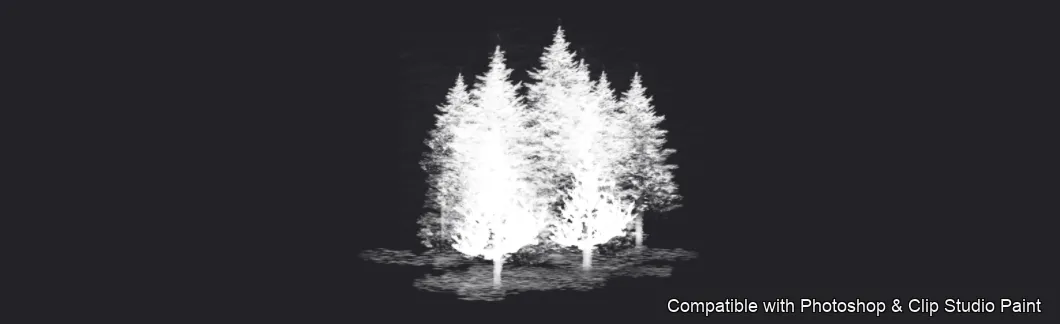
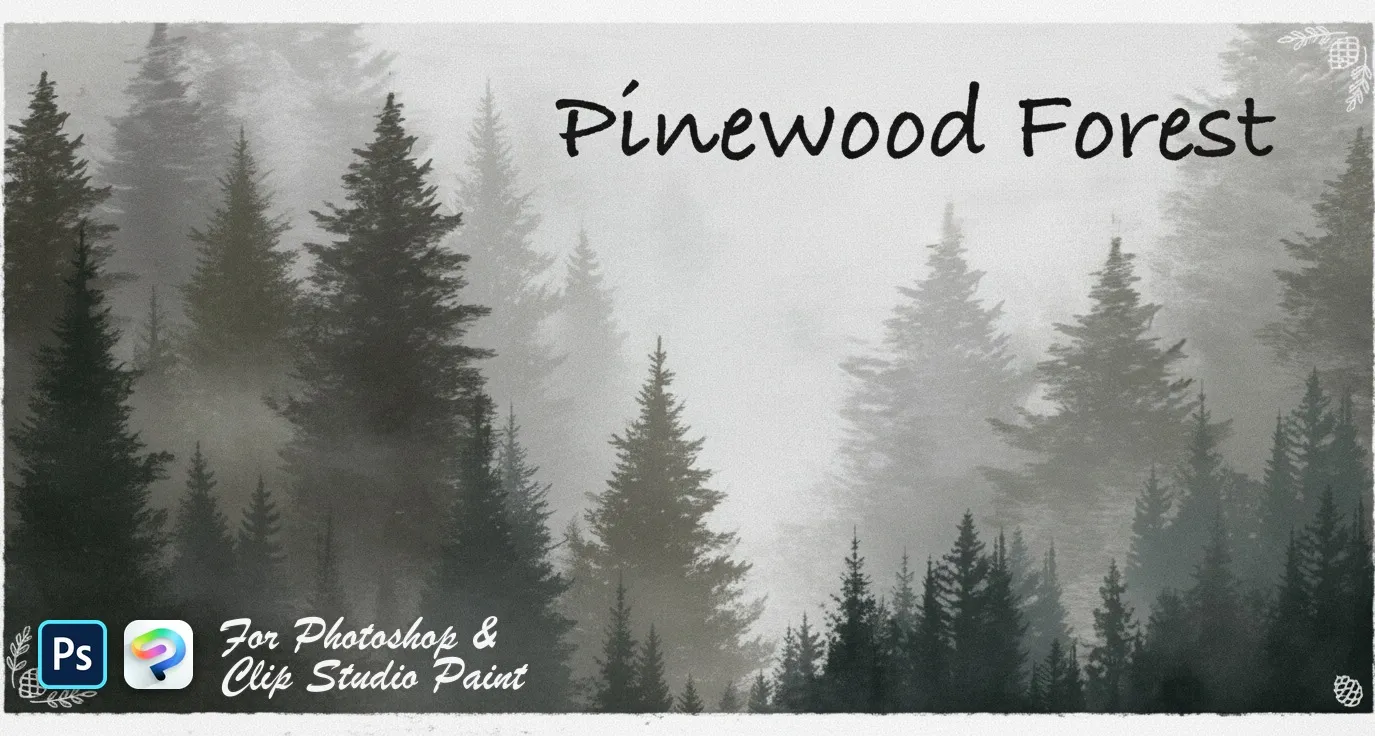
Pinewood Forest Photoshop & Clip Studio Paint brush set cover
.abr · PC & Mac FantasyLandscape

Pinewood Forest Photoshop & Clip Studio Paint Brushes

B by the Brusher team

A fantasy-themed stamp pack for creating detailed nature and forest scenes. Compatible with Adobe Photoshop CC 2020+.

Brushes
40
Works with
Photoshop & Clip Studio Paint
Download free — 40 brushes

Free download · one .abr file · works in Photoshop & Clip Studio Paint · email required

Grow forests of pines and trees in Photoshop and Clip Studio Paint with the Pinewood Forest stamp set! Perfect for landscape and environment artists, winter and holiday illustrators, game and background designers, and anyone building wooded scenes. 🎨 What’s inside: 📁 40 brushes in Photoshop format (.abr) — also import directly into Clip Studio Paint 💡 Why you’ll love it: • – 40 Tree Brushes: A full range of conifers and trees — pines, firs, spruces, cedars and bare trees, young and windswept shapes, snowy and bushy variants, plus ready-made tree lines, pine clusters, foggy forests and forest rows for instant backgrounds. • – Build Scenes Fast: Stamp a finished tree or whole forest row instead of drawing each one by hand. • – Easy to Use: Quick to install and paint with, even for beginners. • – Natural Results: Layered, atmospheric woodland with real depth and variety. • – Download Now: Be creating within minutes! 🖌️ Brushes compatible: ✅ Adobe Photoshop (CC and newer) — .abr brush file ✅ Clip Studio Paint (ver. 1.10.5 or later) — imports the same .abr ✅ Works on both desktop and iPad 🛠️ How to install: • Photoshop — double-click the .abr file (or Brushes panel → menu → Import Brushes). • Clip Studio Paint — drag the .abr onto the Sub Tool palette. 📥 Instant digital download — start drawing better today!

Every brush in Pinewood Forest

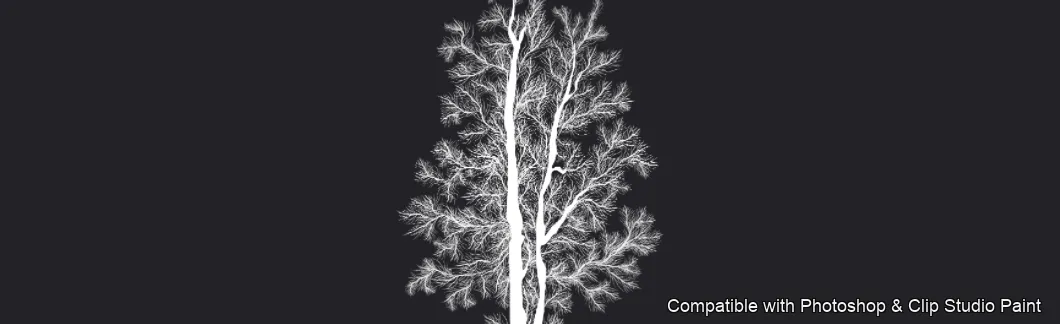
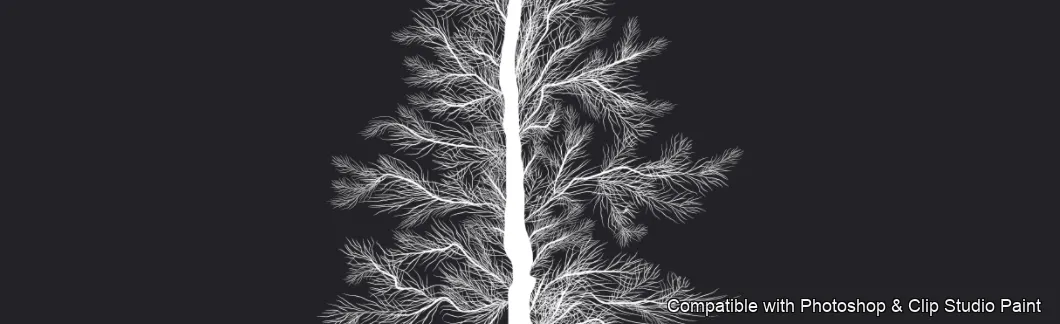
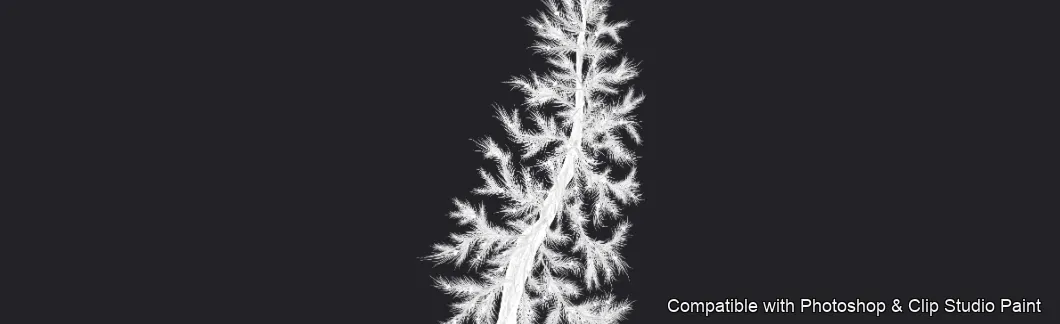
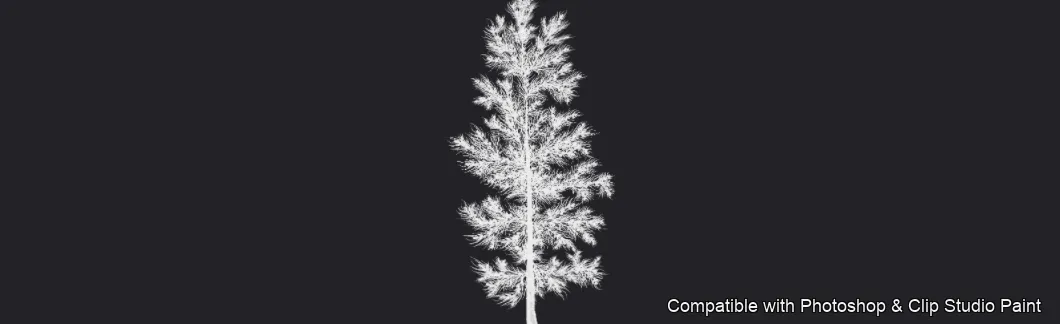
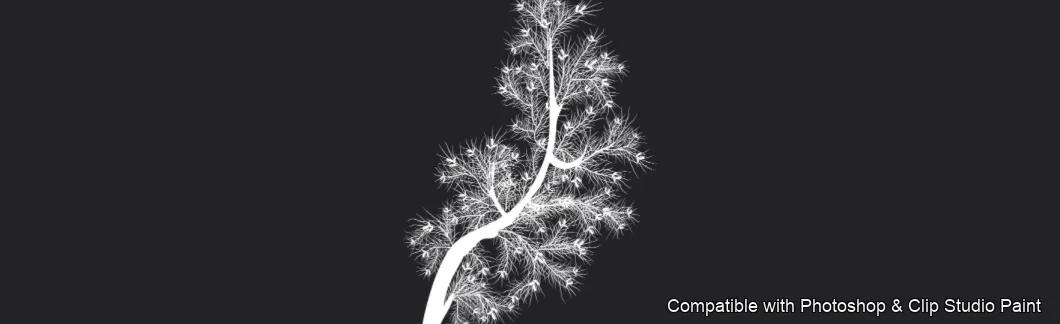
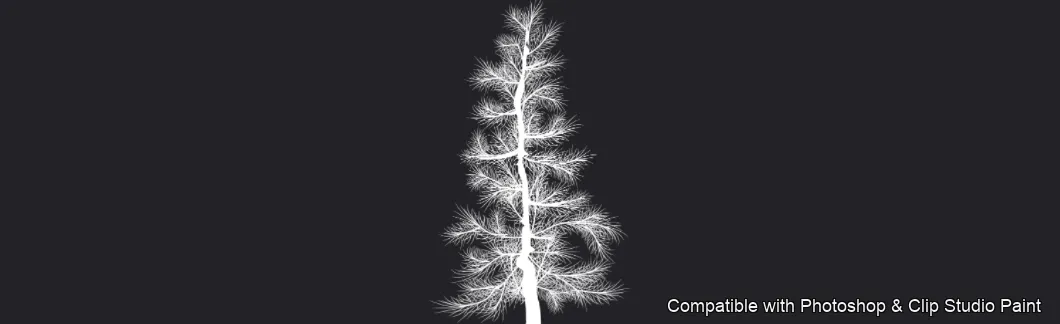
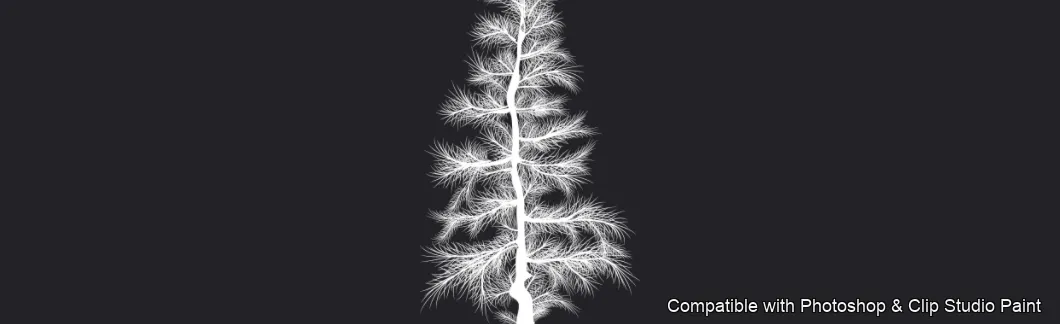
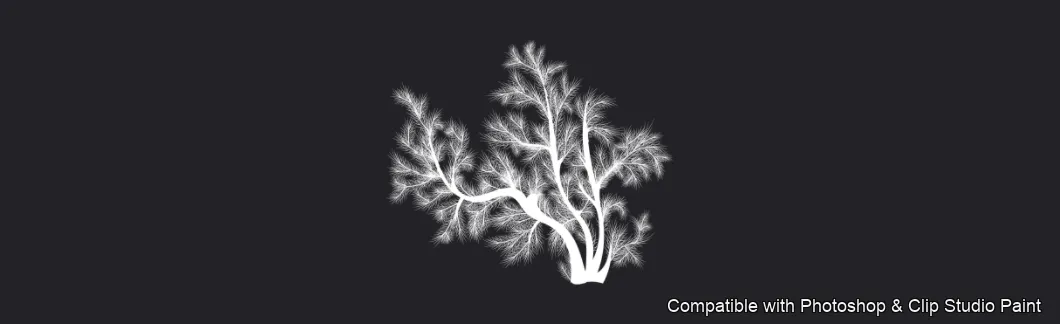
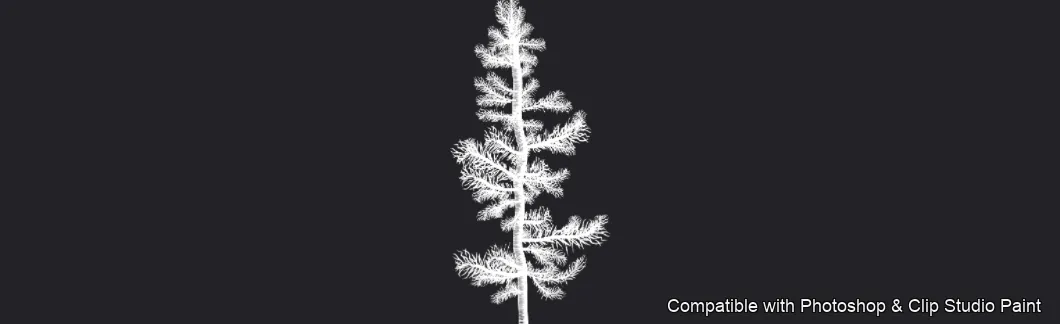
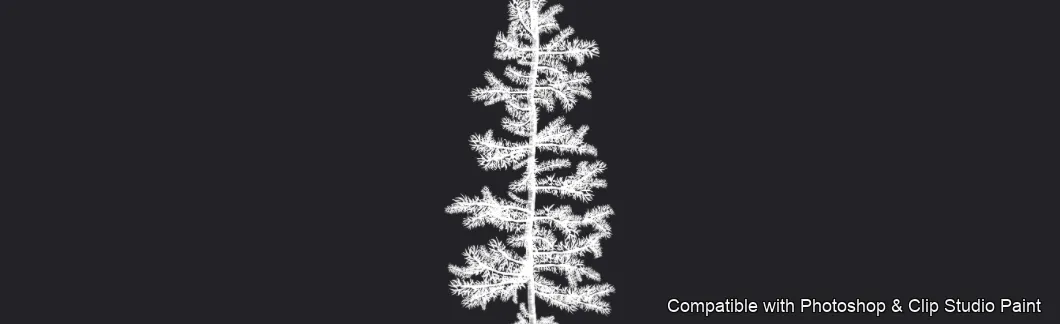
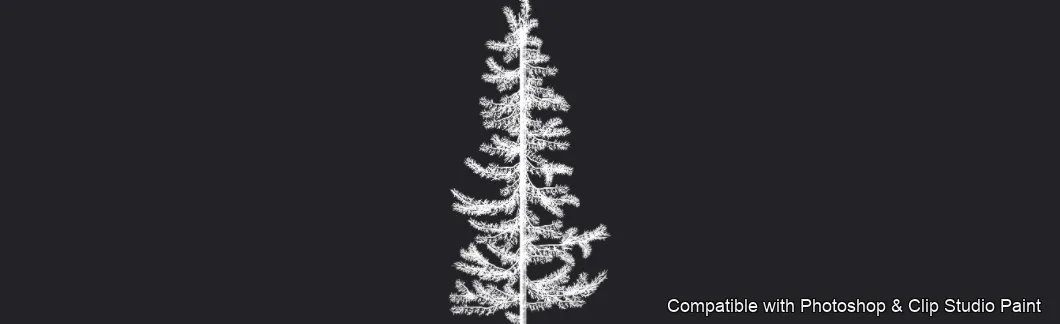
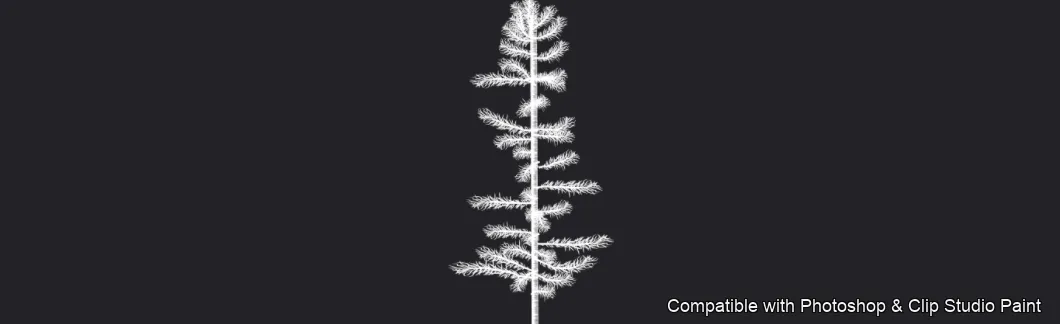
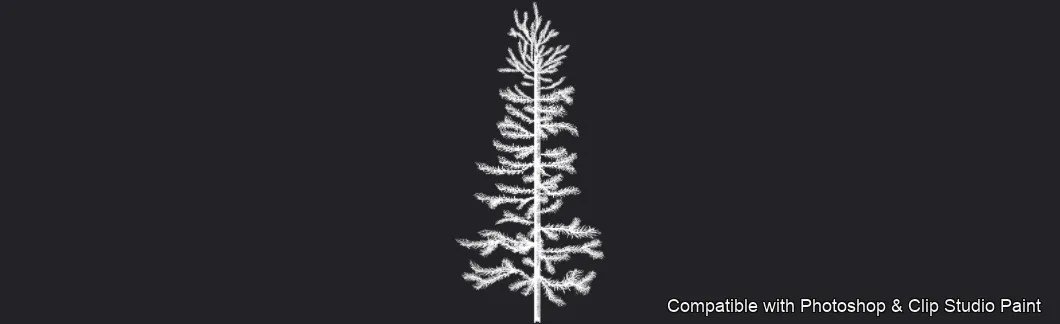
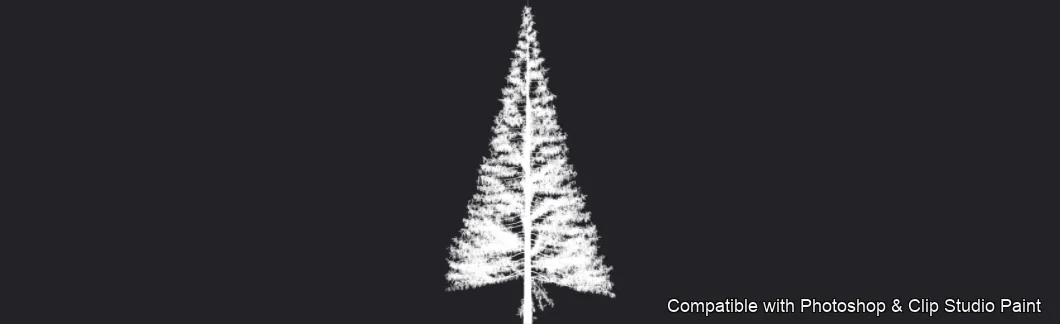
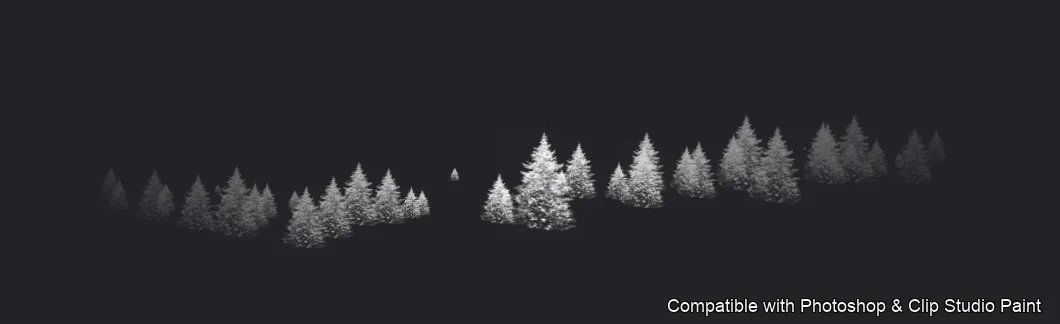
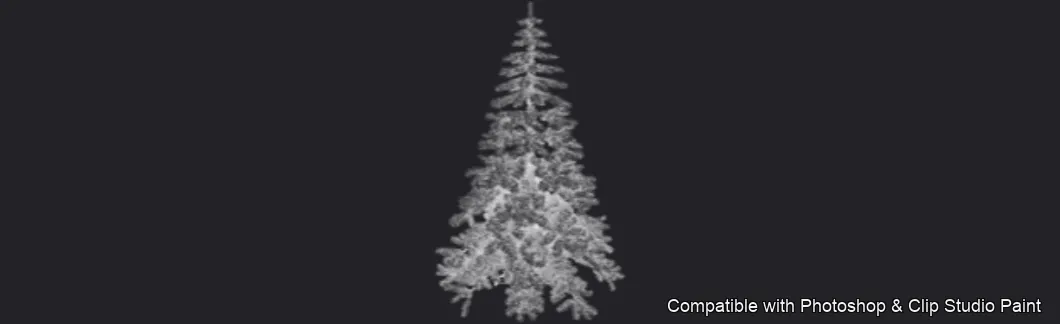
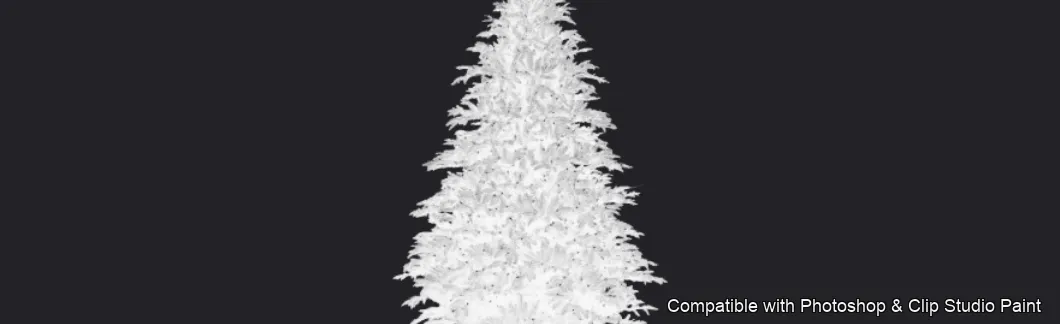
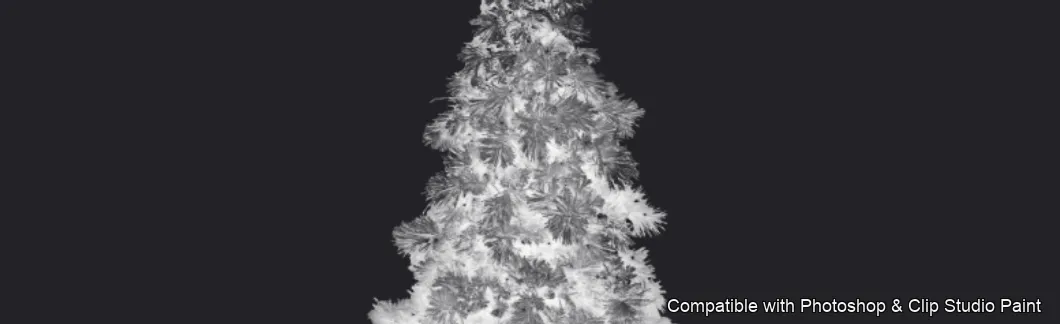
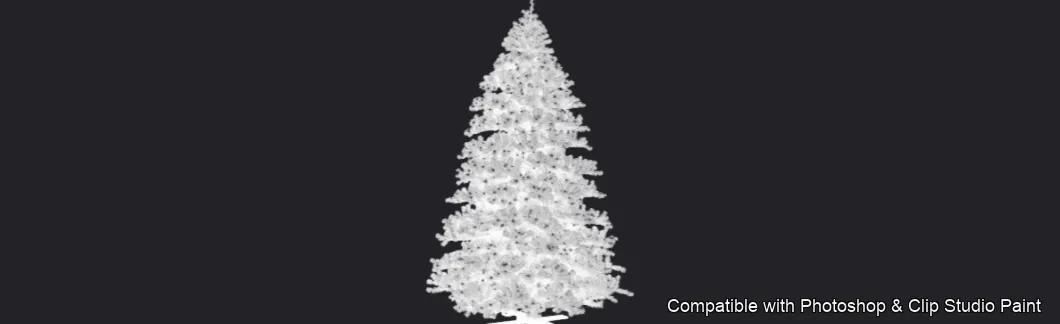
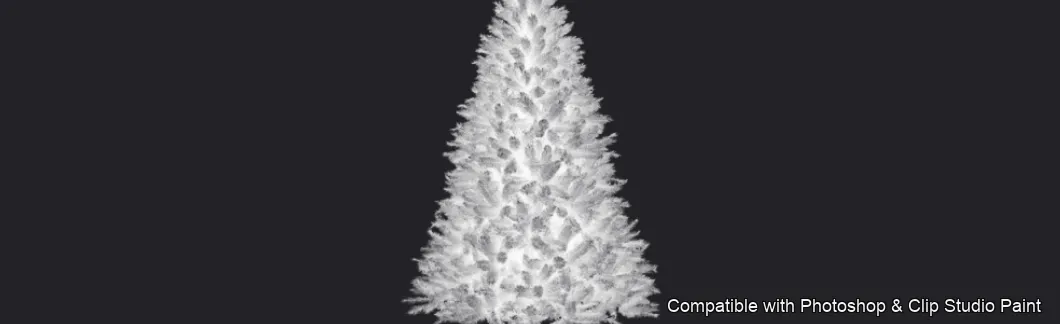
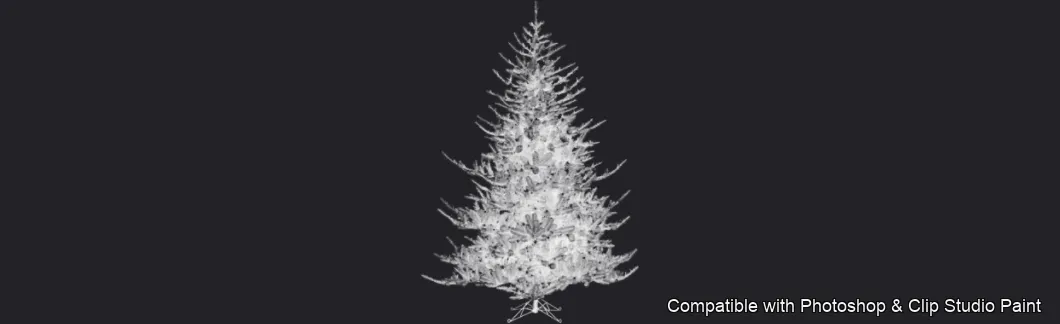
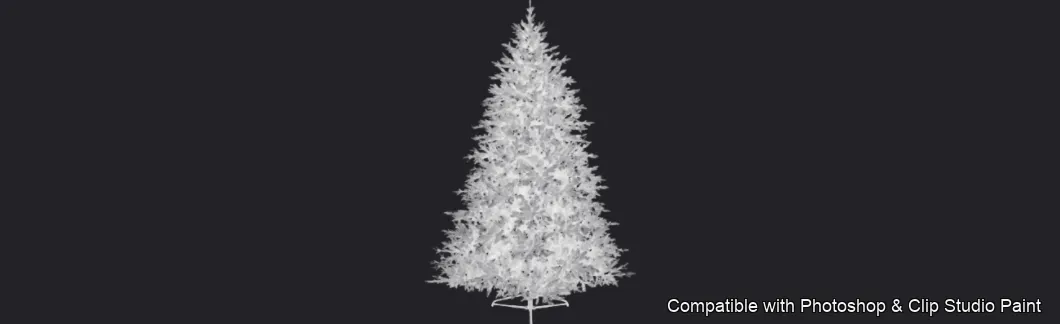
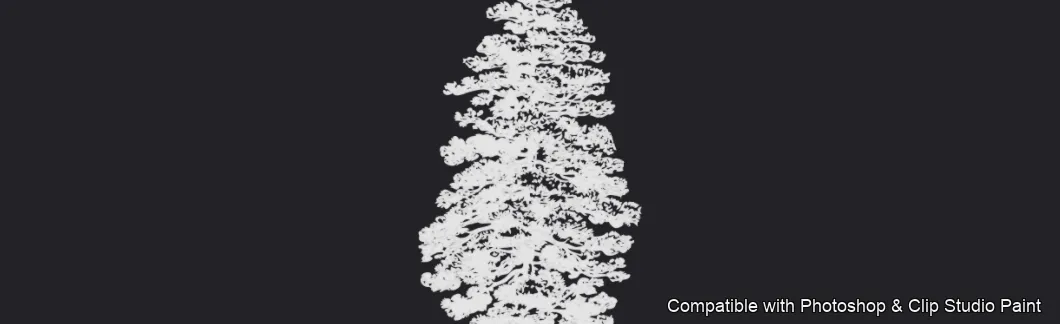
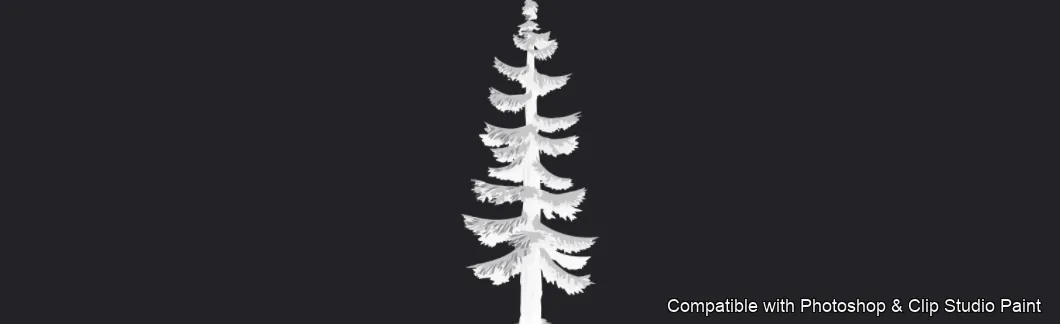
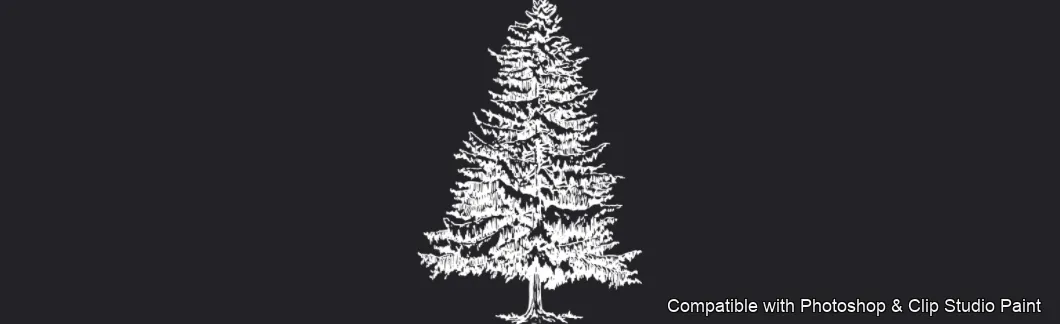
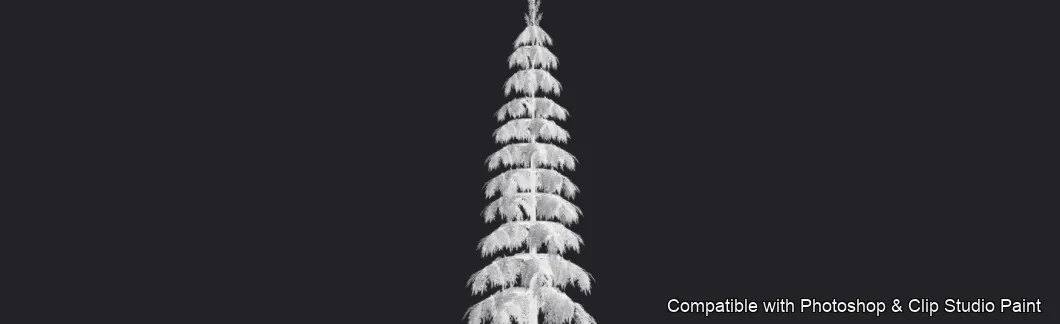
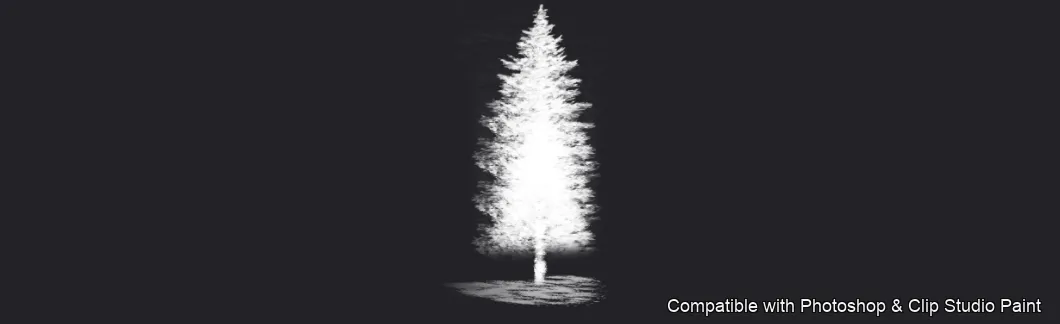
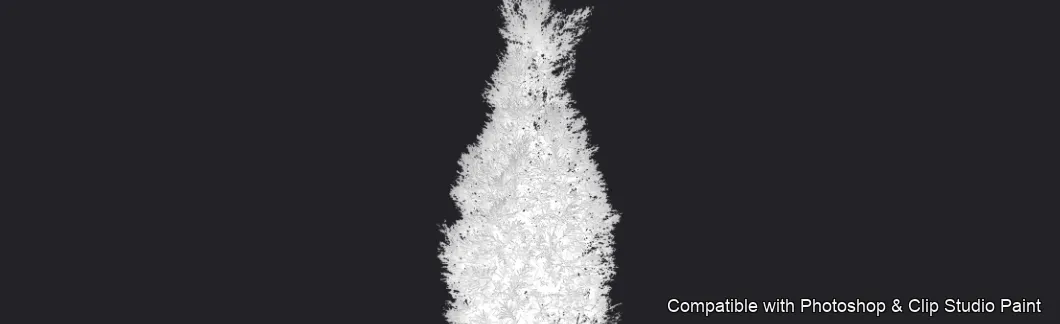
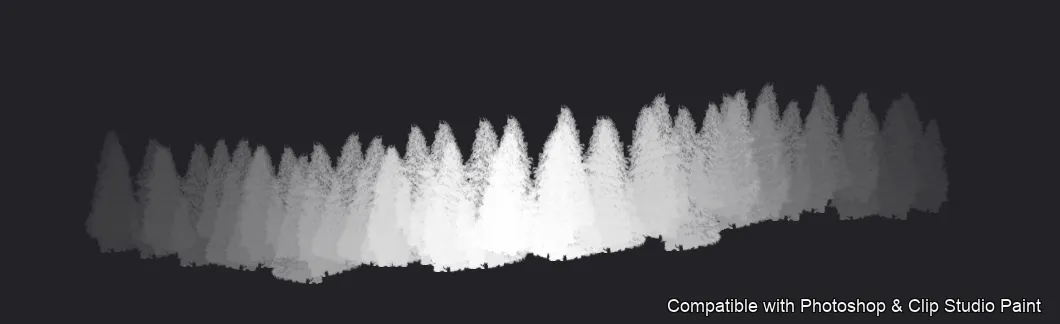
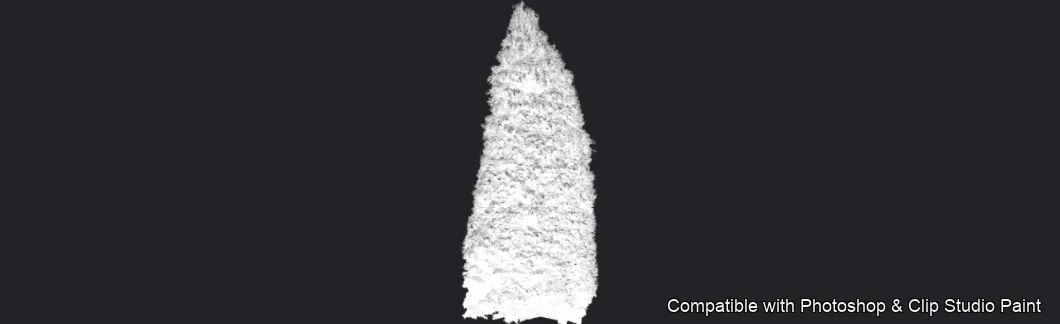
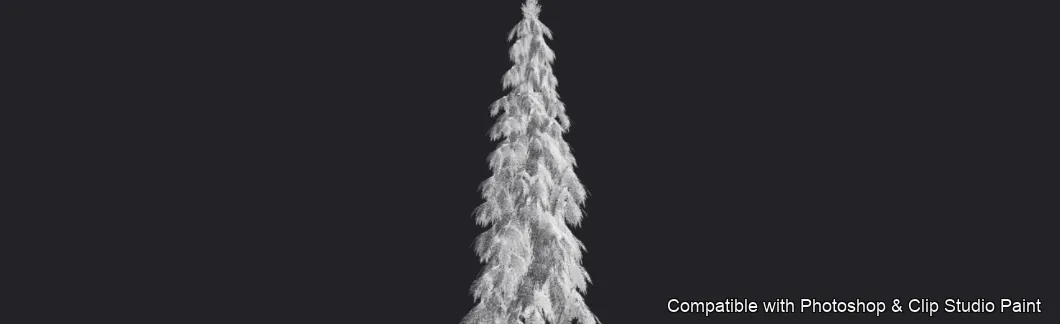
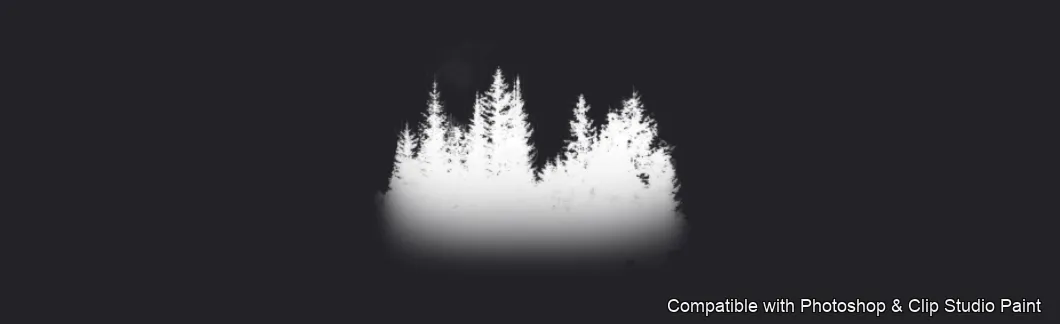
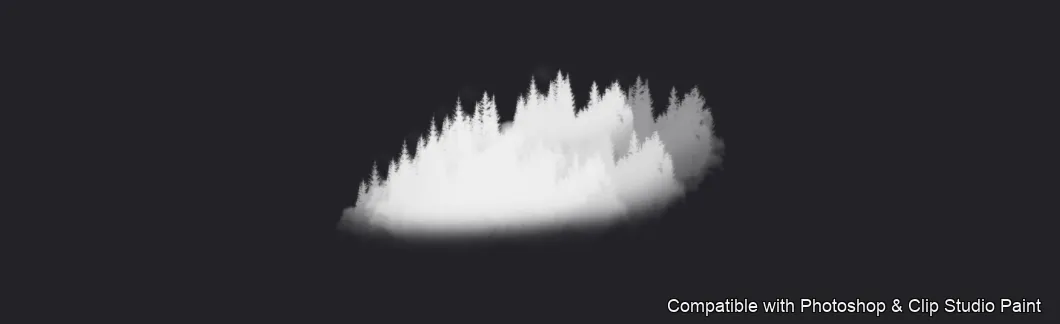
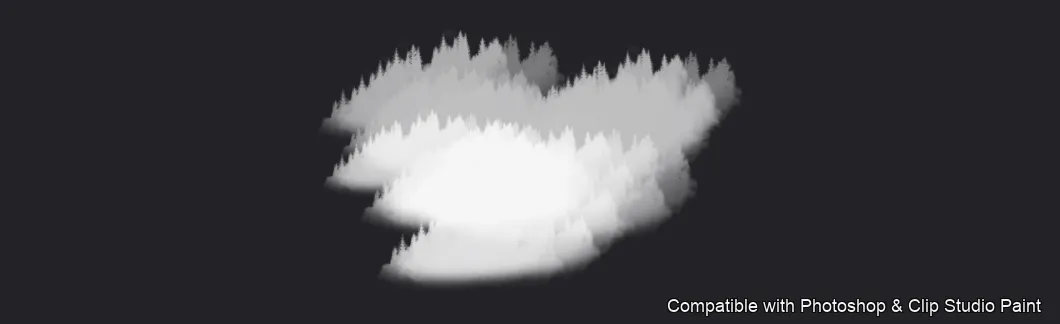
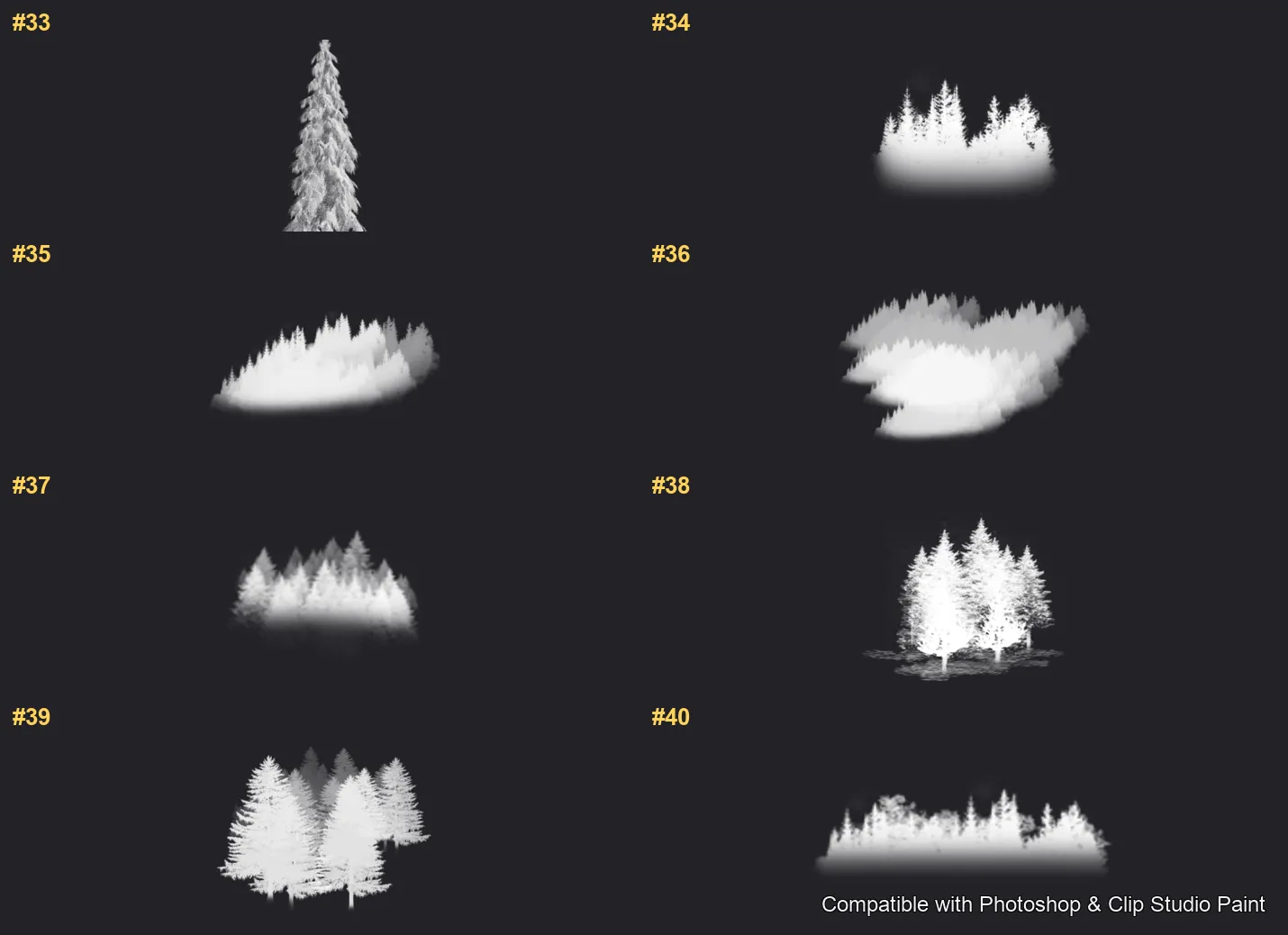
40 individual brush previews — see the exact stroke before you download.
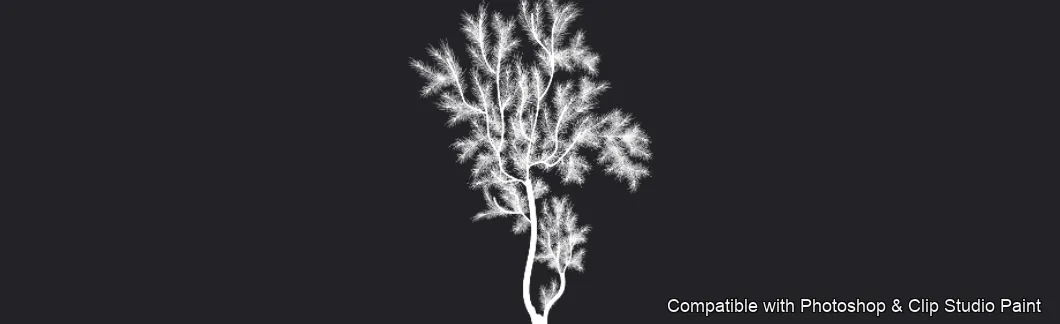
Pinewood Forest brush 1 of 40 — Photoshop & Clip Studio Paint .abr preview
Pinewood Forest brush 2 of 40 — Photoshop & Clip Studio Paint .abr preview
Pinewood Forest brush 3 of 40 — Photoshop & Clip Studio Paint .abr preview
Pinewood Forest brush 4 of 40 — Photoshop & Clip Studio Paint .abr preview
Pinewood Forest brush 5 of 40 — Photoshop & Clip Studio Paint .abr preview
Pinewood Forest brush 6 of 40 — Photoshop & Clip Studio Paint .abr preview
Pinewood Forest brush 7 of 40 — Photoshop & Clip Studio Paint .abr preview
Pinewood Forest brush 8 of 40 — Photoshop & Clip Studio Paint .abr preview
Pinewood Forest brush 9 of 40 — Photoshop & Clip Studio Paint .abr preview
Pinewood Forest brush 10 of 40 — Photoshop & Clip Studio Paint .abr preview
Pinewood Forest brush 11 of 40 — Photoshop & Clip Studio Paint .abr preview
Pinewood Forest brush 12 of 40 — Photoshop & Clip Studio Paint .abr preview
Pinewood Forest brush 13 of 40 — Photoshop & Clip Studio Paint .abr preview
Pinewood Forest brush 14 of 40 — Photoshop & Clip Studio Paint .abr preview
Pinewood Forest brush 15 of 40 — Photoshop & Clip Studio Paint .abr preview
Pinewood Forest brush 16 of 40 — Photoshop & Clip Studio Paint .abr preview
Pinewood Forest brush 17 of 40 — Photoshop & Clip Studio Paint .abr preview
Pinewood Forest brush 18 of 40 — Photoshop & Clip Studio Paint .abr preview
Pinewood Forest brush 19 of 40 — Photoshop & Clip Studio Paint .abr preview
Pinewood Forest brush 20 of 40 — Photoshop & Clip Studio Paint .abr preview
Pinewood Forest brush 21 of 40 — Photoshop & Clip Studio Paint .abr preview
Pinewood Forest brush 22 of 40 — Photoshop & Clip Studio Paint .abr preview
Pinewood Forest brush 23 of 40 — Photoshop & Clip Studio Paint .abr preview
Pinewood Forest brush 24 of 40 — Photoshop & Clip Studio Paint .abr preview
Pinewood Forest brush 25 of 40 — Photoshop & Clip Studio Paint .abr preview
Pinewood Forest brush 26 of 40 — Photoshop & Clip Studio Paint .abr preview
Pinewood Forest brush 27 of 40 — Photoshop & Clip Studio Paint .abr preview
Pinewood Forest brush 28 of 40 — Photoshop & Clip Studio Paint .abr preview
Pinewood Forest brush 29 of 40 — Photoshop & Clip Studio Paint .abr preview
Pinewood Forest brush 30 of 40 — Photoshop & Clip Studio Paint .abr preview
Pinewood Forest brush 31 of 40 — Photoshop & Clip Studio Paint .abr preview
Pinewood Forest brush 32 of 40 — Photoshop & Clip Studio Paint .abr preview
Pinewood Forest brush 33 of 40 — Photoshop & Clip Studio Paint .abr preview
Pinewood Forest brush 34 of 40 — Photoshop & Clip Studio Paint .abr preview
Pinewood Forest brush 35 of 40 — Photoshop & Clip Studio Paint .abr preview
Pinewood Forest brush 36 of 40 — Photoshop & Clip Studio Paint .abr preview
Pinewood Forest brush 37 of 40 — Photoshop & Clip Studio Paint .abr preview
Pinewood Forest brush 38 of 40 — Photoshop & Clip Studio Paint .abr preview
Pinewood Forest brush 39 of 40 — Photoshop & Clip Studio Paint .abr preview
Pinewood Forest brush 40 of 40 — Photoshop & Clip Studio Paint .abr preview

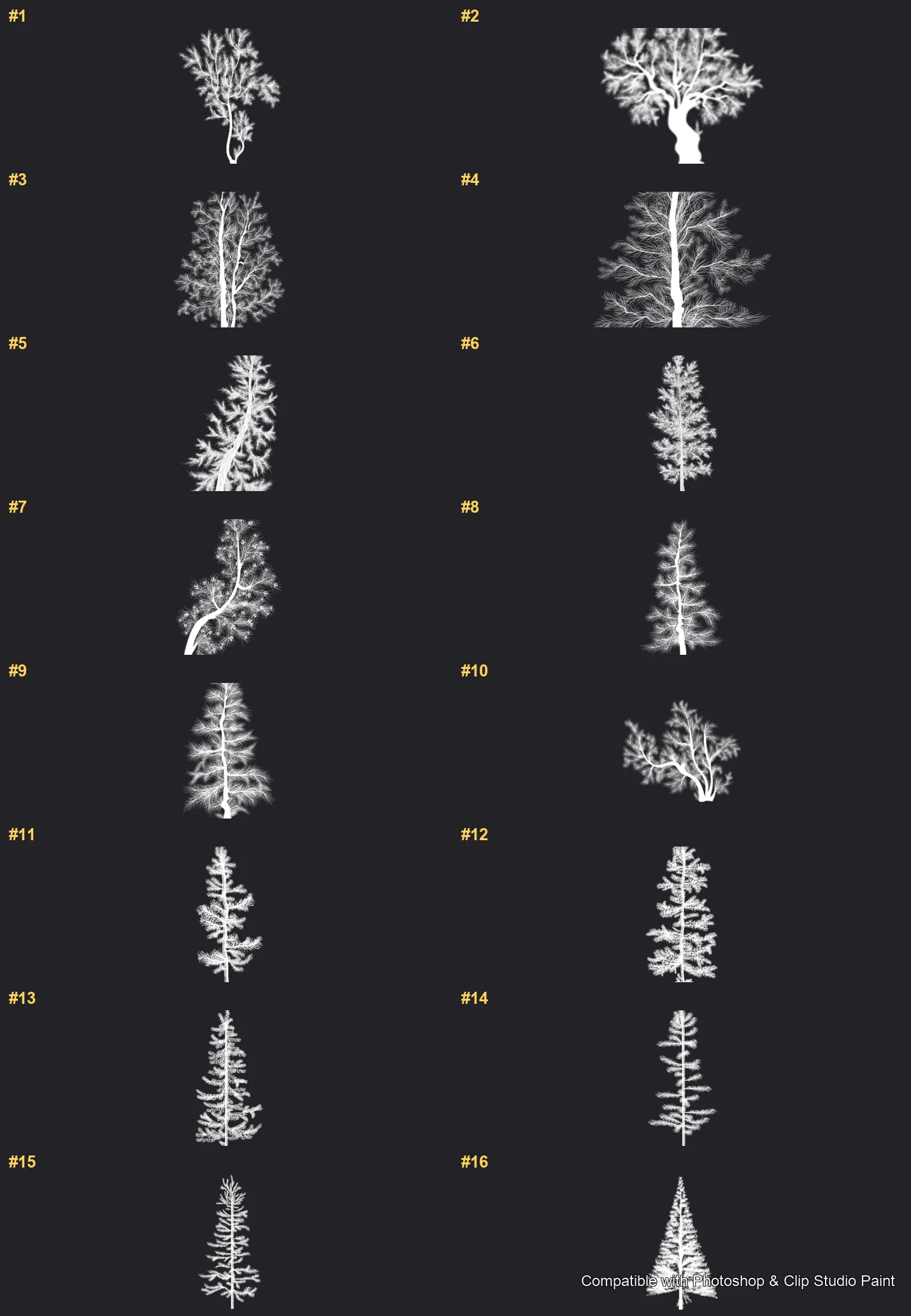
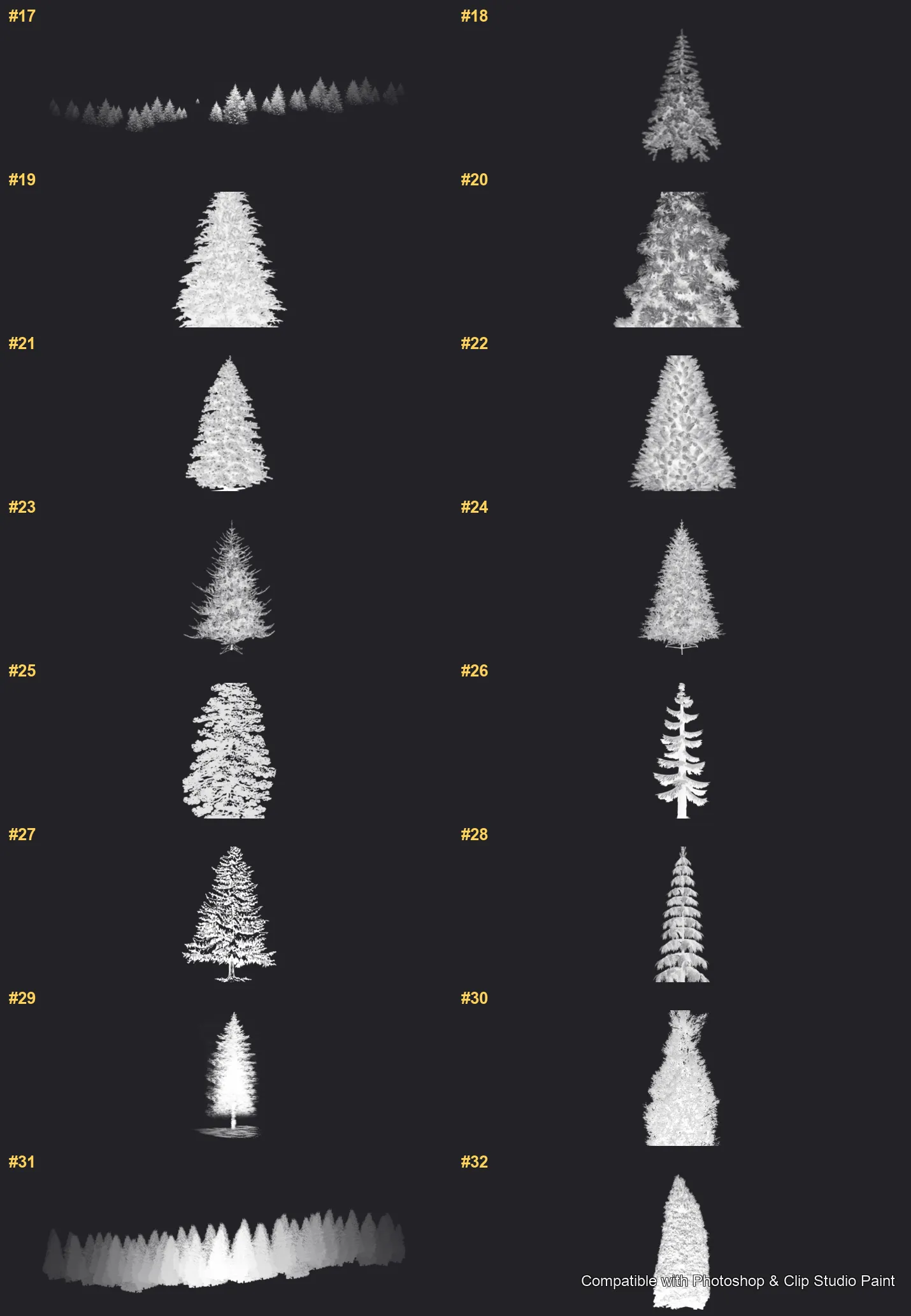
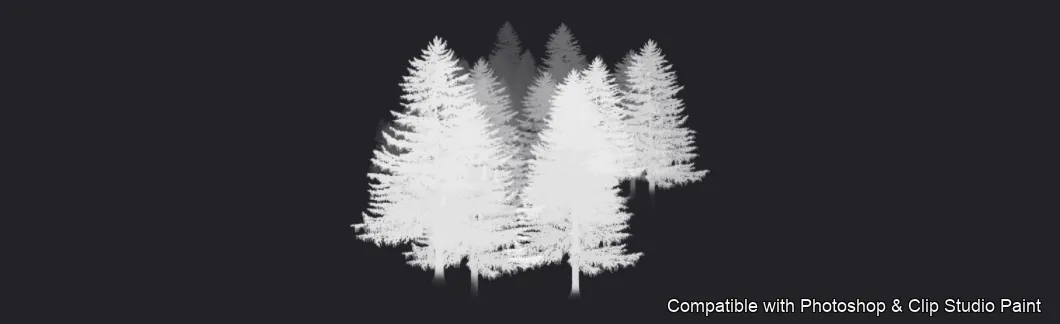
Full brush overview

Pinewood Forest Photoshop & Clip Studio Paint brushes overview sheet 1
Pinewood Forest Photoshop & Clip Studio Paint brushes overview sheet 2
Pinewood Forest Photoshop & Clip Studio Paint brushes overview sheet 3

How to install

In Adobe Photoshop

Double-click the .abr file to load it — or open the Brushes panel, click the menu and choose Import Brushes. Works on CC and newer, PC & Mac.
In Clip Studio Paint

Drag the same .abr file onto the Sub Tool palette and Clip Studio imports it as new brushes. Works on version 1.10.5 or later.

Pinewood Forest — FAQ

How much does the Pinewood Forest pack cost?+

Free — Pinewood Forest is a free download with no payment and no subscription. The .abr loads straight into Photoshop or Clip Studio Paint.

How many brushes are in the Pinewood Forest pack?+

The Pinewood Forest set includes 40 brushes — pines, firs, spruces and cedars.

Does it work in both Photoshop and Clip Studio Paint?+

Yes. You get a single .abr file — the same file imports into Adobe Photoshop (CC and newer) and Clip Studio Paint (1.10.5 or later). One purchase covers both apps, on PC and Mac.

What file format do I get?+

An Adobe Photoshop .abr brush file. In Photoshop, double-click it (or Brushes panel → menu → Import Brushes). In Clip Studio Paint, drag the .abr onto the Sub Tool palette.

Do these work on Procreate?+

Pinewood Forest is the desktop .abr edition for Photoshop and Clip Studio Paint. Many of our sets also come as Procreate .brushset editions — browse the Procreate catalog to check.
Browse this style