Skip to content
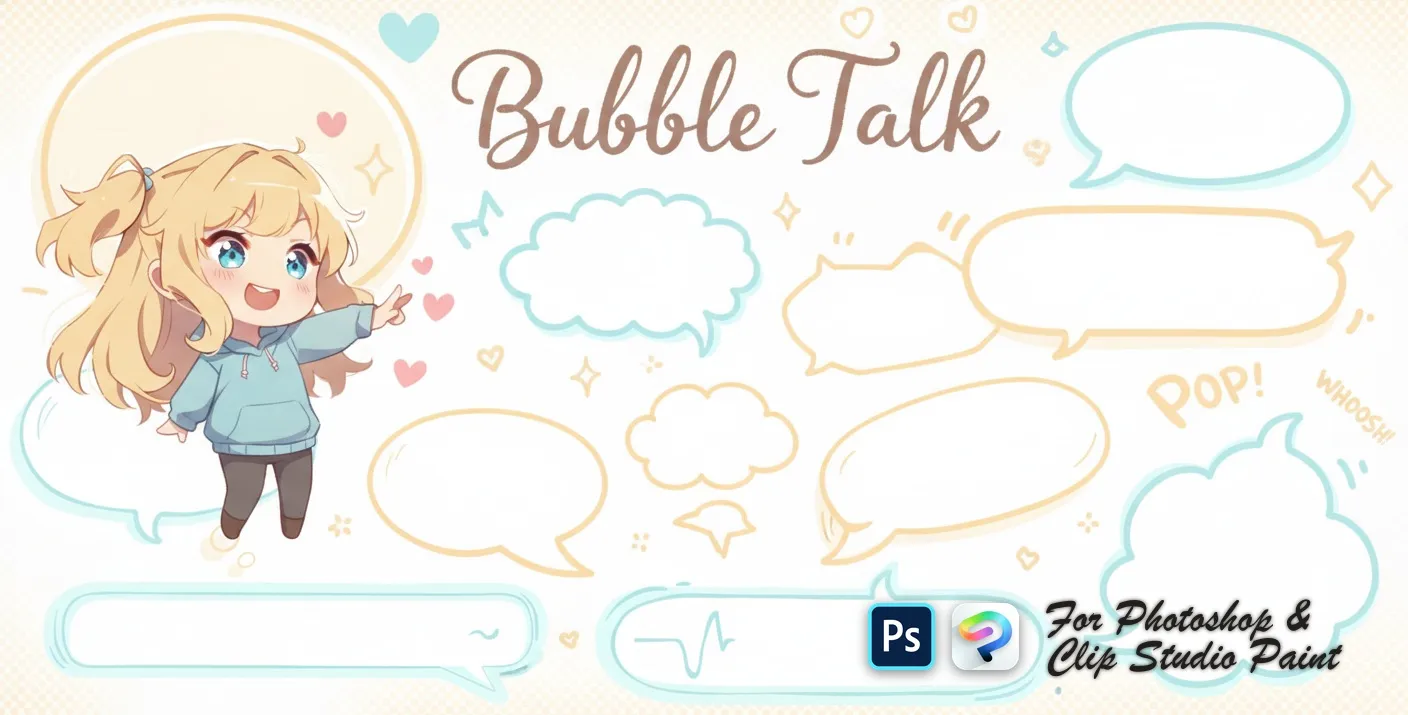
Bubble Talk Photoshop & Clip Studio Paint brush set cover
.abr · PC & Mac Cartoon

Bubble Talk Photoshop & Clip Studio Paint Brushes

JW by Julia White

A fun set of speech bubble stamps for comics, cute illustrations, and stickers. Compatible with Adobe Photoshop CC 2020+.

Brushes
60
Works with
Photoshop & Clip Studio Paint

$5 USD · one-time purchase

Get it on lava.top — $5

Instant download · one .abr file · works in Photoshop & Clip Studio Paint · free future updates

Download a free sample brush

One real brush from this set · free .abr file · no signup

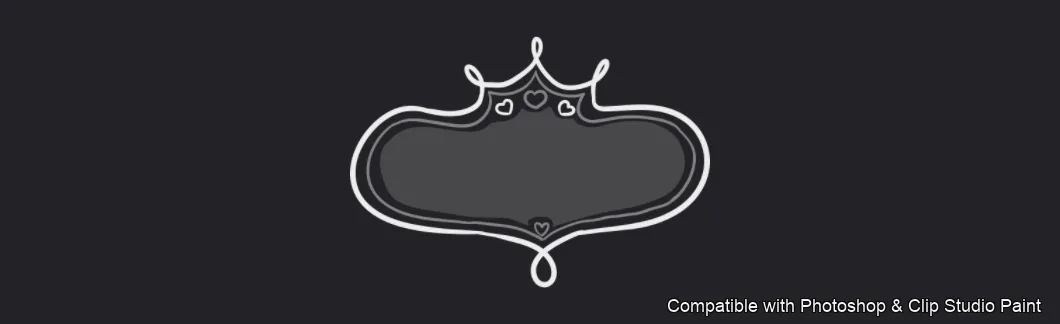
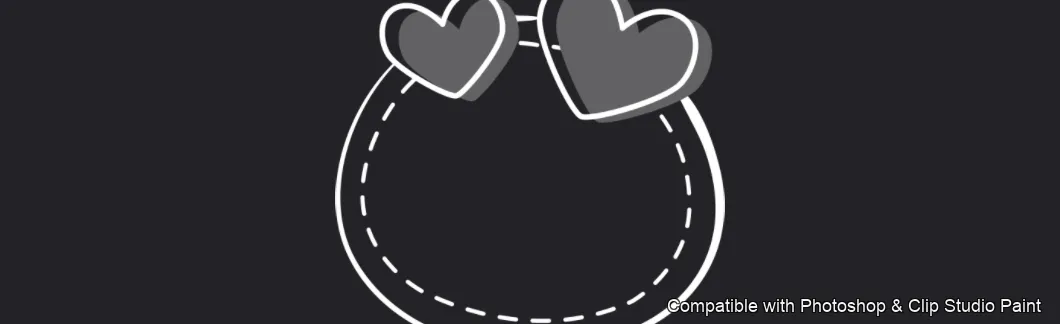
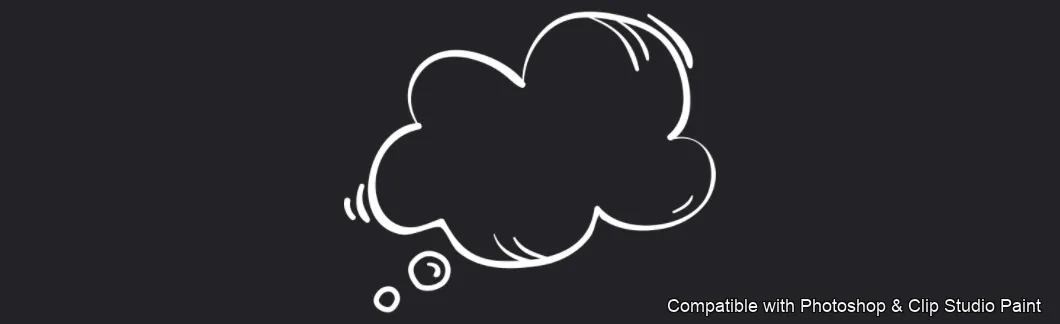
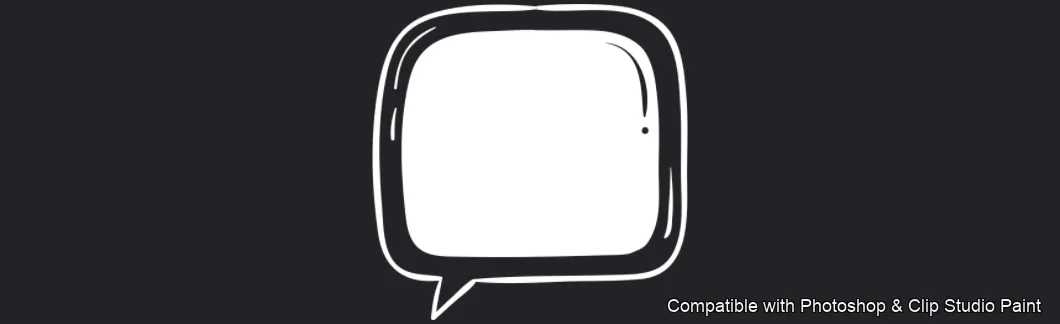
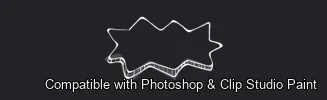
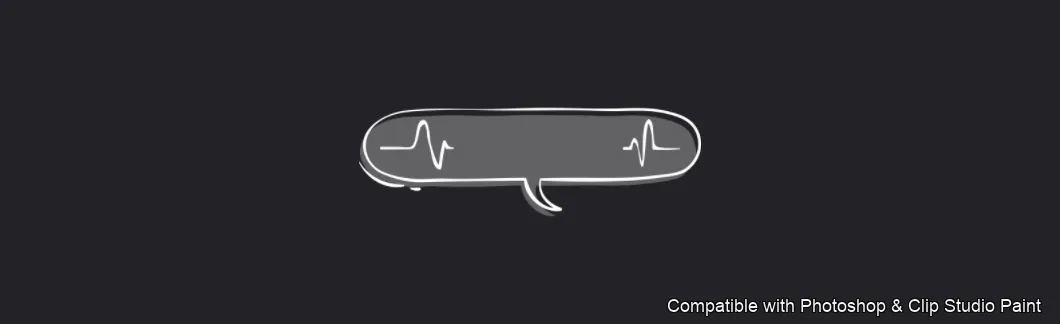
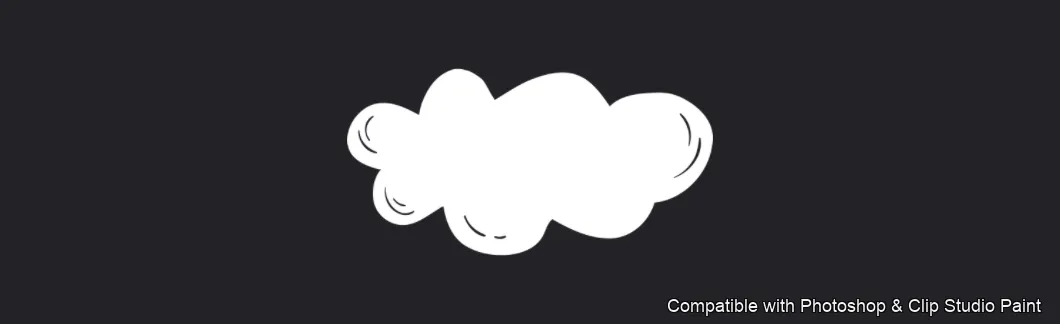
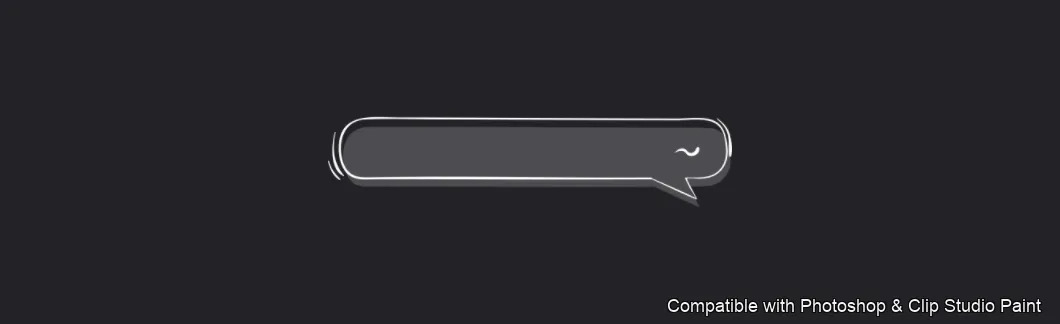
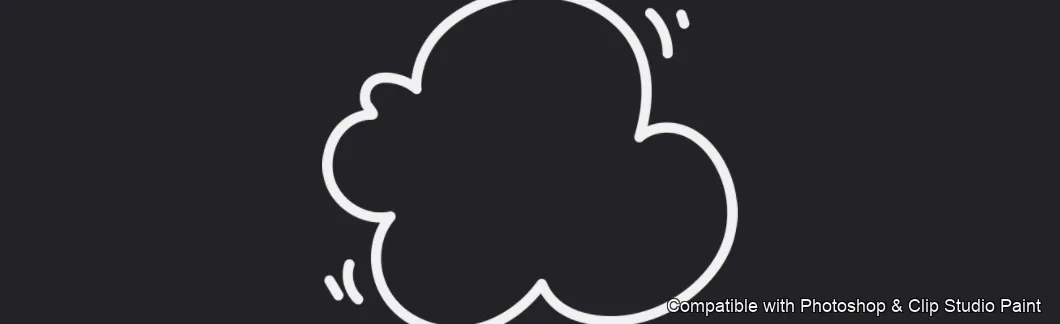
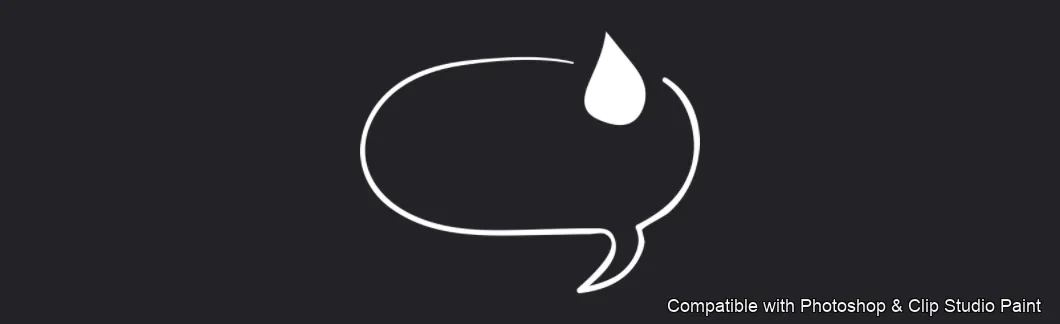
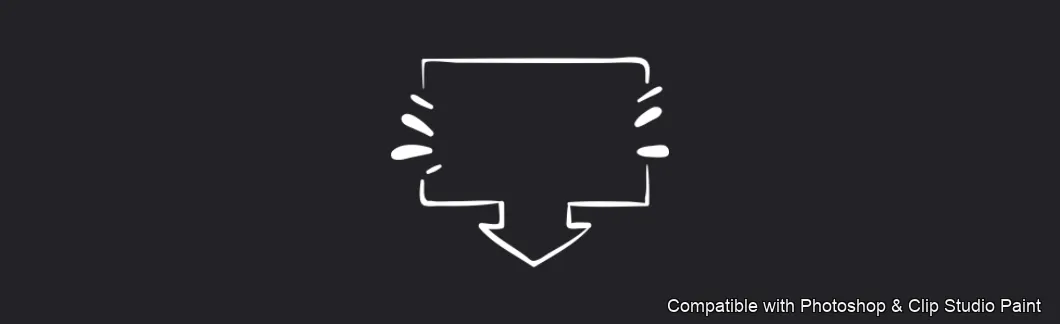
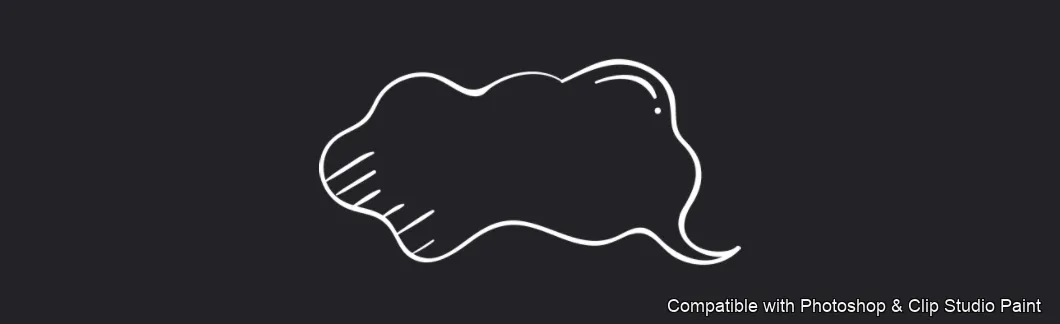
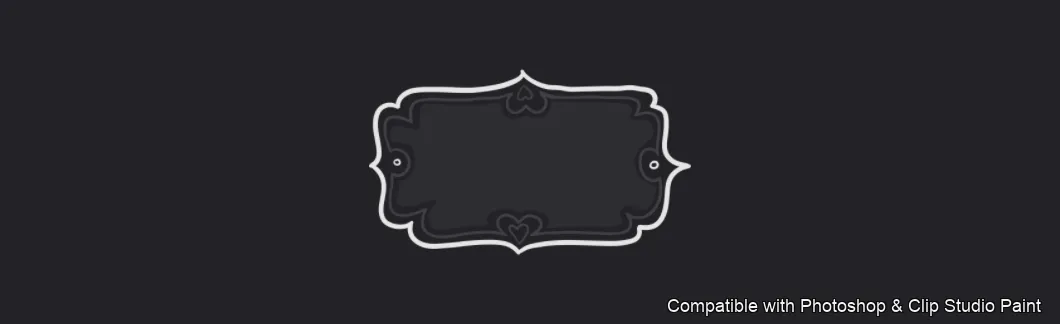
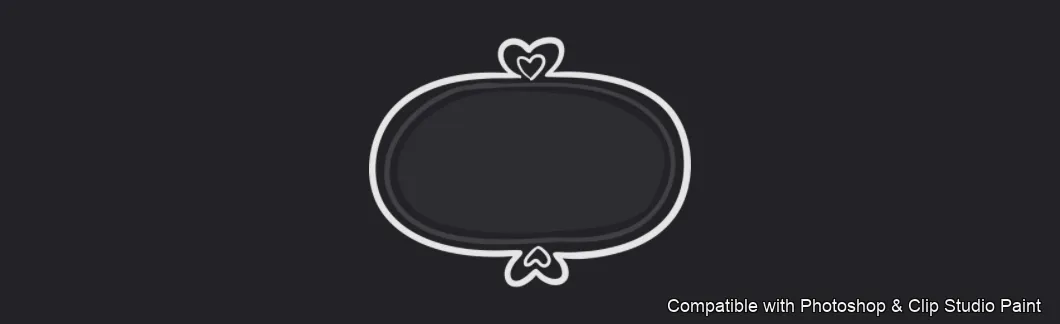
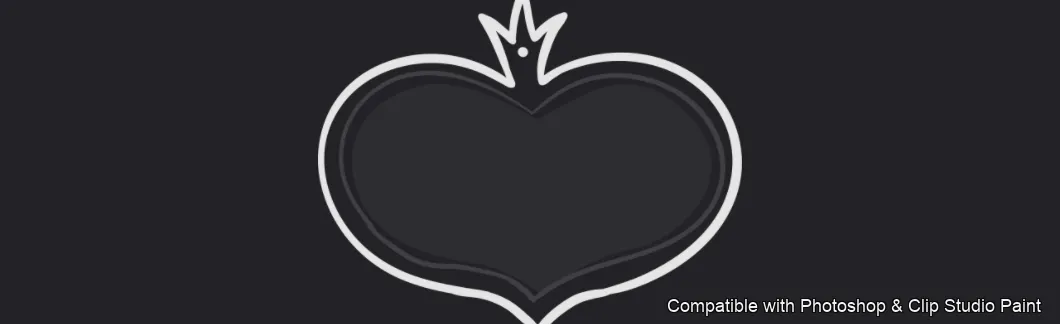
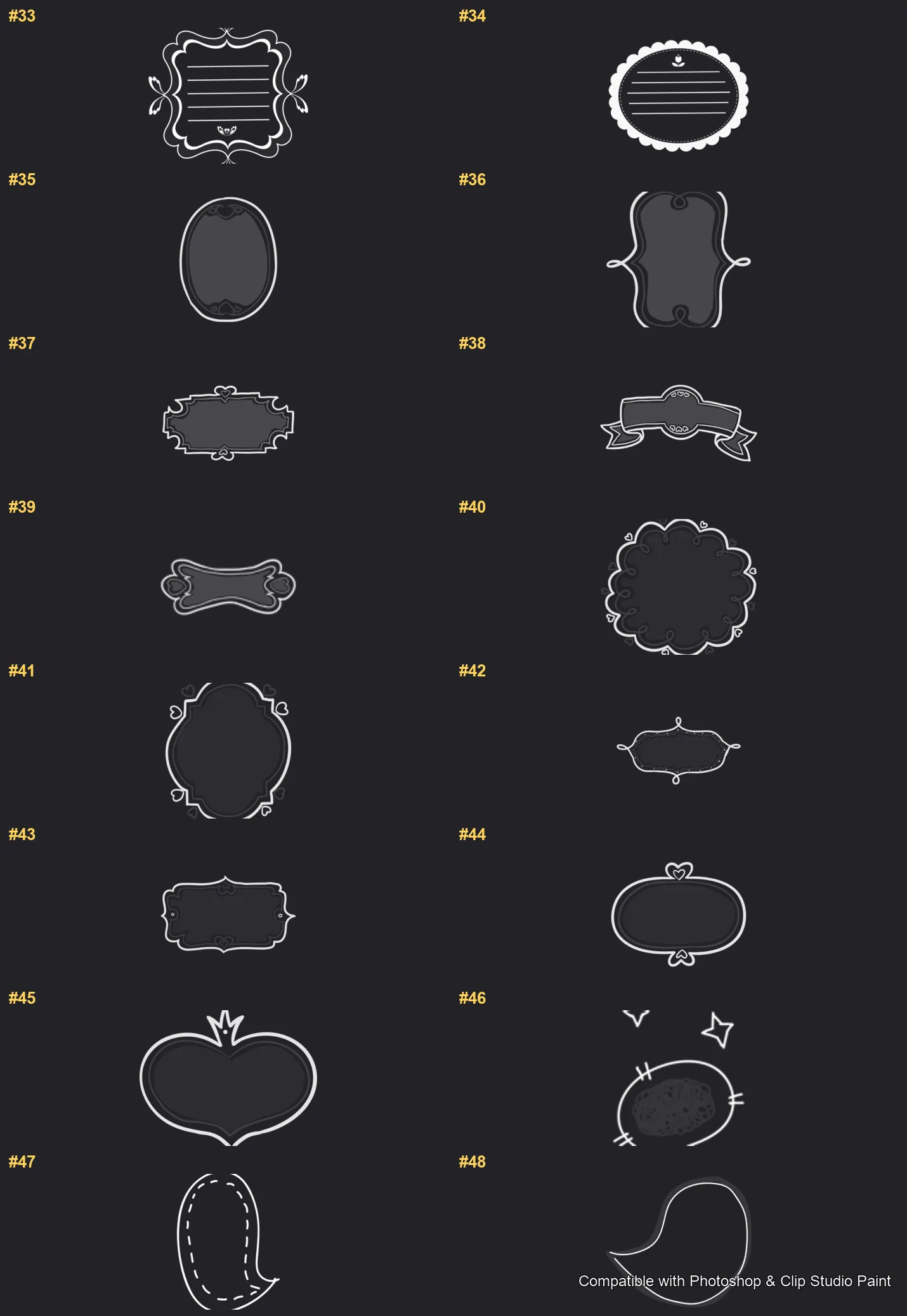
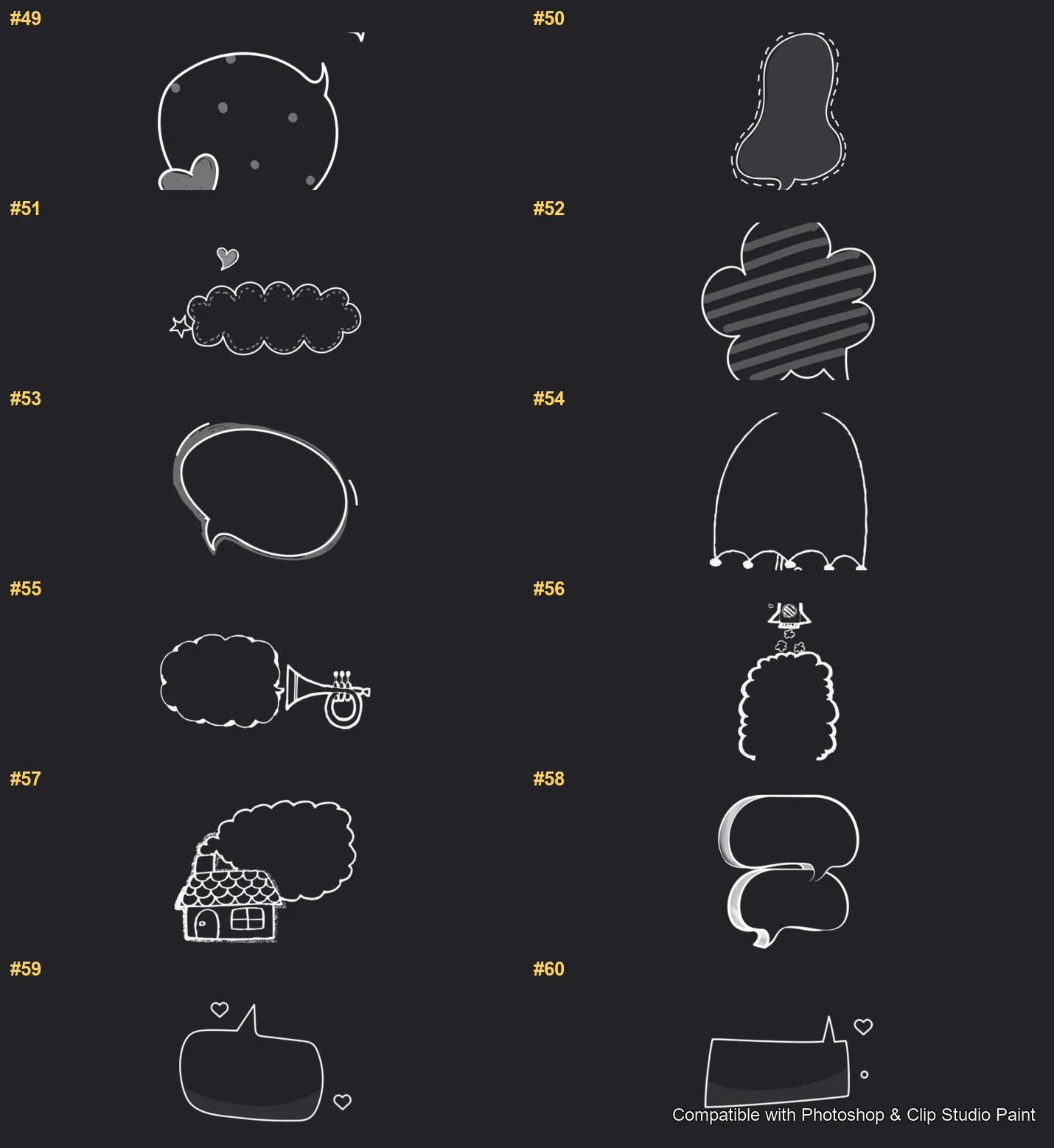
Drop in charming speech bubbles and text frames in Photoshop and Clip Studio Paint with the Bubble Talk stamp set! Made for comic and webtoon artists, manga and sticker creators, journal and planner designers, and anyone adding dialogue, captions and cute callouts to their work. 🎨 What’s inside: 📁 60 stamp brushes in Photoshop format (.abr) — also import directly into Clip Studio Paint 💡 Why you’ll love it: • – 60 Bubble Designs: A wide mix of hand-drawn speech and thought bubbles — round, oval, rectangle and capsule shapes, fluffy cloud thoughts, spiky shout bursts, heart bubbles, plus banners, ribbons, ticket tags and ornate frame labels for captions and titles. • – Talk in Seconds: Stamp a ready bubble and type your text inside, instead of drawing and erasing outlines by hand. • – Easy for Beginners: Quick to install and paint with, even if Photoshop or Clip Studio is new to you. • – Characterful Results: Clean, consistent bubbles that suit any cute or comic style. • – Download Now: Be creating in a couple of minutes! 🖌️ Brushes compatible: ✅ Adobe Photoshop (CC and newer) — .abr brush file ✅ Clip Studio Paint (ver. 1.10.5 or later) — imports the same .abr ✅ Works on both desktop and iPad 🛠️ How to install: • Photoshop — double-click the .abr file (or Brushes panel → menu → Import Brushes). • Clip Studio Paint — drag the .abr onto the Sub Tool palette. 📥 Instant digital download — start creating today!

Every brush in Bubble Talk

60 individual brush previews — see the exact stroke before you download.
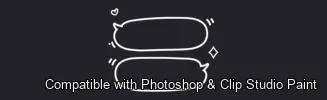
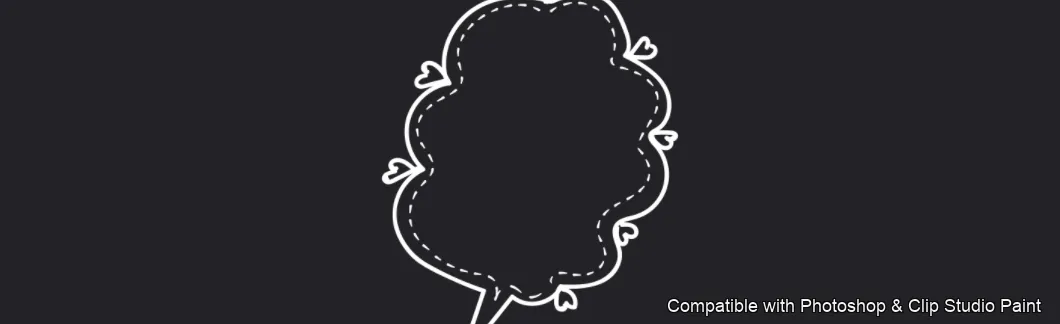
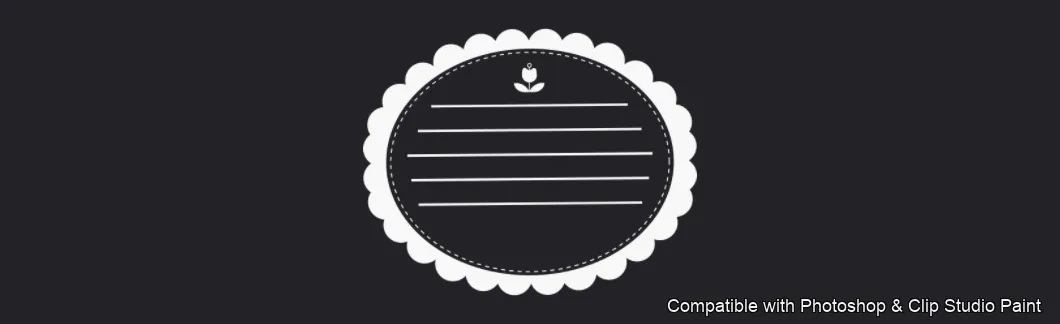
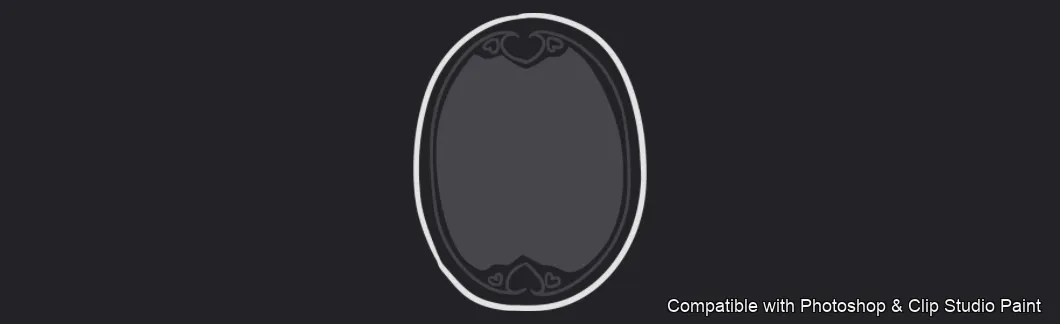
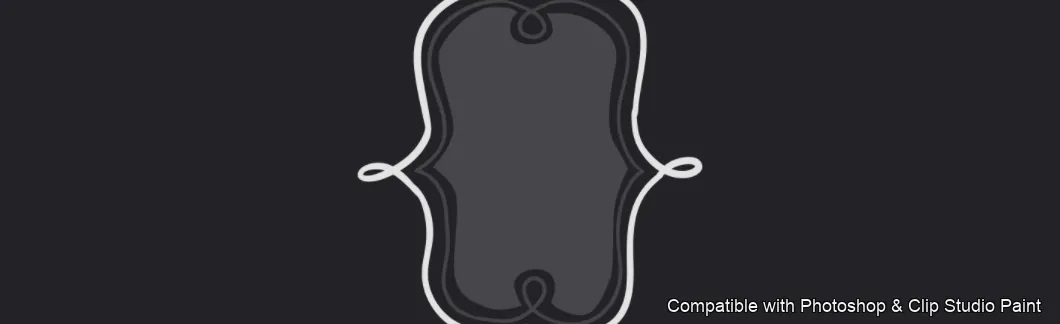
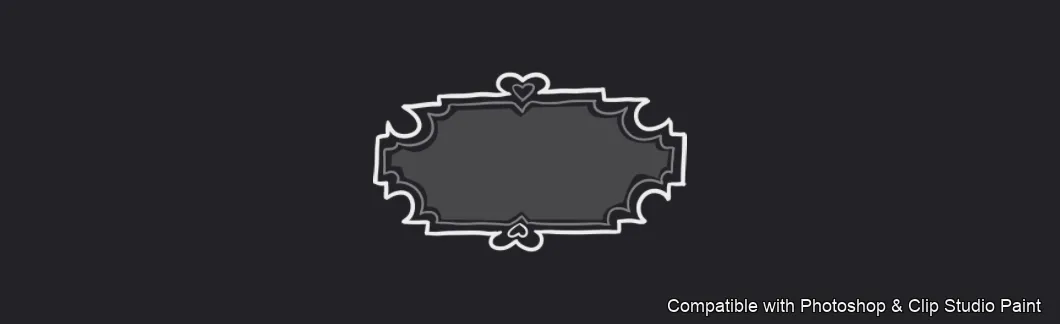
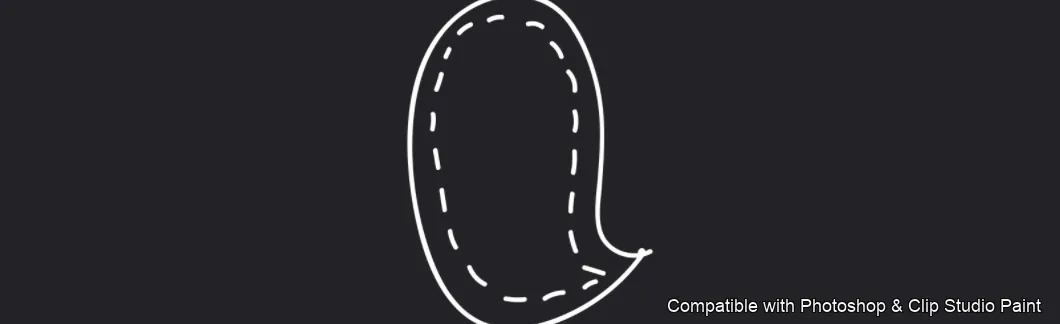
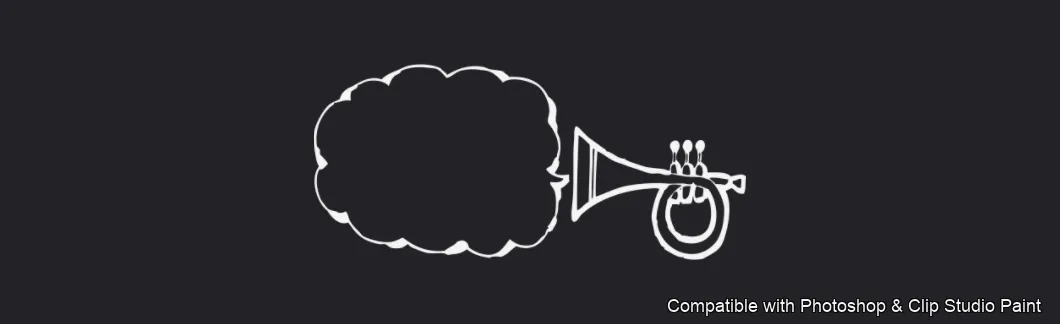
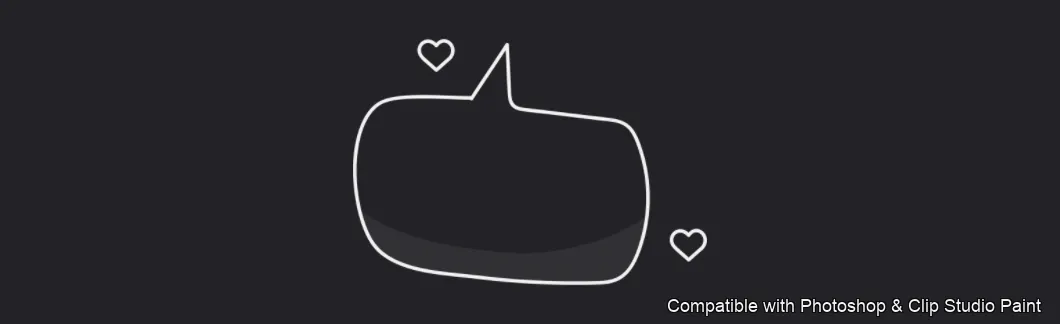
Bubble Talk brush 1 of 60 — Photoshop & Clip Studio Paint .abr preview
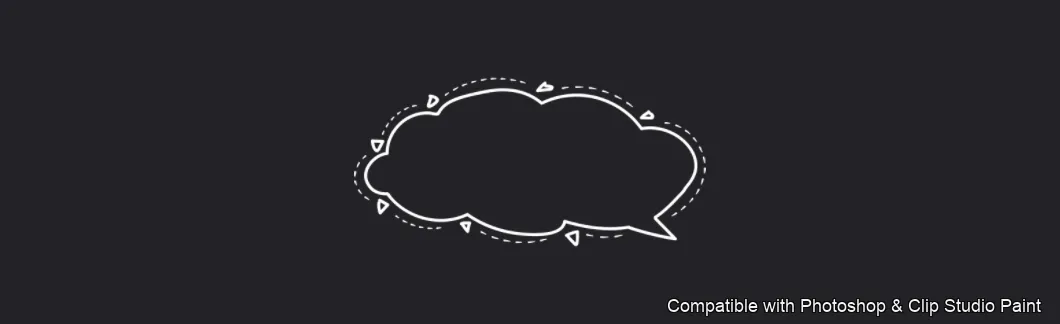
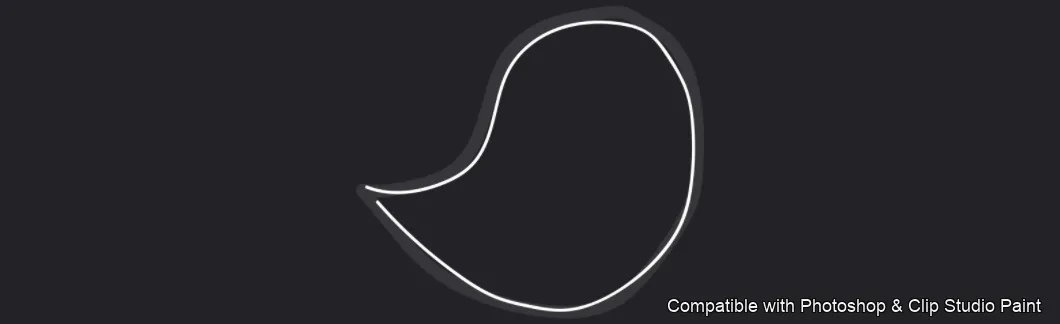
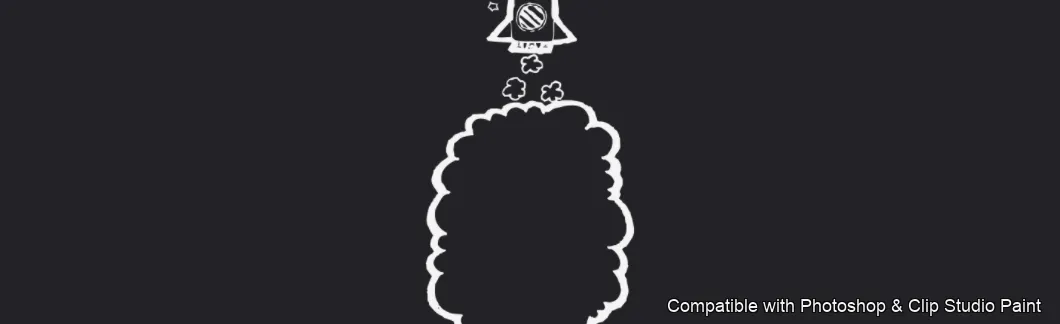
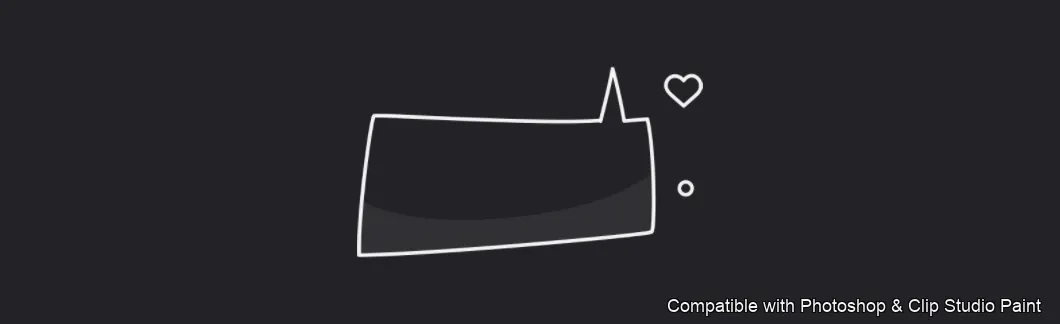
Bubble Talk brush 2 of 60 — Photoshop & Clip Studio Paint .abr preview
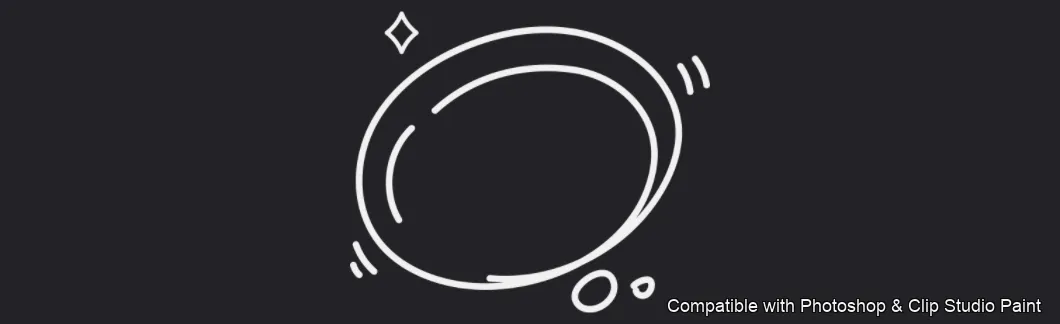
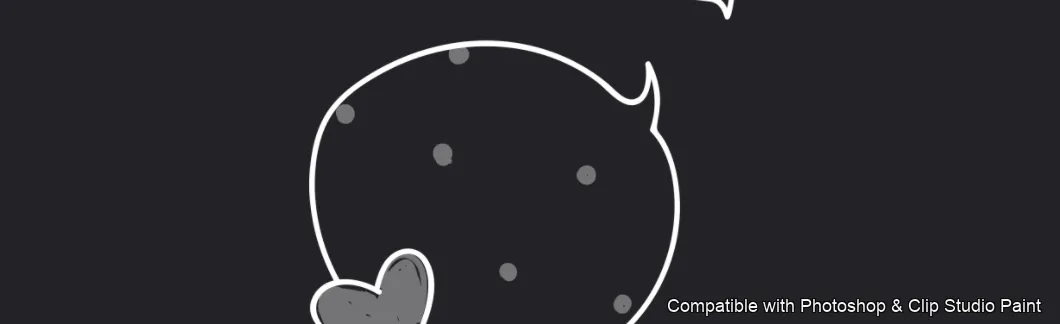
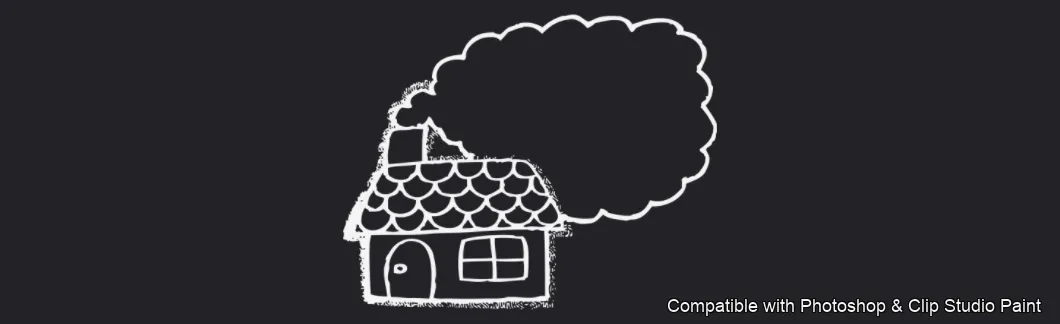
Bubble Talk brush 3 of 60 — Photoshop & Clip Studio Paint .abr preview
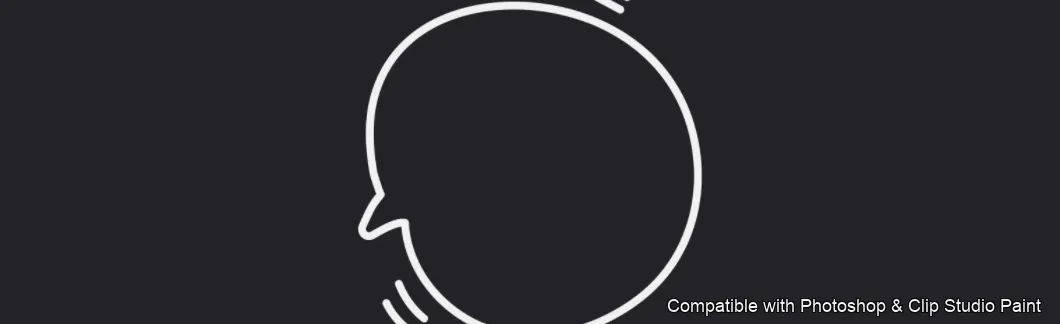
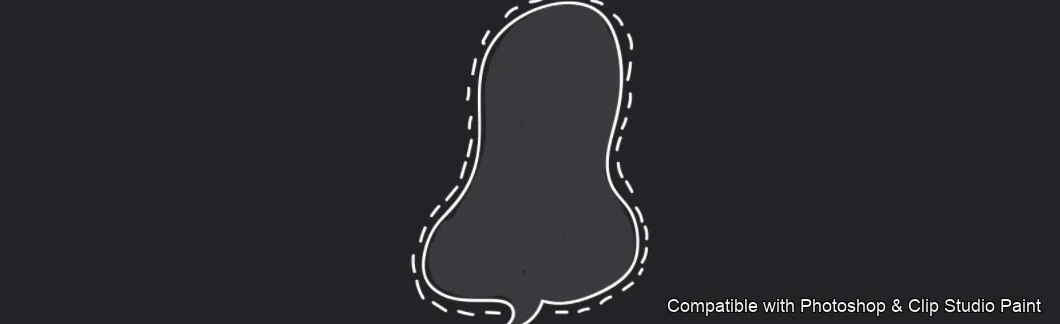
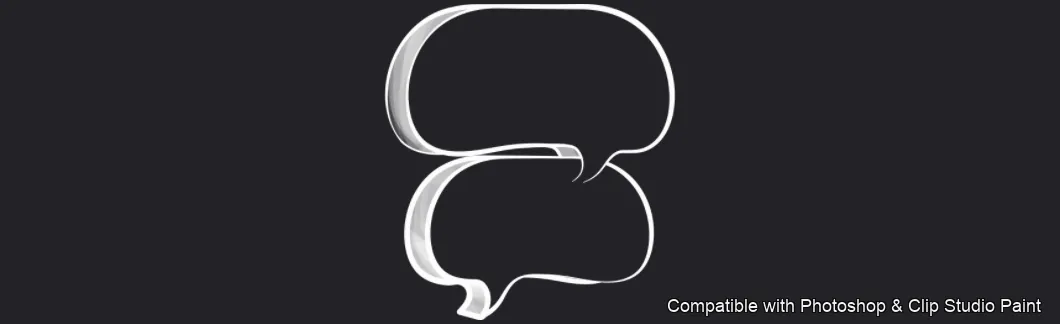
Bubble Talk brush 4 of 60 — Photoshop & Clip Studio Paint .abr preview
Bubble Talk brush 5 of 60 — Photoshop & Clip Studio Paint .abr preview
Bubble Talk brush 6 of 60 — Photoshop & Clip Studio Paint .abr preview
Bubble Talk brush 7 of 60 — Photoshop & Clip Studio Paint .abr preview
Bubble Talk brush 8 of 60 — Photoshop & Clip Studio Paint .abr preview
Bubble Talk brush 9 of 60 — Photoshop & Clip Studio Paint .abr preview
Bubble Talk brush 10 of 60 — Photoshop & Clip Studio Paint .abr preview
Bubble Talk brush 11 of 60 — Photoshop & Clip Studio Paint .abr preview
Bubble Talk brush 12 of 60 — Photoshop & Clip Studio Paint .abr preview
Bubble Talk brush 13 of 60 — Photoshop & Clip Studio Paint .abr preview
Bubble Talk brush 14 of 60 — Photoshop & Clip Studio Paint .abr preview
Bubble Talk brush 15 of 60 — Photoshop & Clip Studio Paint .abr preview
Bubble Talk brush 16 of 60 — Photoshop & Clip Studio Paint .abr preview
Bubble Talk brush 17 of 60 — Photoshop & Clip Studio Paint .abr preview
Bubble Talk brush 18 of 60 — Photoshop & Clip Studio Paint .abr preview
Bubble Talk brush 19 of 60 — Photoshop & Clip Studio Paint .abr preview
Bubble Talk brush 20 of 60 — Photoshop & Clip Studio Paint .abr preview
Bubble Talk brush 21 of 60 — Photoshop & Clip Studio Paint .abr preview
Bubble Talk brush 22 of 60 — Photoshop & Clip Studio Paint .abr preview
Bubble Talk brush 23 of 60 — Photoshop & Clip Studio Paint .abr preview
Bubble Talk brush 24 of 60 — Photoshop & Clip Studio Paint .abr preview
Bubble Talk brush 25 of 60 — Photoshop & Clip Studio Paint .abr preview
Bubble Talk brush 26 of 60 — Photoshop & Clip Studio Paint .abr preview
Bubble Talk brush 27 of 60 — Photoshop & Clip Studio Paint .abr preview
Bubble Talk brush 28 of 60 — Photoshop & Clip Studio Paint .abr preview
Bubble Talk brush 29 of 60 — Photoshop & Clip Studio Paint .abr preview
Bubble Talk brush 30 of 60 — Photoshop & Clip Studio Paint .abr preview
Bubble Talk brush 31 of 60 — Photoshop & Clip Studio Paint .abr preview
Bubble Talk brush 32 of 60 — Photoshop & Clip Studio Paint .abr preview
Bubble Talk brush 33 of 60 — Photoshop & Clip Studio Paint .abr preview
Bubble Talk brush 34 of 60 — Photoshop & Clip Studio Paint .abr preview
Bubble Talk brush 35 of 60 — Photoshop & Clip Studio Paint .abr preview
Bubble Talk brush 36 of 60 — Photoshop & Clip Studio Paint .abr preview
Bubble Talk brush 37 of 60 — Photoshop & Clip Studio Paint .abr preview
Bubble Talk brush 38 of 60 — Photoshop & Clip Studio Paint .abr preview
Bubble Talk brush 39 of 60 — Photoshop & Clip Studio Paint .abr preview
Bubble Talk brush 40 of 60 — Photoshop & Clip Studio Paint .abr preview
Bubble Talk brush 41 of 60 — Photoshop & Clip Studio Paint .abr preview
Bubble Talk brush 42 of 60 — Photoshop & Clip Studio Paint .abr preview
Bubble Talk brush 43 of 60 — Photoshop & Clip Studio Paint .abr preview
Bubble Talk brush 44 of 60 — Photoshop & Clip Studio Paint .abr preview
Bubble Talk brush 45 of 60 — Photoshop & Clip Studio Paint .abr preview
Bubble Talk brush 46 of 60 — Photoshop & Clip Studio Paint .abr preview
Bubble Talk brush 47 of 60 — Photoshop & Clip Studio Paint .abr preview
Bubble Talk brush 48 of 60 — Photoshop & Clip Studio Paint .abr preview
Bubble Talk brush 49 of 60 — Photoshop & Clip Studio Paint .abr preview
Bubble Talk brush 50 of 60 — Photoshop & Clip Studio Paint .abr preview
Bubble Talk brush 51 of 60 — Photoshop & Clip Studio Paint .abr preview
Bubble Talk brush 52 of 60 — Photoshop & Clip Studio Paint .abr preview
Bubble Talk brush 53 of 60 — Photoshop & Clip Studio Paint .abr preview
Bubble Talk brush 54 of 60 — Photoshop & Clip Studio Paint .abr preview
Bubble Talk brush 55 of 60 — Photoshop & Clip Studio Paint .abr preview
Bubble Talk brush 56 of 60 — Photoshop & Clip Studio Paint .abr preview
Bubble Talk brush 57 of 60 — Photoshop & Clip Studio Paint .abr preview
Bubble Talk brush 58 of 60 — Photoshop & Clip Studio Paint .abr preview
Bubble Talk brush 59 of 60 — Photoshop & Clip Studio Paint .abr preview
Bubble Talk brush 60 of 60 — Photoshop & Clip Studio Paint .abr preview

Full brush overview

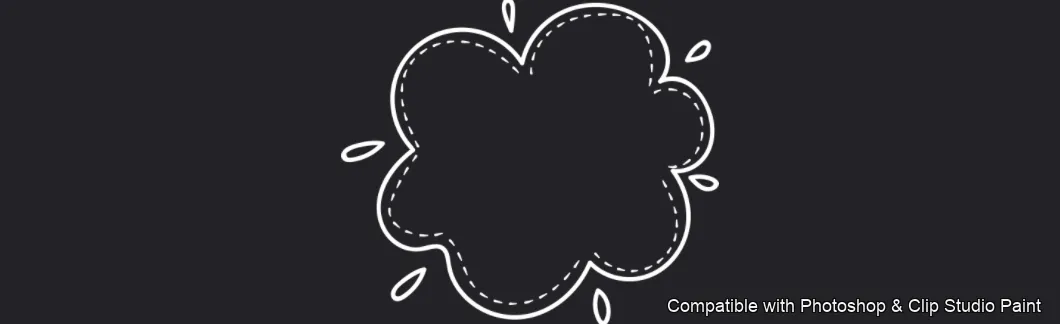
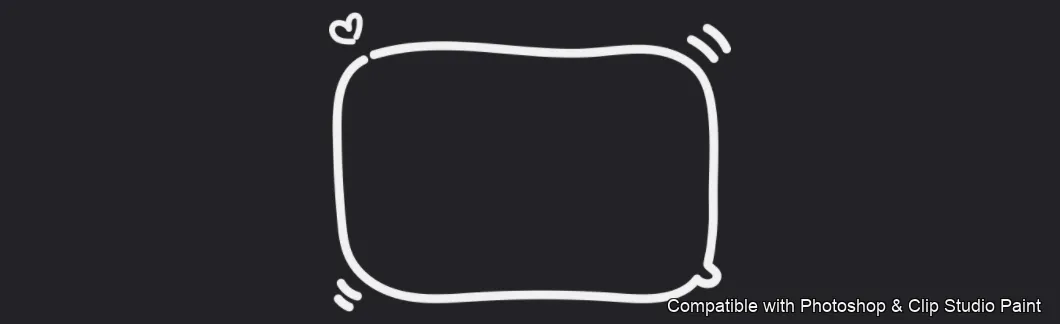
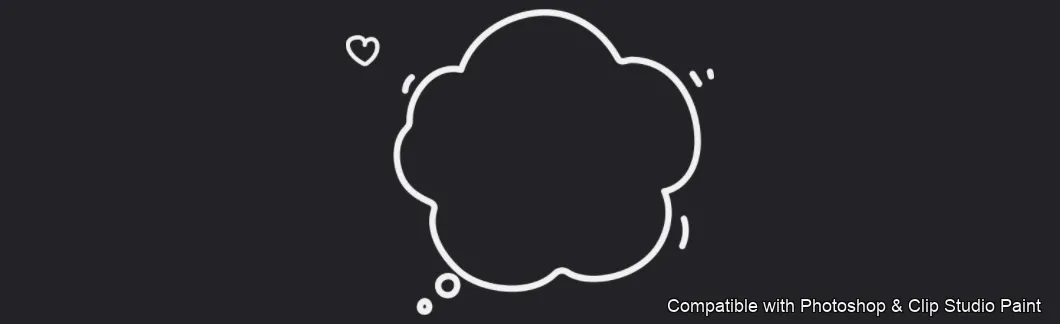
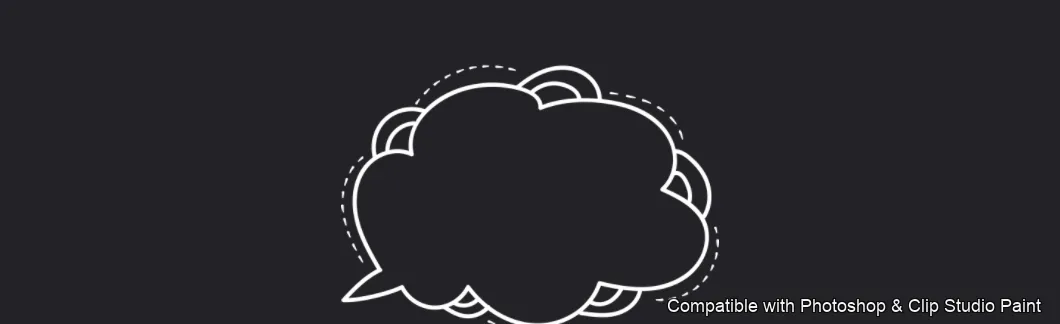
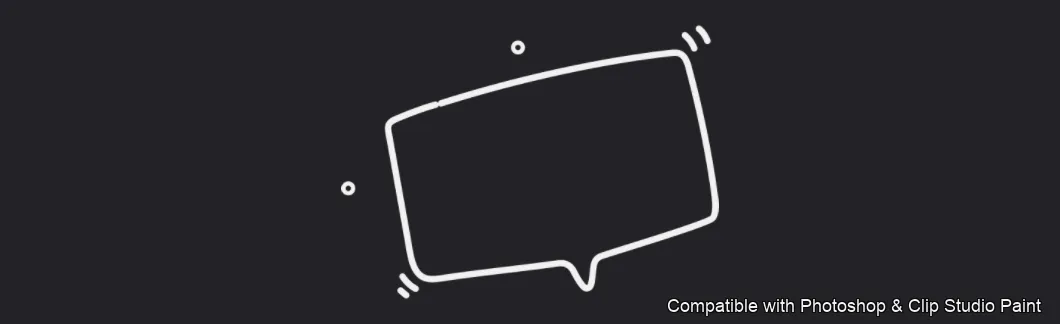
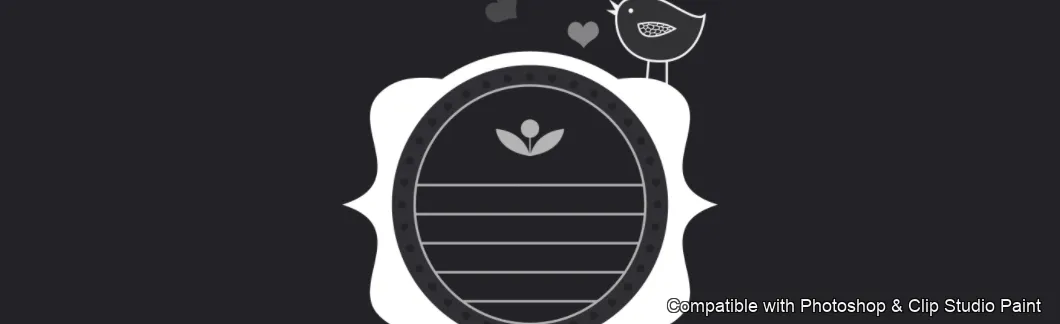
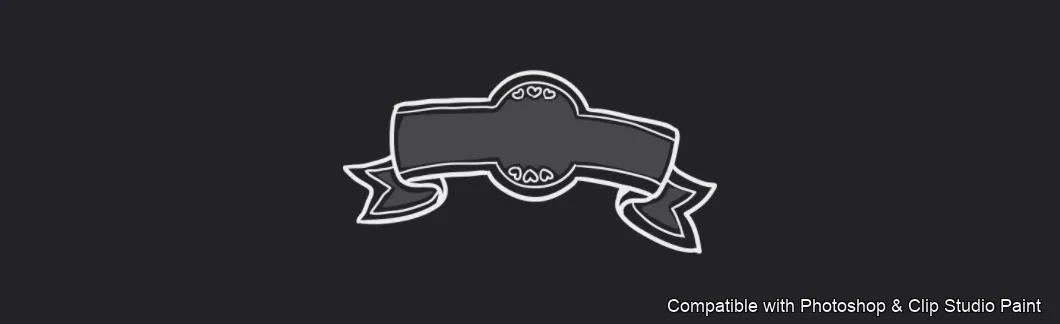
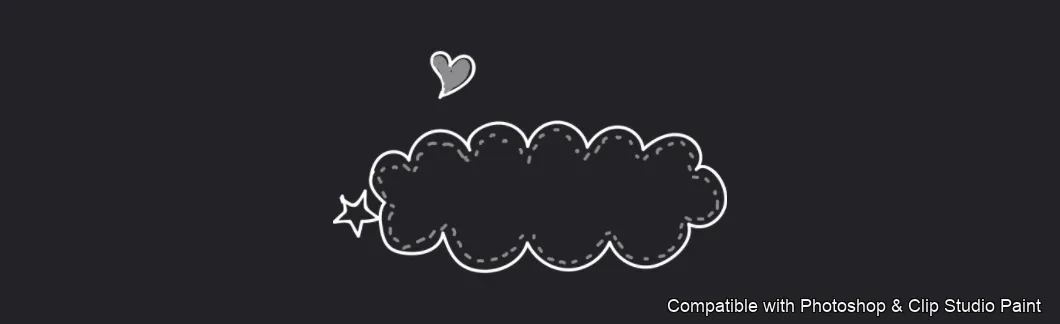
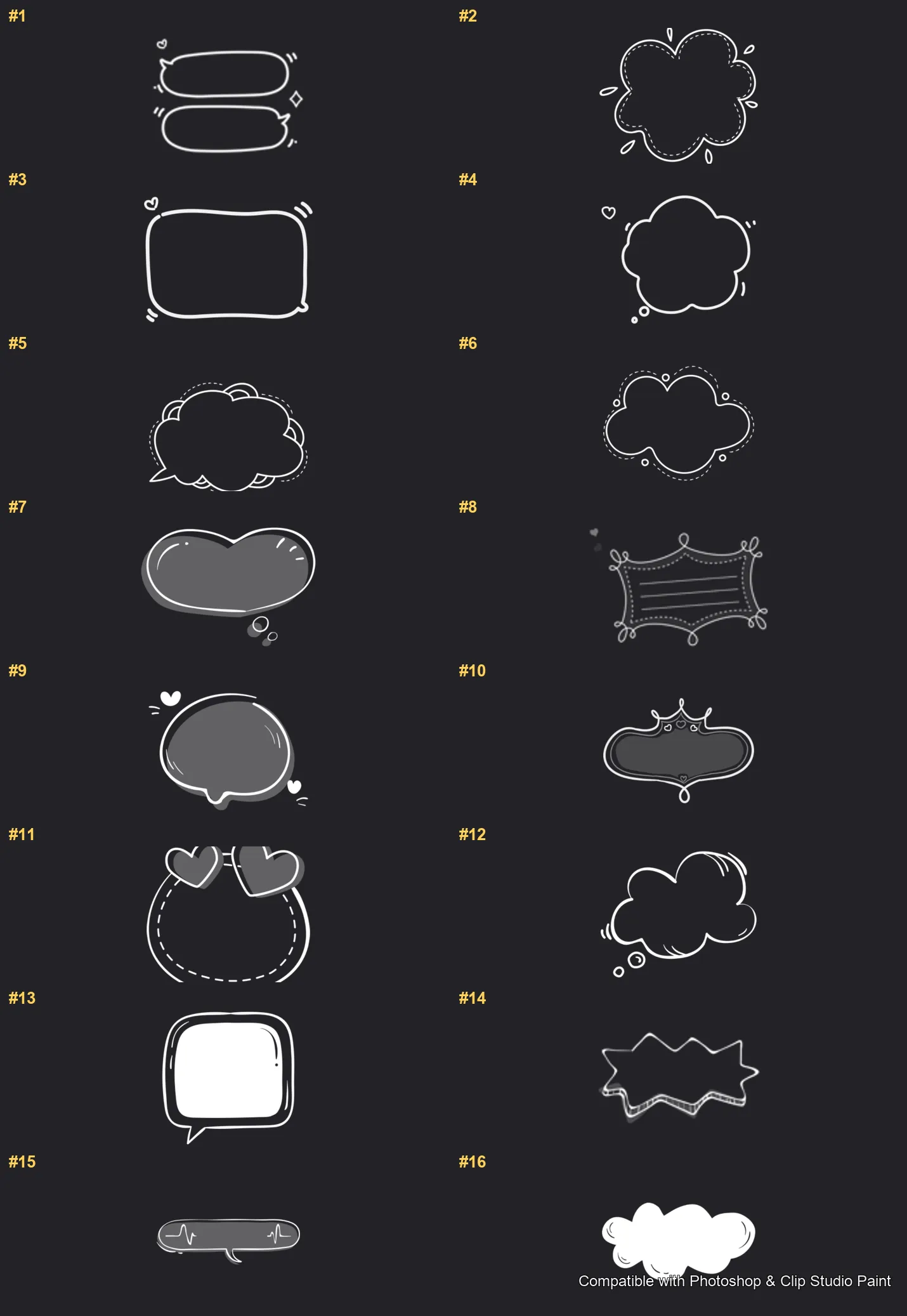
Bubble Talk Photoshop & Clip Studio Paint brushes overview sheet 1
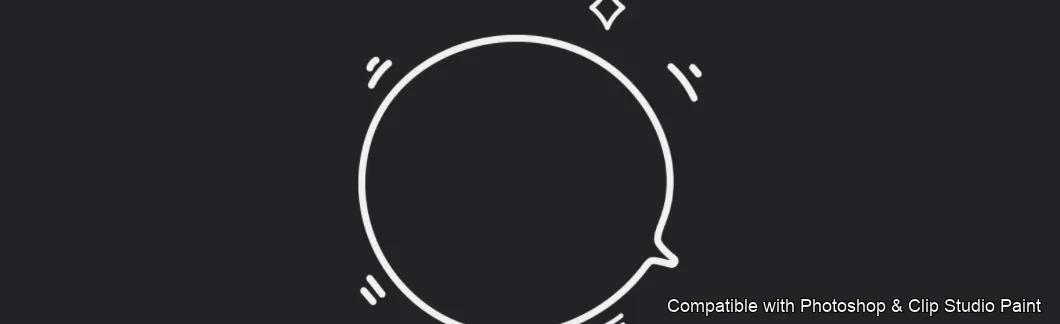
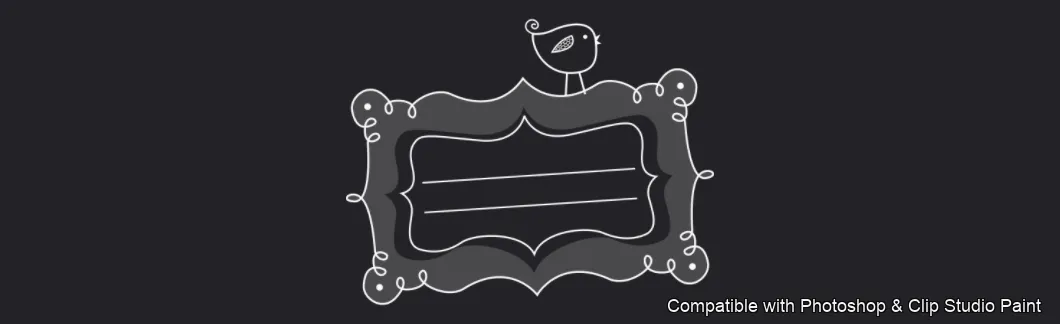
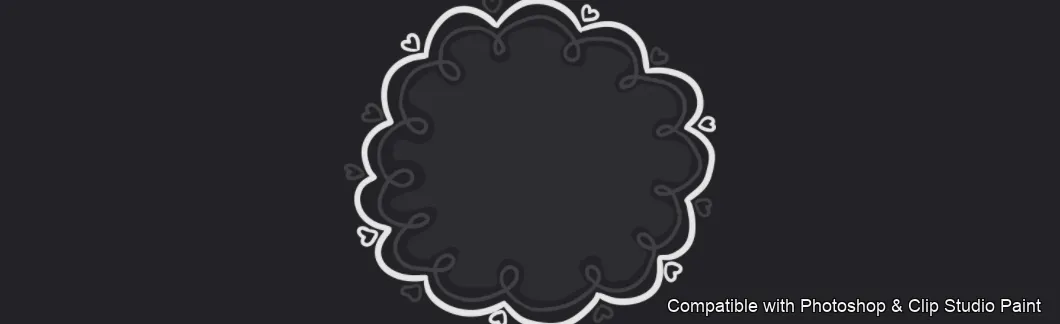
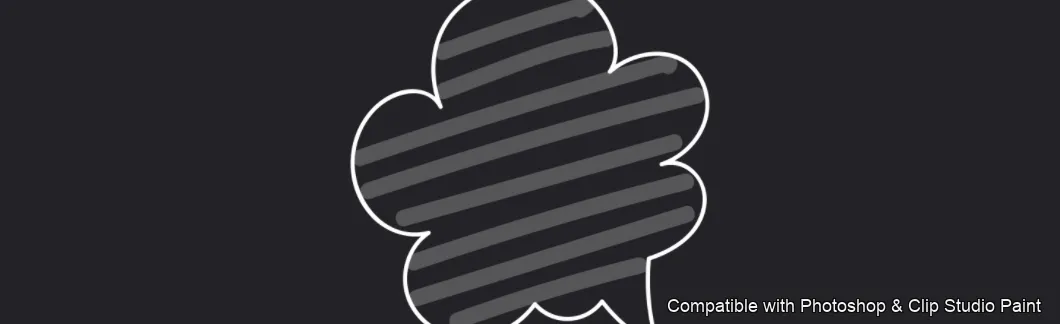
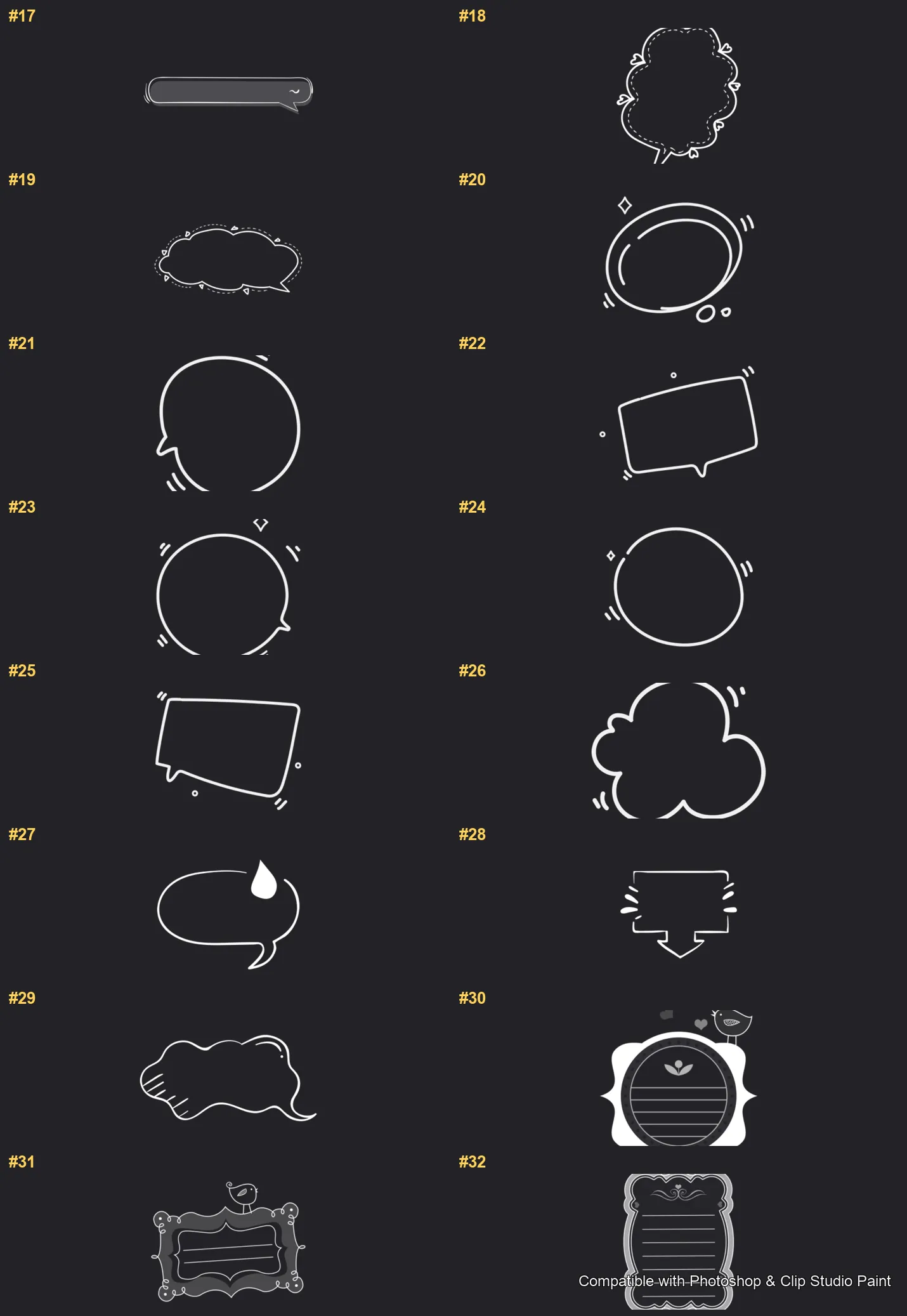
Bubble Talk Photoshop & Clip Studio Paint brushes overview sheet 2
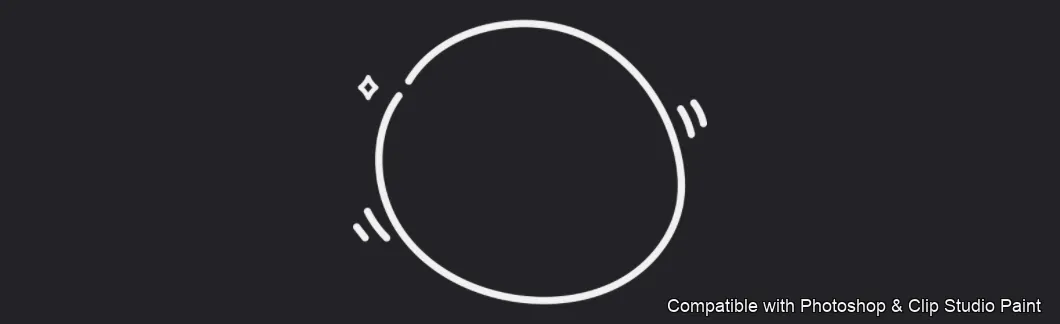
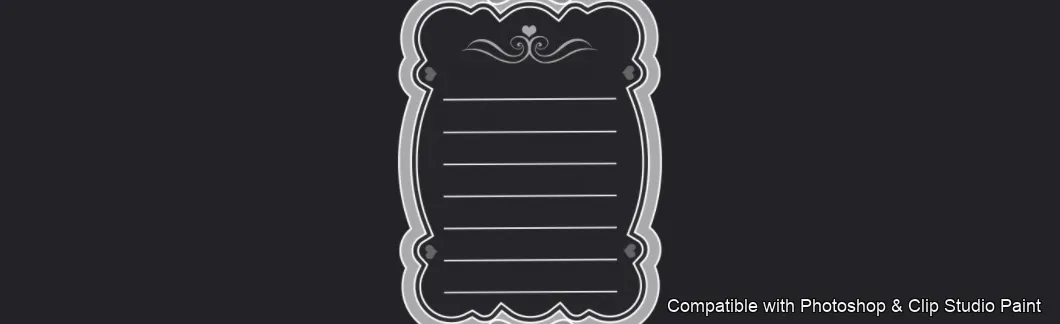
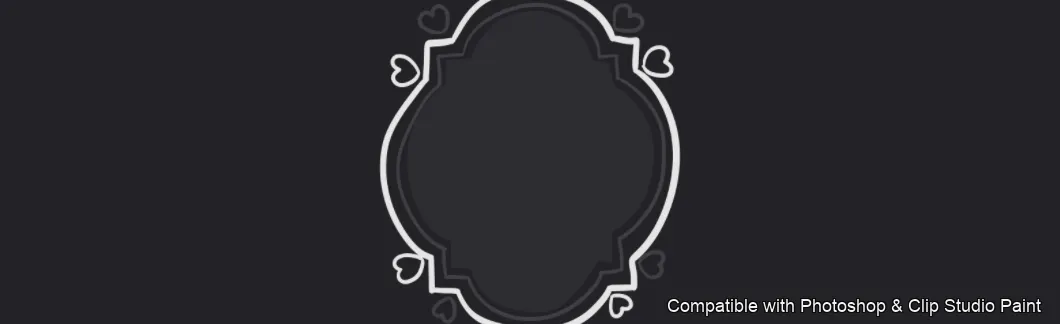
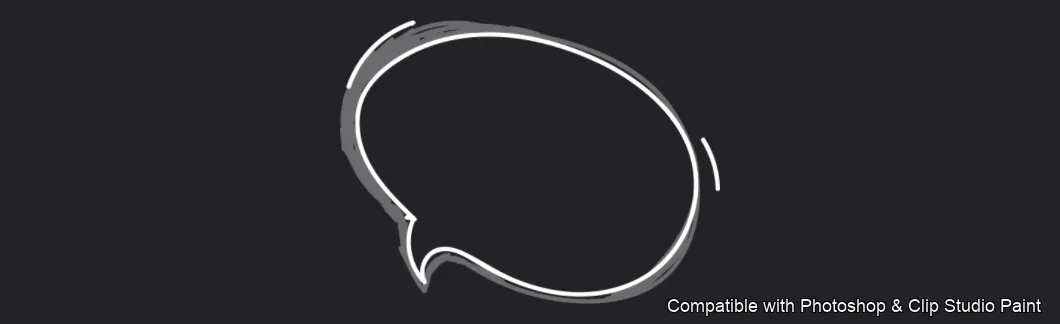
Bubble Talk Photoshop & Clip Studio Paint brushes overview sheet 3
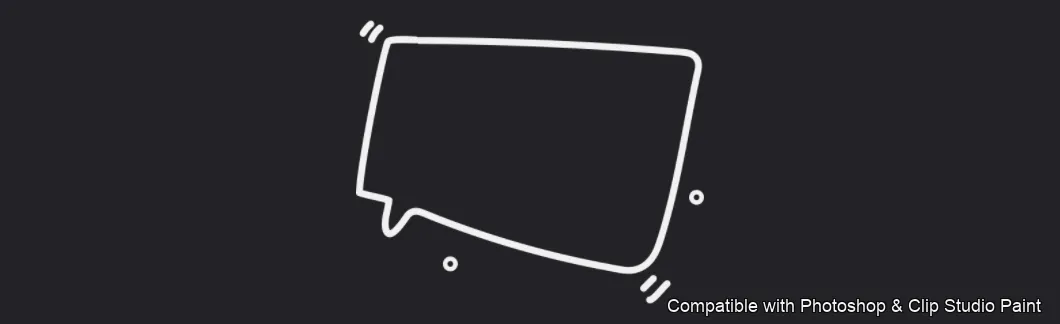
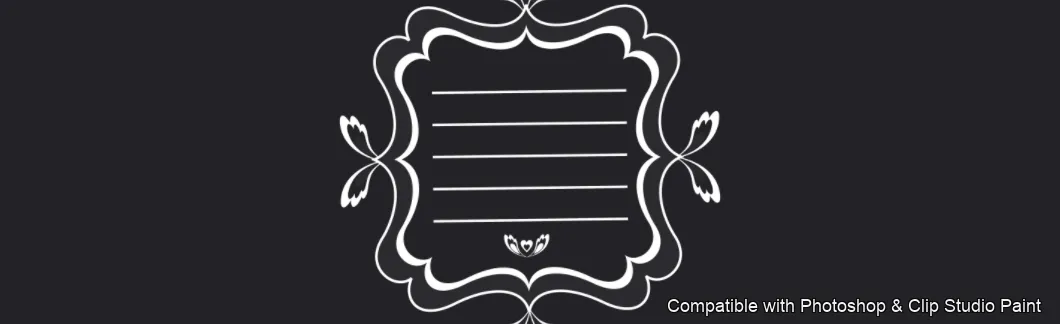
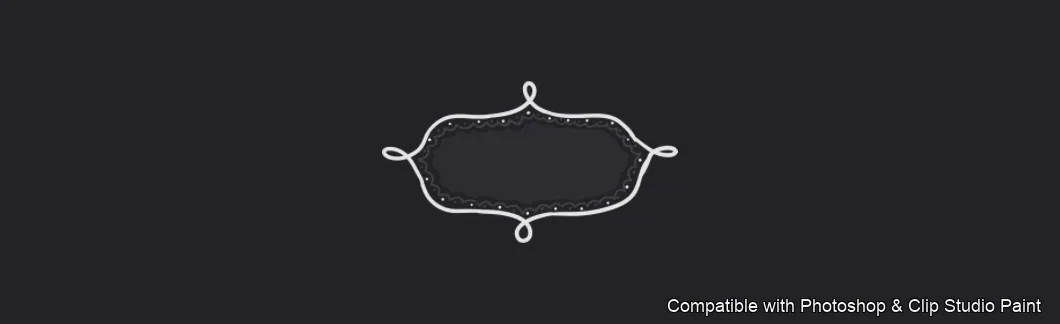
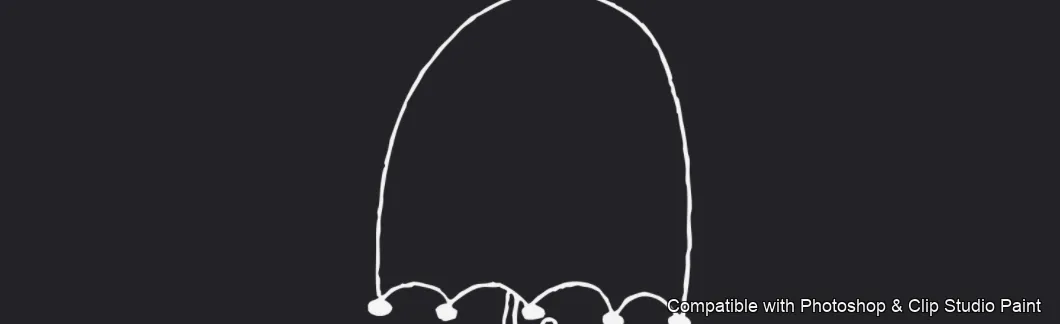
Bubble Talk Photoshop & Clip Studio Paint brushes overview sheet 4

How to install

In Adobe Photoshop

Double-click the .abr file to load it — or open the Brushes panel, click the menu and choose Import Brushes. Works on CC and newer, PC & Mac.
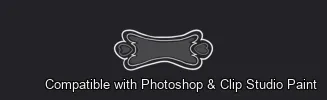
In Clip Studio Paint

Drag the same .abr file onto the Sub Tool palette and Clip Studio imports it as new brushes. Works on version 1.10.5 or later.

Bubble Talk — FAQ

How much does the Bubble Talk pack cost?+

$5 (USD) — a one-time purchase, not a subscription. One payment covers both Photoshop and Clip Studio Paint, with free future updates.

How many brushes are in the Bubble Talk pack?+

The Bubble Talk set includes 60 brushes — round, oval and rectangle.

Does it work in both Photoshop and Clip Studio Paint?+

Yes. You get a single .abr file — the same file imports into Adobe Photoshop (CC and newer) and Clip Studio Paint (1.10.5 or later). One purchase covers both apps, on PC and Mac.

What file format do I get?+

An Adobe Photoshop .abr brush file. In Photoshop, double-click it (or Brushes panel → menu → Import Brushes). In Clip Studio Paint, drag the .abr onto the Sub Tool palette.

Do these work on Procreate?+

Bubble Talk is the desktop .abr edition for Photoshop and Clip Studio Paint. Many of our sets also come as Procreate .brushset editions — browse the Procreate catalog to check.